• Skip to primary navigation
  • Skip to main content
  • Skip to primary sidebar

Jackie Van Nice

E-Learning Goodness by Jackie Van Nice

  • Home
  • About
  • Blog
  • Portfolio
    • Articulate’s ELH Challenges
    • Sales Mobility Software
    • Product Sales
    • Sexual Harassment
    • Code of Conduct
  • Freebies
    • Free Storyline Templates
    • Free PowerPoint Templates
    • Free Images
    • Freelancing Tips
    • Free Resources to Help Get Started in eLearning
  • Work With Me
  • Contact

Visual Design

Video Backgrounds to Enhance E-Learning

August 16, 2015 By Jackie Van Nice 3 Comments

Click Image to Launch Demo (With Audio)

Click Image to Launch Demo (With Audio)

This week’s challenge is to show how video backgrounds can be used to make elearning more engaging. Thanks to some free assets, it was a quick way to have some fun this week.

The Idea

As challenged, I wanted to design e-learning start screens, but make them more engaging using simple video backgrounds to lure learners in.

The Design

I started by browsing some of the free video assets David Anderson linked to, and found these videos at Coverr. I was looking for something that would loop well and that I was inspired to play with. After that it was a matter of coming up with course topics and visual  and audio design elements to fit.
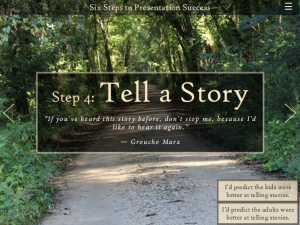
Busking Video Background ExampleEntry #1 – Busking

I’m sure there are countless reasons someone would be outdoors playing with a yoyo, but it made me think of street performers and buskers. I added a font that looked rather string-like and buttons designed to mimic the color, shape, animation, and position of the yoyo. I also added a bluesy acoustic bit of music from audionautix to complete the scene.
Color Palette Video Background ExampleEntry #2 – Inspired Color Palettes

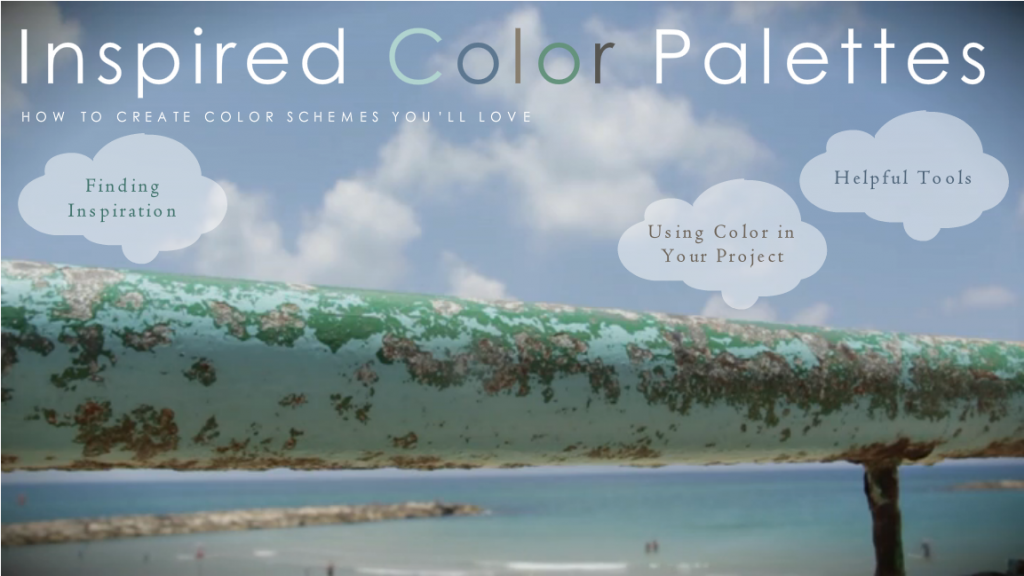
To me, the most stunning part of this video was the gorgeous natural palette that had developed on this railing at the beach, so that became my theme. The button shapes mimic the clouds in the sky, and I looped an audio track of ocean waves beneath the video. Of course, the most important part was to integrate the natural palette on the railing into my own color scheme, and you’ll see it in the text colors. The sans-serif font is Century Gothic and the serif font is Centaur.

See (and Hear) Them in Action!

Ready to see if video backgrounds make these courses seem a little more appealing? You can decide right here:
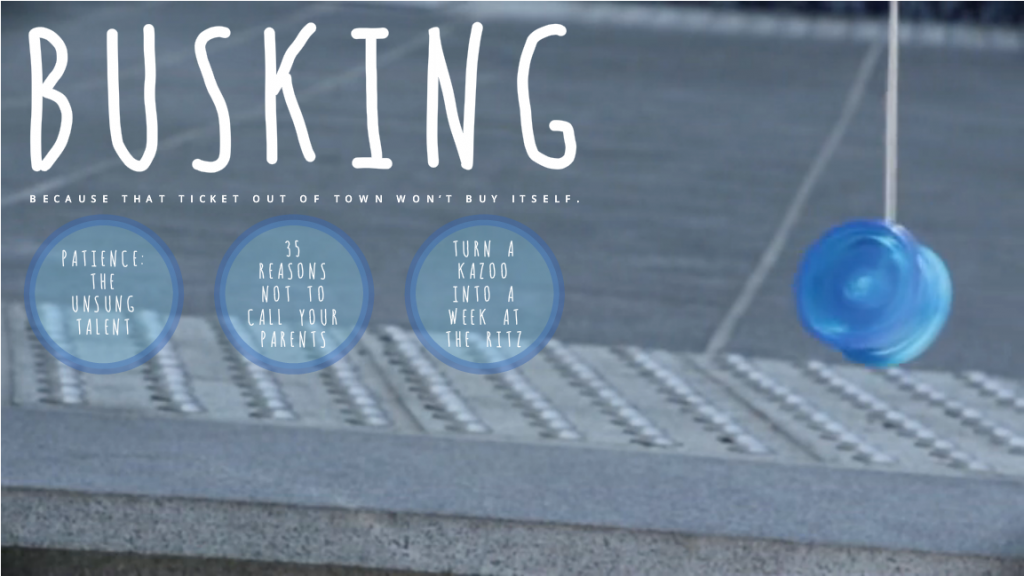
  • See the busking video background example.
  • See the inspired color palettes video background example.
Click Image to Launch Demo (With Audio)
Click Image to Launch Demo (With Audio)

Filed Under: E-Learning Tagged With: Articulate Storyline, E-Learning Design, ELHChallenge, Emotional Engagement, Instructional Design, Motivation, Show Your Work, Video, Visual Design

Making a Simple Prototype

August 4, 2015 By Jackie Van Nice 4 Comments

Select Image to Launch Demo

Select Image to Launch Demo

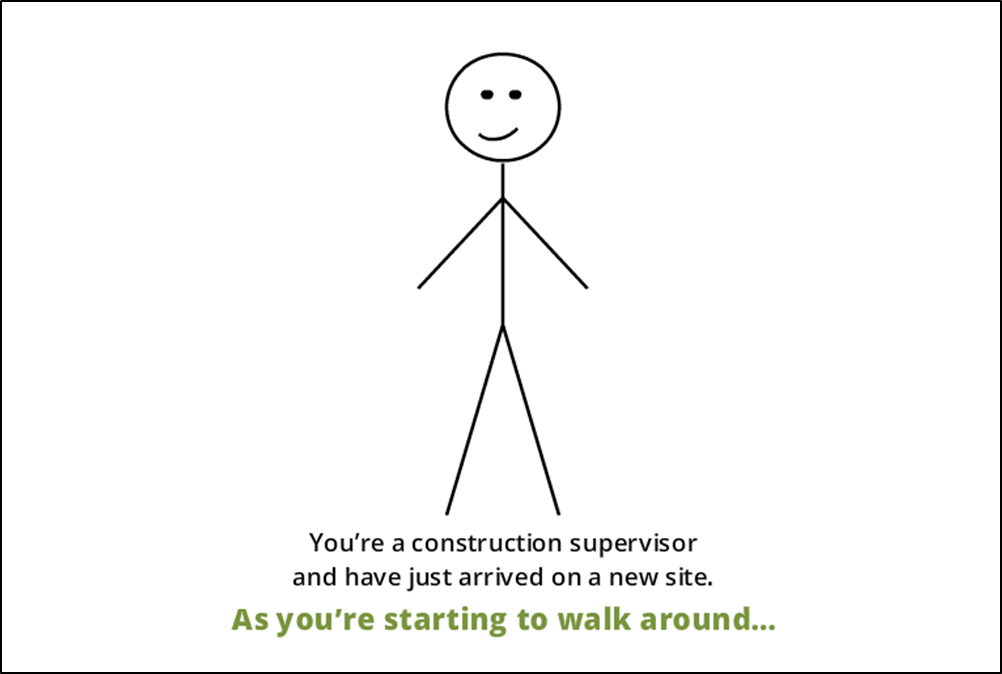
This week’s challenge is to create a functional prototype of a course using existing OSHA fall prevention content, so I whipped up some stick figures and headed for the job site.

The Idea

Original Content

David Anderson gave us a 194-slide PowerPoint presentation to use as our source material, the idea being to choose a few slides to work with. I chose a section about preventing falls involving floor holes.

My goal was to focus on the instructional design approach, basic layout, and functional design (as opposed to visual design) to show how I’d approach and design the entire course.

The Design

The Process at the Point of Need

The Process at the Point of Need

Naturally I wanted to start with a compelling scene featuring the learner as the protagonist. After adding proper context and a scenario where the learner would need to apply the information being presented, we’re off and running.

Once the problem was established, I was able to present the basic structure of this mini-course – the steps required to deal with the problem – at a point of need to give the learner a reason to want to find out what to do next.

A Real-World Challenge

A Real-World Challenge

A Real-World Challenge

A Real-World Challenge

A Real-World Challenge

A Real-World Challenge

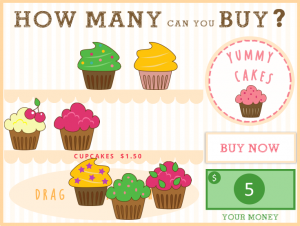
At each step I then presented a simple challenge to roughly approximate what they would need to do in a real-life situation. I didn’t bother with up-front content presentation, so each challenge requires the learner to use his or her predictive abilities to ponder, guess, and explore the options. I’d call it Engagement 101.

This approach means that feedback (in addition to the scenario itself) needs to provide the information the learner needs. I kept the feedback brief and subtle in this demo, but would use more detail in the actual course.

The Result

It’s a simple and straightforward prototype that shows you exactly how I’d approach the content. The visuals and details to be added later are – compared to this – the easy part.

David wanted us to spend an hour or two on this, but for me I can’t imagine designing a course approach, layout, and basic functionality in that amount of time; though I certainly admire anyone who can. Let’s just say this took longer.

If you’d like to enjoy it in all of its stick figure glory, you can start preventing falls right here.

Filed Under: E-Learning Tagged With: Articulate Storyline, Context, Drag & Drop, E-Learning Design, ELHChallenge, Emotional Engagement, Instructional Design, Motivation, Show Your Work, Technical Training, Visual Design

Where Do You Get Your Images?

August 2, 2015 By Jackie Van Nice 18 Comments

Today a reader asked me where I get my images, and since that comes up a lot I thought it might be time to write a post. In case it’s helpful, here’s where I get them.
My Own Images

My Own Photos (Click to See Example)

My Own Photos (Click to See Example)

  • My Own Vector Images (Click to See Example)

    My Own Vector Images (Click to See Example)

    Photos: I take my own photos and use them pretty regularly. I’ve also shared quite a few on MorgueFile since it’s a community that relies on both giving and getting. (You can share there, too!)

  • Vector: A lot of times I’ll simply make my own vector images in PowerPoint. It’s my image creation and manipulation tool of choice. Here’s a free pictogram file I’ve shared, and it links to a great tutorial from Mike Taylor about how to create vector images yourself in PowerPoint.

Free Images

Occasionally I’ll use an image with a creative commons license, but I don’t use most free image sites because I don’t have the time or inclination to read each image’s license and track its attribution. So I use:

  • Morgue File Images (Click to See Example)

    Morgue File Images (Click to See Example)

    MorgueFile: They’re my first choice for free, large, good-quality images. The license agreement is free and clear of any restriction that would require additional action from me, and I like that I’m supporting a community “By Creatives For Creatives”.

  • Morgue File Images (Click to See Example)

    Morgue File Images (Click to See Example)

    Bing or Google Images: I’ll occasionally search here using the license filter options, but even then there’s no guarantee the license information is correct, so I limit my use of these sites.

  • Update: Check the Comments Below!
    Folks have mentioned some other free image sites they love and you might want to check them out.

Purchased Images

Characters with Transparent Backgrounds from eLearningArt.com (Click to See Example)

Characters with Transparent Backgrounds from eLearningArt.com (Click to See Example)

Photographic Characters with Transparent Backgrounds

  • eLearningArt.com: I have a subscription here, and owner Bryan Jones is fantastically responsive and great to work with. I used to also subscribe to eLearningBrothers.com but their subscription rate has escalated rather dramatically in the last few years and is simply more than I would pay.

Photographic & Vector Images by Subscription

  • DollarPhotoClub.com Images (Click to See Example)

    DollarPhotoClub.com Images (Click to See Example)

    DollarPhotoClub.com: I recently subscribed on Tom Kuhlmann’s recommendation for all of the reasons he covers in his post about it. I got a lot of mileage out of Microsoft Clipart for a long time, but they’ve largely moved on. Tom also goes over a number of other image sites you might want to check out in his post.

Photographic & Vector Images Without a Subscription

  • Creative Market Images (Click to See Example)

    Creative Market Images (Click to See Example)

    CreativeMarket.com: I’ll occasionally buy individual images here. It’s nice to know you’re supporting an individual designer, plus CreativeMarket gives away a number of free items each week and offers budget-friendly bundles of goods on a regular basis.

There’s Always More

There are all kinds of other places I’ve gotten one-off images, but the circumstances vary by project. If you see something specific on my site and you’re wondering about the images, feel free to ask!

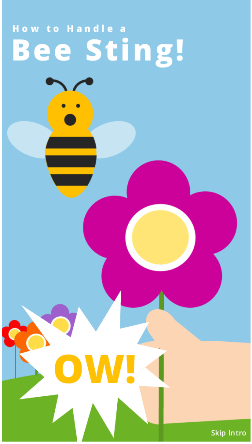
My Featured ImageOh – and I made the featured image for this post using images from DollarPhotoClub.com (background and flower on the right), my own travel photos (a sweet shop in Istanbul in the middle), and Microsoft Clipart (the flower on the left). Sometimes it takes a village.
Filed Under: E-Learning Tagged With: E-Learning Design, Freelancing, Instructional Design, PowerPoint, Show Your Work, Visual Design

Converting Static Content Into Interactive Knowledge Checks

August 1, 2015 By Jackie Van Nice 4 Comments

Select Image to Launch Demo

Select Image to Launch Demo

A Zippier Part of the Course

A Zippier Part of the Course

For this challenge, David Anderson asked us to take static content and turn it into an interactive knowledge check. I grabbed some of the least appealing content I know and got to work.

Version 1: The Grim Original

Version 1: The Grim Original

The Idea

Version 2 Improvements: Visual Design, Hover, & Audio

Version 2 Improvements: Visual Design, Hover, & Audio

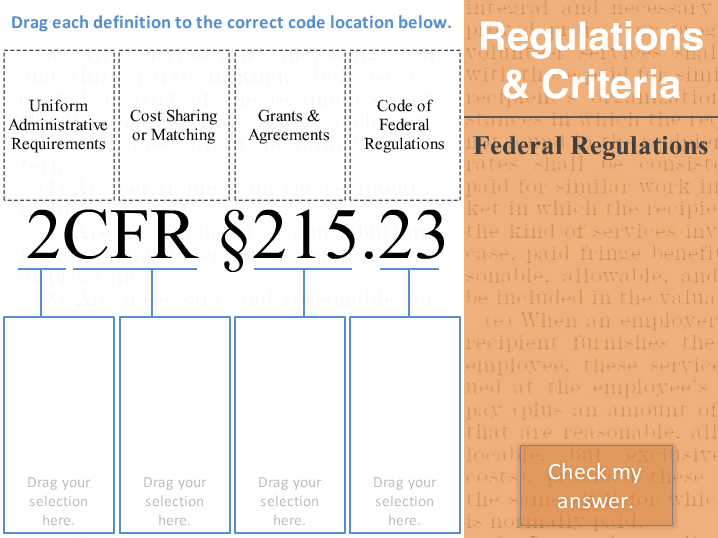
I did a cost share course for a nonprofit a few years ago, and even though I was able to perk most of it up, there were a few screens that didn’t lend themselves to perking.

My idea was to take the worst – a screen about parts of a government code – and turn it into an interactive knowledge check.

The Design

Version 3: Fully Interactive Knowledge Check

Version 3: Fully Interactive Knowledge Check

I took my improved version (you can see the client’s original above) – and challenged myself to leave the layout intact.

I converted it into a drag-and-drop interaction that actually took quite awhile to get exactly as I wanted it.

My focus was not only on making it clean and functional, but on giving the learner the freedom to play with it as much as they’d like.

The Result

What I like best is that it gives you a chance to interact with the content. You can puzzle it through and learn a bit along the way.

What I like least is that it’s not the memorable, motivational, or meaningful star I would like it to be – but you have to pick your battles. 95% of the course uses scenarios and good context; but the client’s goal was to introduce the idea that each part of the code has meaning – not to memorize it. If you needed it on the job, you’d look it up! (Who doesn’t love performance support?)

Ready to get all interactive with a federal regulation? You can do it right here!

Filed Under: E-Learning Tagged With: Articulate Storyline, Drag & Drop, E-Learning Design, ELHChallenge, Instructional Design, Quizzes, Show Your Work, Visual Design

Seriously – How Do You Navigate This Course?

August 1, 2015 By Jackie Van Nice 3 Comments

Select Image to Launch Demo

Select Image to Launch Demo

Do you know how many times I’ve heard about a learner getting confused about course navigation? Close to zero. Nonetheless, organizations like to include instructions, and those instructions tend to get short shrift. So when David Anderson challenged us to get a little more creative with navigation intros – I was in.

Paul.Dr.136The Idea

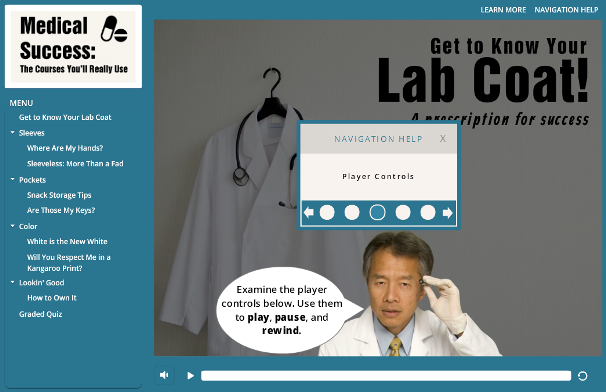
I wanted an approach that was simple and replicable; but unique enough to capture the learner’s attention. I hadn’t used photographic characters for awhile, so I grabbed one and riffed off of his lab coat to determine the topic.

Though my process was backwards, the idea is that you can theme your navigation instructions to match your course content. It makes it more fun and gets the learner ready for the topic.

The Design

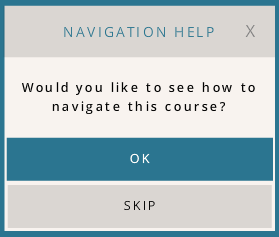
I like Coolors’ navigation tutorial, so I played with their center-of-screen dashboard approach, which then gave my lab-coated gentleman the freedom to point out navigation elements on the rest of the screen.

Coolors' Navigation Start

Coolors’ Navigation Start

My Navigation Start

My Navigation Start

Coolors' Navigation Navigation

Coolors’ Navigation Navigation

My Navigation Navigation

My Navigation Navigation

I also made sure that if you choose to skip the navigation intro that you’re confronted with a nurse with some good advice, but your consequences are your own.

The Result

It’s simple, but still more interesting than any of the standard navigation instructions I’ve done. With more time I’d refine it, but this gives you the general idea.

If you’d like to navigate these white-coated waters, you can see it right here!

Select Image to Launch Demo

Select Image to Launch Demo

Filed Under: E-Learning Tagged With: Articulate Storyline, Characters, Context, E-Learning Design, ELHChallenge, Instructional Design, Motivation, Show Your Work, Visual Design

  • « Go to Previous Page
  • Go to page 1
  • Interim pages omitted …
  • Go to page 4
  • Go to page 5
  • Go to page 6
  • Go to page 7
  • Go to page 8
  • Interim pages omitted …
  • Go to page 14
  • Go to Next Page »

Primary Sidebar

Welcome!

I’m an award-winning instructional designer and proud Articulate Super Hero who creates e-learning for large organizations. I blog to explain my design process, share tips and tricks, and help others succeed. I hope you enjoy my refreshing gallery of e-learning goodness!

  • View jackietrains’s profile on Instagram
  • View jackievannice’s profile on LinkedIn

Tags

Articulate 360 Articulate Rise Articulate Storyline Articulate Studio Audio Avatars CCAF Characters Community Context Design Makeover Dials Drag & Drop E-Learning Design ELHChallenge Emotional Engagement Free Download Freelancing Games German Glossary Instructional Design Languages Makeover Menu Mobile Motivation Pantone Portfolio PowerPoint Professional Development Quick Reference Quizzes Sales Training Scenarios Show Your Work Software Training Storyline 360 Tables Technical Training Templates Typography Video Visual Design Voiceover

Top Posts & Pages

  • Portfolio
    Portfolio
  • Home
    Home
  • Sexual Harassment Training
    Sexual Harassment Training
  • Sales Mobility Software Training
    Sales Mobility Software Training
  • Navigating a Tasty Circular Menu
    Navigating a Tasty Circular Menu
  • Articulate's E-Learning Heroes Challenges
    Articulate's E-Learning Heroes Challenges
  • About
    About
  • Free Visual Storyboard Template
    Free Visual Storyboard Template
  • Free Storyline Templates
    Free Storyline Templates
  • How to Go Full-Screen & Lose the Player in Storyline
    How to Go Full-Screen & Lose the Player in Storyline

Copyright © 2026 Jackie Van Nice and E-Learning Goodness by Jackie Van Nice