• Skip to primary navigation
  • Skip to main content
  • Skip to primary sidebar

Jackie Van Nice

E-Learning Goodness by Jackie Van Nice

  • Home
  • About
  • Blog
  • Portfolio
    • Articulate’s ELH Challenges
    • Sales Mobility Software
    • Product Sales
    • Sexual Harassment
    • Code of Conduct
  • Freebies
    • Free Storyline Templates
    • Free PowerPoint Templates
    • Free Images
    • Freelancing Tips
    • Free Resources to Help Get Started in eLearning
  • Work With Me
  • Contact

E-Learning

Let’s Start at the End (Of Your Course)

April 8, 2014 By Jackie Van Nice 2 Comments

Select Image to Launch Demo

Select Image to Launch Demo

This week’s Articulate E-Learning Heroes challenge is to send a little love to the end of your course. It can be lonely and confusing back there – (“Is it over?” “What am I supposed to do?”) – so this week we’re sending back a life line.

Context & Theme

I wanted to indicate we’re starting at the very end of an interminably long course. My first choice was to start at the end of pi, but finding the end of pi is even more nebulous than the end of most courses, so that was out. (Maybe when I see Neil DeGrasse Tyson at DevLearn in October I’ll ask him if he’s made any progress on that Pi issue.)

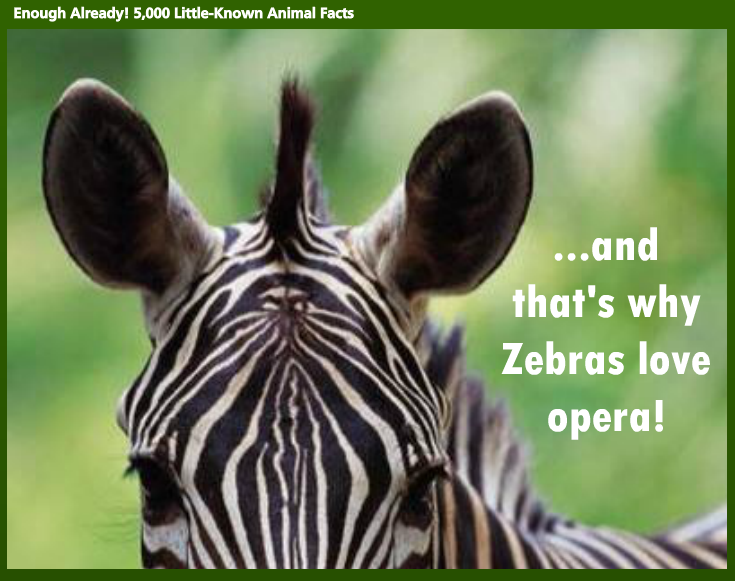
So instead I created (the end of) a course called “Enough Already! 5,000 Little-Known Animal Facts”, which starts on the last part of the last fact about the last animal.
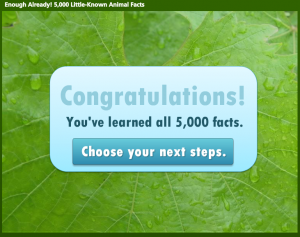
Indicating Completion and Next Steps

Indicating Completion and Next Steps

Spelling it Out

To be clear that you’ve reached the end of the course, I start with a congrats slide that also indicates you have a little more to do before you go.

Final Decisions

Final Decisions

Final Decisions

Which leads to an animal-themed screen where you get to make decisions. Hover State Visual: Hovering over each picture reveals where you’ll go if you click on it. Hover State Audio: Hovering also reveals a bit of audio. Its purpose is to add a touch of interest, amusement, and wake you up – but there have been reports of startled coworkers and kitties as of late, so consider yourself warned.
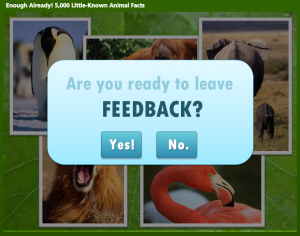
Gate Screen for Feedback

Gate Screen for Feedback

Gate Screens

After you make a selection you’ll go to a gate screen to confirm your choice. David Anderson had a gate screen challenge a few months ago where he talked about them, and you can also see the different examples created by members of the community.
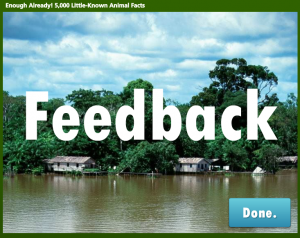
Feedback Placeholder

Feedback Placeholder

Room for More

In this example, if you choose anything other than “Exit” you’re taken to placeholder slides that could harbor summarizing thoughts, more resources, ideas for review, or a means of leaving feedback.
See it in Action!

Take a look at this wild little ending right here.

Filed Under: E-Learning Tagged With: Articulate Storyline, Community, E-Learning Design, ELHChallenge, Emotional Engagement, Instructional Design, Show Your Work, Visual Design

What Do I Think of Storyline? Well, Since You Asked…

March 30, 2014 By Jackie Van Nice 8 Comments

Select Image to Launch Demo

Select Image to Launch Demo

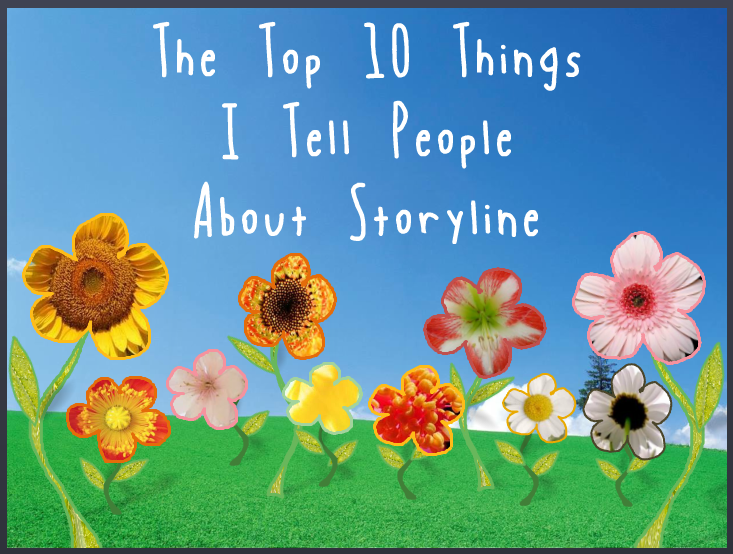
This week’s E-Learning Heroes Challenge is to come up with a “Top 10” list of things you’d tell someone about Storyline. You can collect your favorite resource links and curate them any way you’d like.

I basically took everything that I normally say to someone who asks me about Storyline, put it all together with appropriate links, and tied a bow on it. (Not unlike last week’s challenge where I did the same for what I tell future freelancers.)

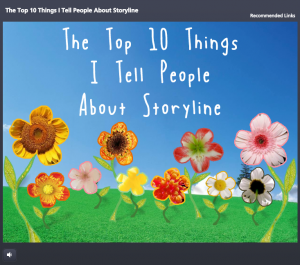
Main Menu

Main Menu

The Design

One advantage of the gallery layout on my blog is that I can instantly see what sort of design I should do to contrast with my recent work. Since my last two entries haven’t had vibrant color palettes, and since spring is officially here, I went for bright and springy with a little bit of silliness and a little bit of elegance.

I also didn’t want a main menu with squares or buttons that linked to the 10 points. I wanted the menu to be a creative, vibrant, graphic embodiment of the theme. Once I made that decision, the idea for the springing-up flowers came easily.

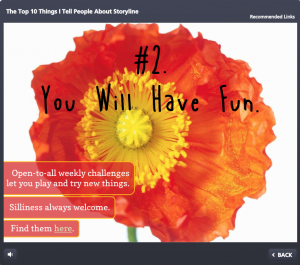
Content Page #2

Content Page #2

Main Menu Flowers: I wanted flower shapes that I could fill with photo captures from their related content pages. So I took out my trusty Wacom tablet and started drawing the basic outlines of the flowers, stems, and leaves. I did it in Storyline by going to Insert > Shape > Lines > Scribble and drew them right on the slide.

Then I adjusted the outline weight and color and did a picture background fill for each shape using a tight capture from each of the larger flower photos.

To make the flowers pop in their hover states, I increased the weight of the flower’s outline by a pixel or two, and increased the size of each flower by about 4 pixels in width and height.

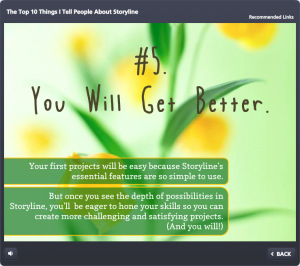
Content Page #5

Content Page #5

Audio: The sound effects for the flowers are two different sounds on top of each other. One’s a pop and one’s a spring. The singing birds are a piece of audio that I looped. I knew it was possible, but had never done it before. A quick Google search took me to this simple how-to. (Thanks, David!)

Content Page Colors: To get colors for my text, fills, and outlines that went perfectly with the flower images, I used the heck out of the eyedropper tool.

Photos: They’re all from Microsoft Clipart. I wanted big, clean, bold, colorful images.

Fonts: I’ve used the title font, Blue Chucks, a couple of times lately. Same with the paragraph font Copse. When you’re a cute font, you’re gonna get used.

Content Page #9

Content Page #9

The Content

It is what it is! This is what I tell people who ask, and these are the resources I direct them to.

The Finished Product

You can see it in all of its springy loveliness right here.

Filed Under: E-Learning Tagged With: Articulate Storyline, Community, E-Learning Design, ELHChallenge, Emotional Engagement, Professional Development, Software Training, Technical Training, Templates

We’ll Always Have the US Passport Office

March 16, 2014 By Jackie Van Nice 12 Comments

Select Image to Launch Demo

Select Image to Launch Demo

As excited as I am about packing up and heading down to this year’s Learning Solutions conference, I wanted to squeeze in some time to play along with this week’s E-Learning Heroes Challenge, which is about creating interactive screenshots.

The Boring Document: The US Passport Application

The Boring Document: The US Passport Application

Post-Traumatic Budget Analyst Syndrome

I’m pretty sure David wanted us to focus on software for this challenge. I keenly noted this about the time I was posting my completed entry.

He’d remarked in his post how much training all of us create based on documents, charts, and software (then clearly outlined his software challenge in detail) – but “documents” apparently struck a nerve and I was suddenly having a flashback to my life as a Budget Analyst in a very large, document-heavy organization where a big part of the job was getting my peers to understand and (ostensibly) care about reams of vital-yet-soul-deadening documents and forms.

So my reeling mind started working on creative ways to present a stultifying form using the interactive screenshot approach.

The Boring Document

Looking for a dull form? Who ya gonna call? Though the IRS has nothing but contenders, I chose the US Passport Application because:

1. I understand it. (Enough.)
2. I knew I could set up a quick bit of context to show when and why someone would use it.
3. I was hopeful that the context would tap into the learner’s own motivations enough to make them want to, you know – be motivated.

Midcentury Looney Tunes Design

A Midcentury Looney Tunes Design

The Style

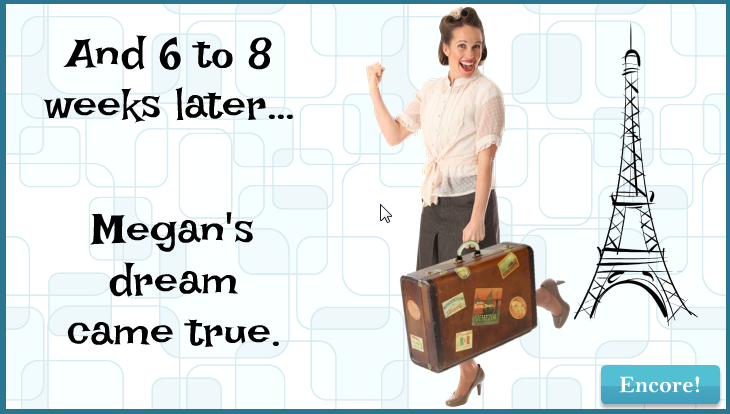
Choosing Paris as a motivational destination was pretty easy. And after I chose the character, the background, the groovy font, and the clipart, it had become sort of a midcentury Looney Tunes kind of thing. So that worked.

Oh, and I liked the blues, but I detested the passport form’s own mustardy color. But I eventually realized it would be a lot easier to integrate it into the color scheme rather than try to mitigate it with other colors.

The Views

But mostly I wanted to focus on a design that made it easy to navigate and understand the document. So I planned three views:

The Multiple Page View

The Multiple Page View

The Multiple Page View: Treating the multiple-page form like a tabbed interaction seemed like a clean approach, so I created my own tabs on the right. It’s simple, with just two pages, but you could make the tabs much smaller and use it for a far more extensive doc, too.

I also put a “Finish” tab there so you could escape at any time, and because I wanted to show the happy aftermath of having effectively used this form, and I needed a link to get there.

The Single Page Overview

The Single Page Overview
Using a Mouse Hover

The Single Page Overview: This is on the same page as the multiple page view; it just requires hovering your mouse. I chunked the form into numbered sections. When you hover over a number, that section becomes highlighted on the right, and on the left a short explanation appears. The hover effects are simply states attached to the number icons.

Section Detail View

The Section Detail View

The Section Detail: When you click on one of the numbered sections (and this is where the interactive screenshot part of the interactive screenshot challenge comes in), you go to a detailed view of that section. I put each of these on a slide layer.

To make the details a bit more involving and helpful, I added some abbreviated instructions and a little demo of what should happen on the form using sound effects and animations.

Of course, these detailed sections could include any number of things. You could have a video showing or telling why a particular item is critical, you could link out to other resources or help, or you could come up with other ways of illustrating what you need to convey for that section.

Attaching the Document: I also thought it made sense to attach the full doc in the player. If this were a real e-learning piece, I’d certainly do that.

Success = Paris!

Or at least it does in this interaction. Here’s the finished piece. I hope you enjoy it, and may you always have great ideas for presenting forbidding documents of your own.

Select Image to Launch Demo

Select Image to Launch Demo

Filed Under: E-Learning, Front Featured Tagged With: Articulate Storyline, Audio, Characters, Community, E-Learning Design, ELHChallenge, Emotional Engagement, Instructional Design, Languages, Visual Design

A Revealing Submenu

March 6, 2014 By Jackie Van Nice 5 Comments

Click Image to Launch Demo

Click Image to Launch Demo

You’ll see this simple-but-fun submenu when I post a portfolio sample for another course – but I like it, so it’s getting its own post.

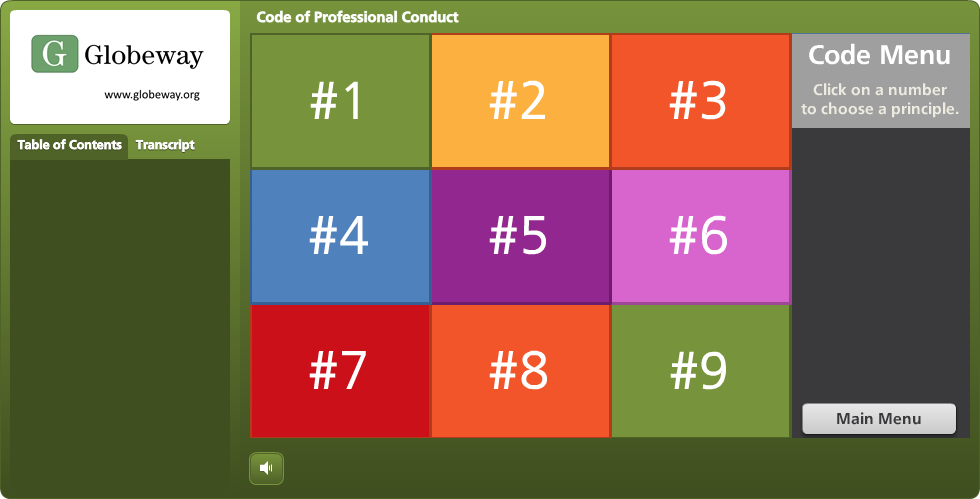
I created it for a subsection covering the nine parts of this organization’s code of conduct. I wanted it to be attractive, responsive, kind of fun, meaningful to the organization, and track which sections had already been visited, while still making each one easy to revisit.

The Idea

I thought it would be fun to have it look a bit like a game board. As the learner clicks on each section, it reveals part of a photo.  Once the photo is fully revealed, you’ve finished that section. I had lots of photos to choose from, but narrowed it down by looking for one that:

  • I could make square to fit the tic-tac-toe/Brady Bunch layout I had in mind,
  • Included people from the same general part of the world that learners would be from,
  • Would show people involved in an organization-related activity, but I didn’t want to reveal what they were doing until the learner had visited almost all nine sections of the code.

The Pieces and Parts

The Grid: I used the bright course color palette to create the nine boxes. Since the organization refers to their Code sections by number, it was appropriate to label them with each section’s number, as opposed to a description or image. Looks more like a game that way, too.

The Side Reveal: So learners could see the name of each Code section before visiting it, I added a trigger to each square in the grid. When you hover over each one, a slide layer shows the section name on the right side.

Side Reveal on Right With Mouse Hovering Over Grid Section #5

Side Reveal on Right With Mouse Hovering Over Grid Section #5

The Photo Reveal: The photo is on the slide master. I created each square as an inserted object on the slide, then keyed the text directly into it. When the learner clicks, the visited state is revealed. The only difference between the normal and the visited state is that I removed the fill color for the square. I still wanted the number to be visible after the square was visited so that it would be easy to go back and revisit the section, and I liked the different-colored outlines that remained after the fill color was gone.

Clicking Reveals a New Piece of the Photo

Clicking Reveals a New Piece of the Photo

See it in Action

This is just a demo of the menu, of course. The section header slides it branches to in the real course take you off into scenarios and all kinds of fun stuff. But you can see the menu sample here.

Thank You, Tim!

By the way, in this sample you’ll briefly see the section header slides I used in the course. These slides are heavily based on Tim Slade’s lovely – and free! – template that he so kindly shared on his site.  Tim’s a gifted and generous designer and you should check out the rest of his site while you’re busy getting the template. (Thanks, Tim!)

Section Header Slide Based on Tim Slade's Design

Section Header Slide Based on Tim Slade’s Design

Filed Under: E-Learning Tagged With: Articulate Storyline, E-Learning Design, Instructional Design, Visual Design

You Can’t Escape Good Design

March 2, 2014 By Jackie Van Nice 2 Comments

You Can't Escape Good Design

Select Image to See Larger

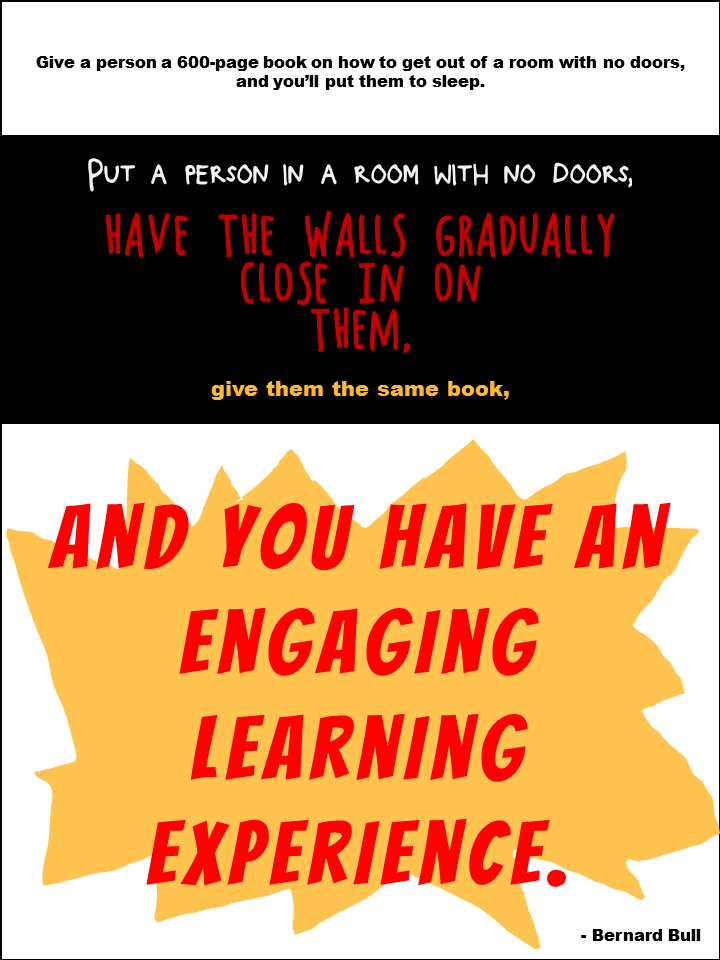
I started this week’s Articulate E-Learning Heroes Challenge by creating this poster, based on a design quote I like. But it’s a general design concept not specific to instructional design, so I thought I’d try for something that feels a little more on-the-nose.

A Bull in an Instructional Design Shop

I found a quote from Bernard Bull that resonated with me, and created the illustrative poster you see here.

The Truth

The funny thing is, throughout this challenge I’ve kept thinking “I don’t refer to quotes; I refer to Michael Allen’s Context, Challenge, Activity, Feedback (CCAF) design model.” It’s not an inspirational quote, but it’s what’s always on my desk and it inspires me every time I design.

Funnily enough, it was only after I’d completed the poster that I realized that this quote is a good example of the CCAF model in action:

The Context: You’re imprisoned and the walls are closing in.
The Challenge: Get out.
The Activity: Use that book I gave you to figure out how.
The Feedback: Either you set yourself free or you subject yourself to the standard walls-closing-in conclusion.

So I was kind of happy about that.

Poster Design

Section 1: Boredom; Lack of Engagement. Clearly I made this as dull as I could. Small black type on a white background to evoke the feel of most 600-page books. The font is Arial Black.

Section 2: The Nefarious Context. Pretty self-explanatory colors and layout. The fonts are Block It Out, Chocolate Windows, and Arial Black.

Section 3: The Big Bang of Engagement. I hand-drew the splashy yellow thing in the background, and the font is, appropriately, Bangers.

The Attribution: Mr. Bull is wearing Arial Black.

Again, I just created it quickly in PowerPoint; though the fuzziness of the Arial Black bugs me. If I can’t take it anymore I’ll put it into Fireworks and convert the text to paths so it’s clearer.

Filed Under: E-Learning Tagged With: CCAF, E-Learning Design, ELHChallenge, Instructional Design, Typography, Visual Design

  • « Go to Previous Page
  • Go to page 1
  • Interim pages omitted …
  • Go to page 19
  • Go to page 20
  • Go to page 21
  • Go to page 22
  • Go to page 23
  • Go to Next Page »

Primary Sidebar

Welcome!

I’m an award-winning instructional designer and proud Articulate Super Hero who creates e-learning for large organizations. I blog to explain my design process, share tips and tricks, and help others succeed. I hope you enjoy my refreshing gallery of e-learning goodness!

  • View jackietrains’s profile on Instagram
  • View jackievannice’s profile on LinkedIn

Tags

Articulate 360 Articulate Rise Articulate Storyline Articulate Studio Audio Avatars CCAF Characters Community Context Design Makeover Dials Drag & Drop E-Learning Design ELHChallenge Emotional Engagement Free Download Freelancing Games German Glossary Instructional Design Languages Makeover Menu Mobile Motivation Pantone Portfolio PowerPoint Professional Development Quick Reference Quizzes Sales Training Scenarios Show Your Work Software Training Storyline 360 Tables Technical Training Templates Typography Video Visual Design Voiceover

Top Posts & Pages

  • Portfolio
    Portfolio
  • Home
    Home
  • Sexual Harassment Training
    Sexual Harassment Training
  • Sales Mobility Software Training
    Sales Mobility Software Training
  • Navigating a Tasty Circular Menu
    Navigating a Tasty Circular Menu
  • Articulate's E-Learning Heroes Challenges
    Articulate's E-Learning Heroes Challenges
  • About
    About
  • Free Visual Storyboard Template
    Free Visual Storyboard Template
  • Free Storyline Templates
    Free Storyline Templates
  • How to Go Full-Screen & Lose the Player in Storyline
    How to Go Full-Screen & Lose the Player in Storyline

Copyright © 2026 Jackie Van Nice and E-Learning Goodness by Jackie Van Nice