• Skip to primary navigation
  • Skip to main content
  • Skip to primary sidebar

Jackie Van Nice

E-Learning Goodness by Jackie Van Nice

  • Home
  • About
  • Blog
  • Portfolio
    • Articulate’s ELH Challenges
    • Sales Mobility Software
    • Product Sales
    • Sexual Harassment
    • Code of Conduct
  • Freebies
    • Free Storyline Templates
    • Free PowerPoint Templates
    • Free Images
    • Freelancing Tips
    • Free Resources to Help Get Started in eLearning
  • Work With Me
  • Contact

Front Featured

The Challenge of Making Progress: Refreshing Your Online E-Learning Demos

April 17, 2022 By Jackie Van Nice 2 Comments

Select Image to Launch Demo

This week’s challenge is to create a progress indicator to display learner status, and this time it’s personal.

The Idea

As a recent learner on the topic of why I should bother to refresh my own e-learning demos, I thought I’d share a progress indicator that ever-so-clearly showed me my own learner status. If you’d like, you can read about that journey right here, but the idea is simple.

I wanted to show an e-learning designer whose online demos have gradually disappeared because the files have not been updated and republished.

The Design

The design is clean and minimal. An e-learning designer represents the learner and conveys a bit of the emotion of it all. I used one of Storyline’s modern illustrated characters, which was easy and saved time. The color palette is based on her outfit.
No Progress Yet

The Progress Indicator(s)

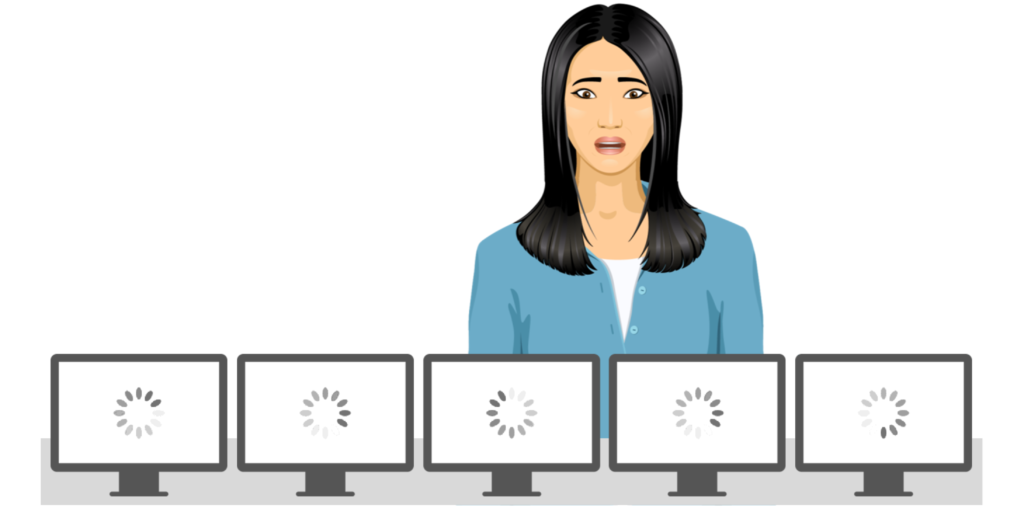
The starting point of the main progress indicator is what I experienced in real life: A series of online demos that no longer play. As the learner makes progress towards learning what to do to resolve the issue, the demos begin to become functional again.

A secondary progress indicator is the list of recommended steps that start to appear as you answer each question correctly.

The Result

Ready to make all that pain go away and refresh some e-learning demos? You can take this one for a spin right here.

Filed Under: E-Learning, Front Featured Tagged With: Articulate Storyline, Characters, E-Learning Design, ELHChallenge, Emotional Engagement, Instructional Design, Show Your Work, Visual Design

“Please Refresh Us!” Love, Your Online E-Learning Demos

April 17, 2022 By Jackie Van Nice Leave a Comment

The Heartbreak of Demo Neglect

I began participating in Articulate’s delightfully addictive E-Learning Challenges more than 8 years ago, and I’ve designed and developed 130+ entries and written posts about each one.

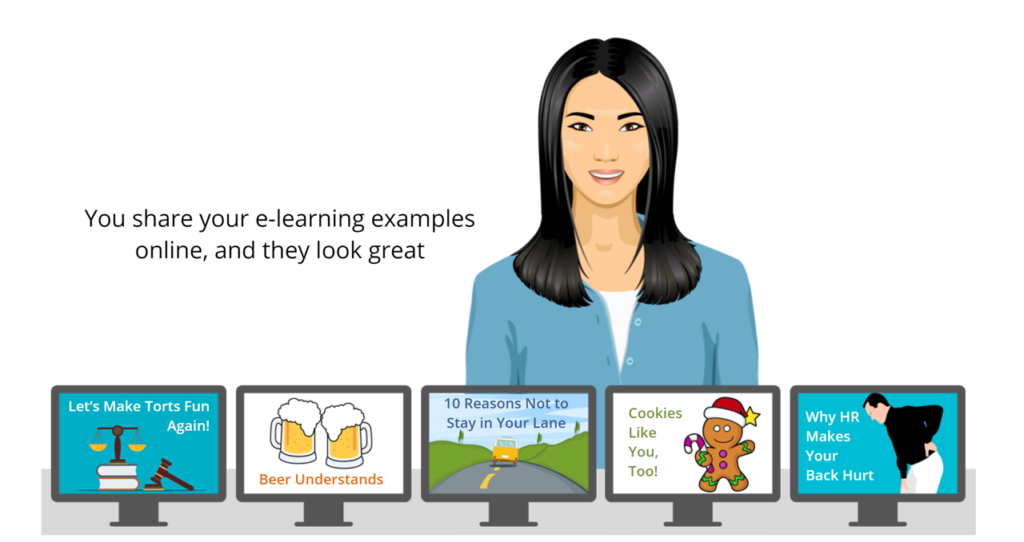
Some entries took the form of images, podcasts, videos, interviews, or Rise interactions – but 100+ of them were in Storyline, and I published and uploaded those demos to my site so you could take them for a spin. Because fun!

Fickle, Fickle Technology

But development tools, online security protocols, web browsers, and mobile devices are constantly changing and unless you’re regularly republishing your e-learning examples, users are probably staring at blank or spinning screens of nothingness where all the good stuff used to be. (Sorry ’bout that.)

My ELH Challenge Entry This Week: No Progress Yet

You Don’t Have Time for This Nonsense

I don’t have to tell you why few (if any) of us regularly republish our examples. It’s a task that gets back-burnered as you get swept into exhilarating new interests and projects.

Why would I voluntarily halt all of that life-giving exhilaration to dig up 100+ dusty source files, upgrade each one to the latest version of Storyline, apply the most current mobile-friendly player, test them, make a variety of adjustments, publish them, and try to figure out how to re-upload the published files in a by-now-completely-altered back-end environment? Wouldn’t it make more sense to see what’s happening on Catfish UK?

The Turning Point: Love Triumphs Over Shadiness

What finally got my attention was a hosting company that had thoroughly lost the plot. It was not looking good, and as the weeks dragged on I prepared for a full salvage operation by going through every post and page on my site to document details in case I needed to reconstruct it from scratch.

The completely unexpected result was that I fell in love with the work all over again. In the initial rush of creating it I never stopped to fully appreciate it. Now I couldn’t be prouder of it or happier that I did it. Even the old cringey stuff. It was time to show it some love.

This Week’s ELH Challenge

This week’s challenge is to design a progress indicator to show learner status. I used this experience to create my entry, using lots of blank demo screens as my progress indicator starting point. You can check it out right here.

Select Image to See My ELH Challenge Entry

More to Come, DON*

I’ve learned a few things while revisiting and updating 100+ samples of my work in Storyline. I’ll be sharing more of that new-found wisdom soon, unless Netflix suddenly puts out a new season of Murderville.

*Depending on Netflix

Filed Under: E-Learning, Front Featured, Working for Yourself Tagged With: Articulate Storyline, E-Learning Design, ELHChallenge, Professional Development, Show Your Work

Lightboxing Some Art

May 10, 2018 By Jackie Van Nice 2 Comments

Select Image to Launch Demo

Select Image to Launch Demo

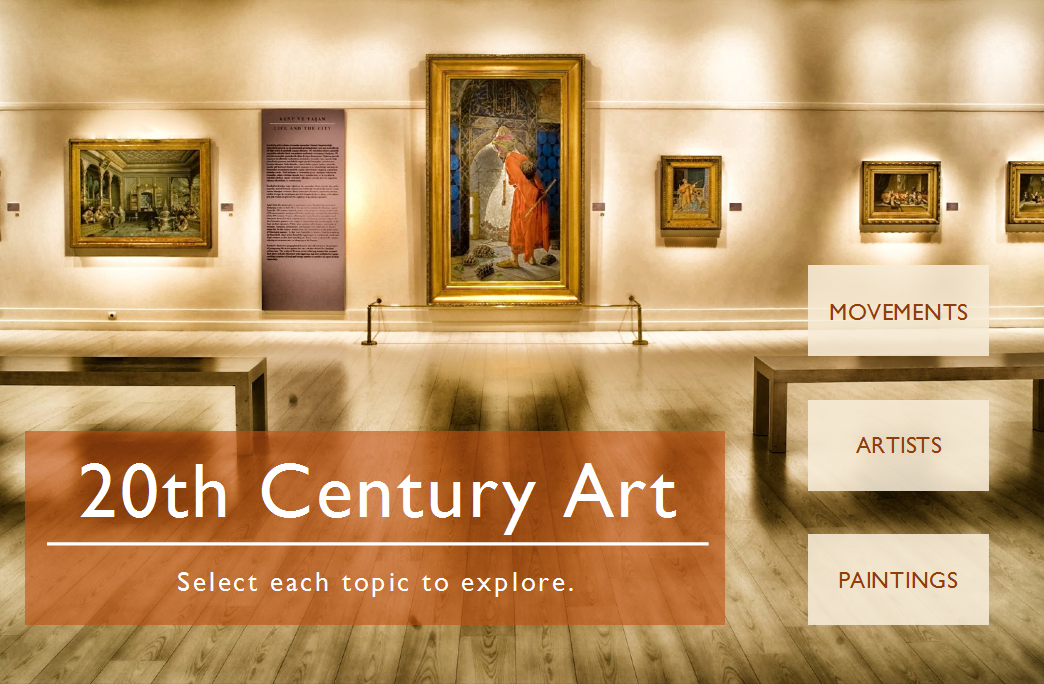
This week’s Articulate ELH challenge is to show an example of how lightboxes can be used in e-learning.

An Arty Lightboxed Drag-and-Drop Question

An Arty Lightboxed Drag-and-Drop Question

The Idea

When I think of lightboxes I think of art projects, so art seemed like a good theme.

I also wanted to show how they could be used in e-learning as exporable objects to play with something you may already know about, or to explore something new. (Exploring is always good.)

The Design

I wanted the interaction to be grounded in an art museum, and I pulled the museum image from Storyline 360’s content library. I designed the color palette and general look and feel based on that image.

Feedback in Case of a Chagall and Rothko Mix-Up

Feedback in Case of Any Chagall/Rothko Mix-Ups

The Lightboxes

Each lightbox is a drag-and-drop interaction set to allow you to try again as many times as you’d like. In these examples there are only two possible answers, but I think there’s something about that simplicity that makes them kind of fun to play with. I also included hints on the try again screen, and feedback and a bit more information on the success screen.

Because a lightbox in Storyline only displays at 80% of a regular slide’s size, you’ll want to be sure that your images and text are large enough to be viewed at that reduced size when using them in projects. It also helps to take full advantage of your screen real estate when laying out screen objects.

The Result

It’s simple, but kind of fun! Ready to play with some arty lightboxes? Try them out right here!

Filed Under: E-Learning, Front Featured Tagged With: Articulate 360, Articulate Storyline, Community, Drag & Drop, E-Learning Design, ELHChallenge, Instructional Design, Storyline 360, Visual Design

Escape Room Game: When Birthday Parties Go Wrong

May 2, 2018 By Jackie Van Nice 17 Comments

Select Image to Launch Demo

Select Image to Launch Demo

This week’s Articulate ELH challenge is to create an escape-room-style game. (Scary!)

Party Equipment

Party Equipment

The Idea

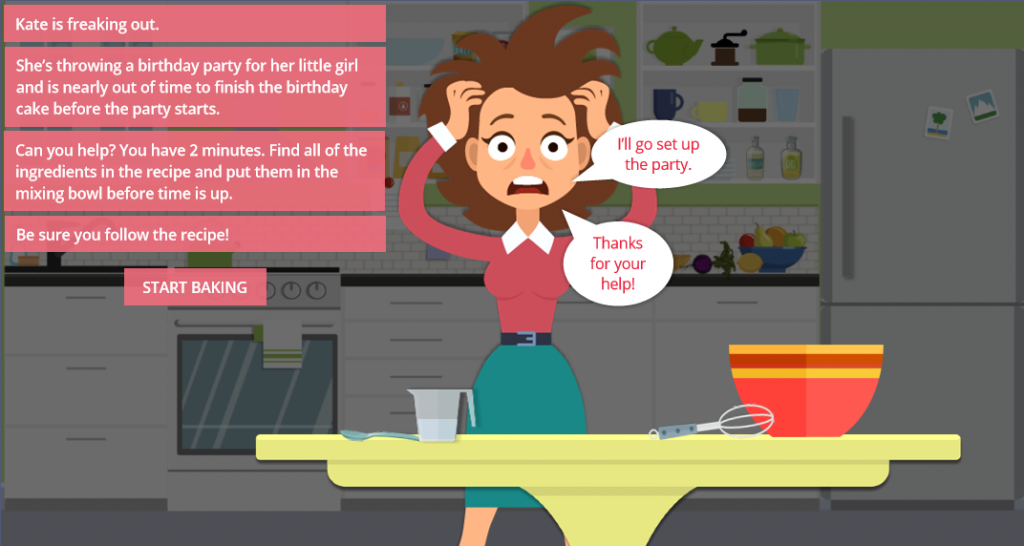
My first escape idea was going to have you desperately trying to catch your international flight before it took off, but the mega-talented Jodi Sansone beat me to it (great minds) and did a lovely job, so it was back to the drawing board. In the end I came up with the idea of frantically trying to make a last-minute birthday cake for a little girl’s birthday party: Let the terror begin.

The Design

Images

My first step was was to build a vector kitchen. As the days went by I couldn’t help but wonder if I could have saved time and energy by building a real kitchen.

The Kitchen Stage

The Kitchen Stage

These are mostly flat design vector images. I pulled a few from the 360 Content Library as icons or illustrations and manipulated their size, shape, and/or color (juicer, grinder, a few objects on the results screen, maybe the measuring cup… it’s all kind of a blur at this point), but I purchased most and manipulated them in Adobe Illustrator. The focus is on the table and mixing bowl in the foreground.

The Game

The Birthday Girl

The Birthday Girl

I wanted three outcomes:

  1. Success: You got the right ingredients in the bowl in the allotted time and achieved the desired result.
  2. Failure: Your time ran out and things didn’t end well.
  3. Keep going and try again: You put an incorrect ingredient in the bowl and have to dump out the bowl and start over, but the timer is still running.

The Timer

Update: I’ve made the timer available as a free download right here! The issue was the timer and finding a way to give it a two-minute duration that I could reliably start, stop, and restart. Very long story short – after trying lots of options I needed to design and build something quickly, so I winged it with an incredibly simple animated timer.

Timer recipe:
  • 1 two-minute-long ticking sound effect
  • 1 timer ding sound effect
  • 1 image of a kitchen timer with a white face
  • 1 inserted yellow circle shape
  • 1 inserted red circle shape

Timer 1Timer 2Timer 3Timer 4

Superimpose the yellow and red circles on the timer face, in that order, and give each one a 59-second wheel entrance animation. Place the red circle so it starts at the 59-second mark on the timeline. The clock and yellow circle start at the beginning of the timeline, along with the ticking sound effect. The ticking will end when you trigger the timer ding to go off at the end of the 2 minutes, at which point you could jump to a layer or another slide or whatever you’d like to do.

Once in action you’ll see the yellow circle animating in for the first minute, turning the face from white to yellow. In the second minute you’ll see it go from yellow to red, letting you know you’d better get that cake in the oven.

In this game the timer helps increase the sense of urgency, looks flat and cute, and serves its purpose.

The Drag-and-Drop

In the end, this was pretty straightforward. There are three items that require a two-step drop process before they can be used successfully, but you’ll find written hints to give you a clue about what to do and every item is labeled if you tap on it. Searching for clues and things you can use is all part of the game!

The Result

Ready to make a cake for the birthday girl? Grab an apron and make it happen!

Select Image to Launch Demo

Select Image to Launch Demo

Filed Under: E-Learning, Front Featured Tagged With: Articulate 360, Articulate Storyline, Community, Drag & Drop, E-Learning Design, ELHChallenge, Emotional Engagement, Free Download, Games, Motivation, Show Your Work, Storyline 360, Visual Design

A Yummy, Fresh and FREE Tabs Interaction!

May 1, 2018 By Jackie Van Nice 4 Comments

Select Image to Launch Demo

Select Image to Launch Demo

This week’s Articulate ELH challenge is to create a fresh new tabs interaction, so I went outside and picked some inspiration.

The Idea

I wanted to make this a Storyline 360 tabs interaction I could share, so with that in mind I focused on simplicity, functionality, and reusability.

The Design

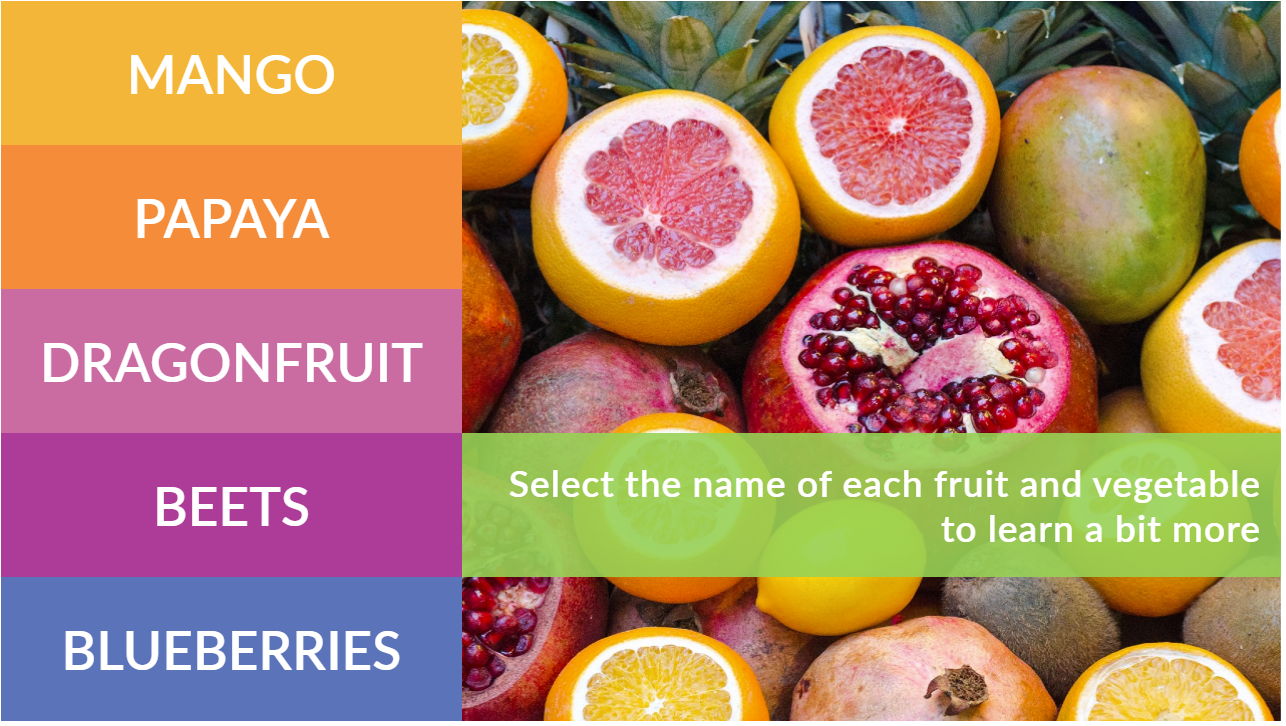
The Fruity Theme Colors

The Fruity Theme Colors

Colors

I honestly just started with colors I liked and made a color palette from there. To make the template easy to reuse, I saved them as a set of Theme Colors at Design > Colors in Storyline. You can save them down with a different name and/or you can change out one or all of the colors by editing them on that screen.

Images

My theme needed some delicious-looking fruit and veg, so I inserted all of the photos into Storyline from the Content Library. If you swap them out by right clicking and choosing Change Picture, you can replace them with your own images and not lose the animations.

Mangoes in Their Visited State

Mangoes in Their Visited State

Tab States

Selected: There’s no actual selected state, because the color of the selected tab matches the background of the revealed content screen, which I think is a good visual indicator of which tab you’re on. I like using that effect.

Hover: The hover state is a semi-transparent version of the tab’s color. To adjust the color or transparency, select the tab, then States > Edit States. Select the Hover state, right click on it, then select Format Shape > Fill Color. At the bottom of that screen you can adjust the color and/or level of transparency.

Visited: I like more control over my states than the built-in ones can give me sometimes, and to get that control I give them custom names. In this case I called the visited state “checked” because I’ve added a check mark to the tab’s state to show it’s been seen. You can also edit this state and remove or replace the checkmark with any image you’d like. Right now there’s a trigger on the tab’s layer to change the tab’s state to “checked” at the beginning of the layer’s timeline.

Disabled: When on a content screen, I didn’t want the user to see an active hover state for the currently-selected tab. That would be confusing and seem like a sloppy build. To keep it solid I added a transparent disabling shape on the layer and placed it directly over the tab, which effectively disables it from showing its hover state. You could always do this by adding a disabled state along with its triggers, but this is another way to do it.

Making the selected tab the same color as its content screen makes navigation clearer.

Making the selected tab the same color as its content screen makes navigation clearer.

Content Screen States

Each content screen (layer) is set to show its saved state when revisited. Unless there’s a compelling reason to have the animations repeat when revisiting, I’m happier going back to review each screen without waiting for the animations to execute again.

The Fresh Result and Free Download!

Ready for some fresh and fruity tabbed fun? See the demo right here, and grab the free Storyline 360 file on its download page.

Filed Under: E-Learning, Front Featured Tagged With: Articulate 360, Articulate Storyline, Community, E-Learning Design, ELHChallenge, Free Download, Instructional Design, Storyline 360, Templates, Visual Design

  • Go to page 1
  • Go to page 2
  • Go to page 3
  • Go to Next Page »

Primary Sidebar

Welcome!

I’m an award-winning instructional designer and proud Articulate Super Hero who creates e-learning for large organizations. I blog to explain my design process, share tips and tricks, and help others succeed. I hope you enjoy my refreshing gallery of e-learning goodness!

  • View jackietrains’s profile on Instagram
  • View jackievannice’s profile on LinkedIn

Tags

Articulate 360 Articulate Rise Articulate Storyline Articulate Studio Audio Avatars CCAF Characters Community Context Design Makeover Dials Drag & Drop E-Learning Design ELHChallenge Emotional Engagement Free Download Freelancing Games German Glossary Instructional Design Languages Makeover Menu Mobile Motivation Pantone Portfolio PowerPoint Professional Development Quick Reference Quizzes Sales Training Scenarios Show Your Work Software Training Storyline 360 Tables Technical Training Templates Typography Video Visual Design Voiceover

Top Posts & Pages

  • Portfolio
    Portfolio
  • Home
    Home
  • Sexual Harassment Training
    Sexual Harassment Training
  • Sales Mobility Software Training
    Sales Mobility Software Training
  • Navigating a Tasty Circular Menu
    Navigating a Tasty Circular Menu
  • Articulate's E-Learning Heroes Challenges
    Articulate's E-Learning Heroes Challenges
  • About
    About
  • Free Visual Storyboard Template
    Free Visual Storyboard Template
  • Free Storyline Templates
    Free Storyline Templates
  • How to Go Full-Screen & Lose the Player in Storyline
    How to Go Full-Screen & Lose the Player in Storyline

Copyright © 2026 Jackie Van Nice and E-Learning Goodness by Jackie Van Nice