• Skip to primary navigation
  • Skip to main content
  • Skip to primary sidebar

Jackie Van Nice

E-Learning Goodness by Jackie Van Nice

  • Home
  • About
  • Blog
  • Portfolio
    • Articulate’s ELH Challenges
    • Sales Mobility Software
    • Product Sales
    • Sexual Harassment
    • Code of Conduct
  • Freebies
    • Free Storyline Templates
    • Free PowerPoint Templates
    • Free Images
    • Freelancing Tips
    • Free Resources to Help Get Started in eLearning
  • Work With Me
  • Contact

Visual Design

Digital Magazine: Can You Give a Better Speech Than a 12-Year-Old?

November 9, 2014 By Jackie Van Nice 10 Comments

Select Image to Launch Demo

Select Image to Launch Demo

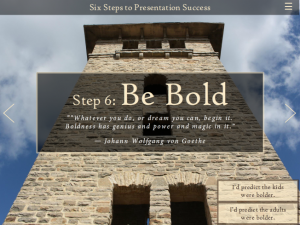
This week’s Articulate challenge is to create a demo of a digital learning magazine.

Inspiration

For approach, look, and feel I used Forma Magazine as my inspiration, using Charles Hamper’s suggestion to check out digital magazine samples at ReadyMag.
Content

I decided on the topic of presentations when I found this post by speech coach George Torok who was comparing his experience judging 12-year-olds in a speech contest versus high-level sales and marketing executives giving their own talks. For this demo I wanted simple-yet-interesting content that was easy to explore and browse, so this worked. To make it easier to compare the adults versus children, I organized it into six steps and compared their performance for each one.

Since digital magazines tend to make the most of stunning photography, I found large images that would render well at MorgueFile.
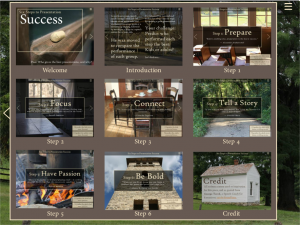
Jump-to-Screen Navigation

Jump-to-Screen Navigation

Navigation Options

I included two types of navigation to imitate Forma’s:
Screen-to-Screen: I used their approach of having on-screen right and left arrow icons. I also added hotspots on top of the arrows to make them easier to tap if you’re on a tablet. You could just add a trigger to the arrow image, rather than use a hotspot, but the target area would be too small to work well.
Jump-To: I might have been able to create a fabulous slider to imitate Forma’s jump-to navigation, but settled for the speedier option of a slide layer with thumbnails of each screen. It gives you an overview of the content, plus lets you jump around. You can access it via the menu icon in the upper right.

Check it Out!

Find out if a 12-year-old’s speech stands a chance against a high-level marketing executive’s right here!

Select Image to Launch Demo

Select Image to Launch Demo

Filed Under: E-Learning Tagged With: Articulate Storyline, E-Learning Design, ELHChallenge, Mobile, Show Your Work, Typography, Visual Design

Create Your Own Pictogram Characters (With Free Character & Slider Files!)

October 6, 2014 By Jackie Van Nice 16 Comments

Select Image to Launch Demo

Select Image to Launch Demo

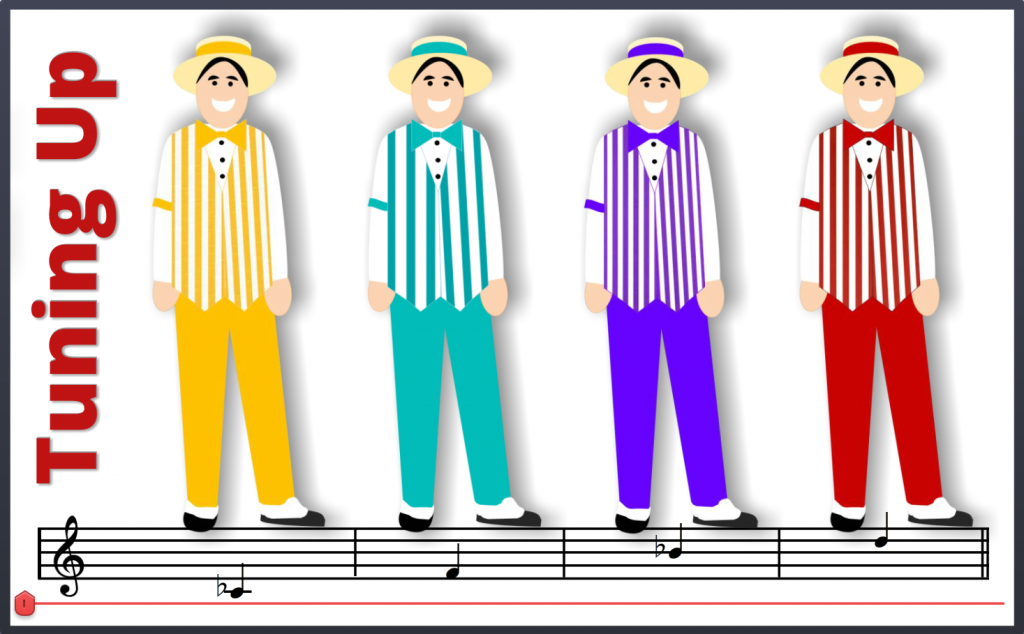
This challenge is to create your own characters in pictogram style. You simply take basic shapes (I used PowerPoint) and mold them until you have the custom characters you need.

 The Idea

Inexplicably, the only characters I was motivated to pictogram were the Dapper Dans – a barbershop quartet at Disney. David Anderson was clear that these characters should be “aligned with an industry”, so apparently I opted for the entertainment industry’s thriving barbershop sector; strolling division.

The Approach

After finding an image of a Dapper Dan I brought it into PowerPoint and started slapping basic shapes on it to mimic the outlines. Then I added some color, smaller details, and used images of striped fabric as the fill for their vests.

Dan Before

Dan Before

Dan During

Dan During

Dan After

Dan After

Mike Taylor's Helpful Video

Mike Taylor’s Helpful Video

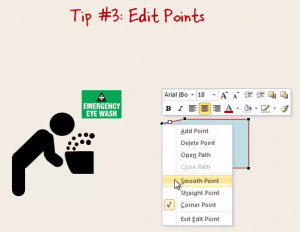
Mike Taylor’s blog post explaining how he created his own pictograms – and especially this video he did to demonstrate – helped me a lot. Specifically, I’ve never been satisfied with the amount of control I’ve had over editing points on shapes in PowerPoint, but starting at 7:20 in the video he reveals finer points I never knew about, and that was a big help. Thanks, Mike!

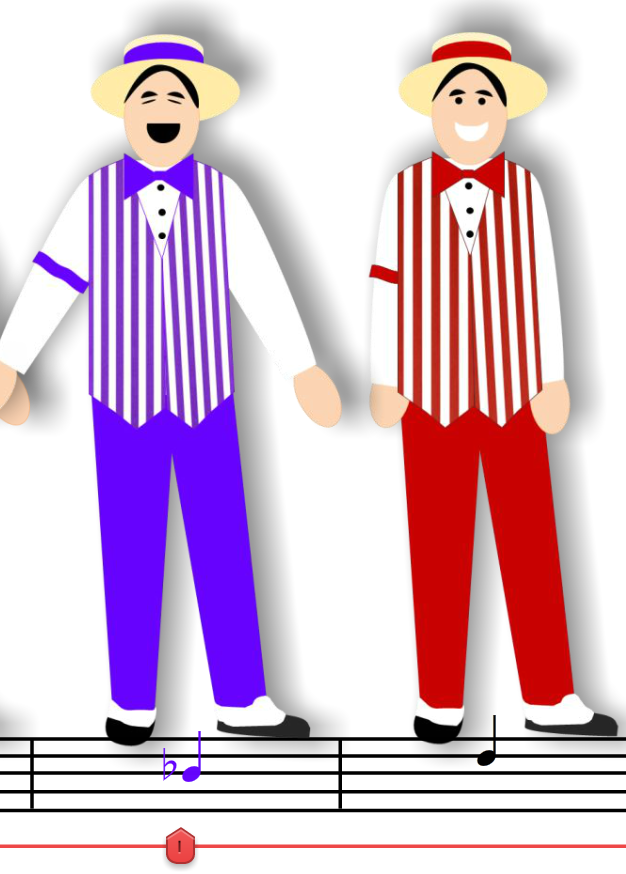
State Change: The Dan's Stance & Note Color Change When Selected

State Change: The Dan’s Stance & Note Color Change When Selected

The Slider

I guess I didn’t get enough of a slider fix in last week’s challenge, and this one was just asking for it. The idea of having each stop be a different vocal that harmonizes with the others seemed like a good idea, so I roped Dan Sweigert into recording some quick audio and was off to the races.

I set it up so that when a Dan is selected (1) his audio plays, (2) he changes to a singing stance, and (3) the note on the musical notation below him changes to match his outfit. Those image changes are set up as states, and they’re triggered to revert to their normal states once the audio stops playing.

Have a Look & Listen

Here’s the finished product. Have your audio ready and enjoy the performance!

Download the Free Image and Slider Files!

In case these might help you in your own work, you can download the PowerPoint source file with the customizable pictogram characters and download the Storyline singing slider file, too. Have fun!

Filed Under: E-Learning Tagged With: Articulate Storyline, Audio, Characters, Community, E-Learning Design, ELHChallenge, Free Download, PowerPoint, Show Your Work, Visual Design

Deconstruct This Timeline!

September 30, 2014 By Jackie Van Nice 10 Comments

Select Image to Launch Demo

Select Image to Launch Demo

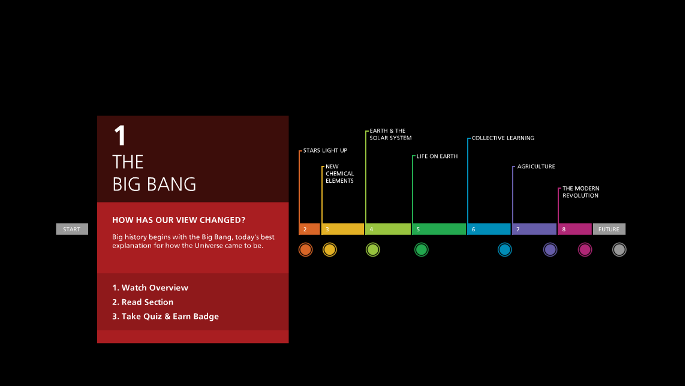
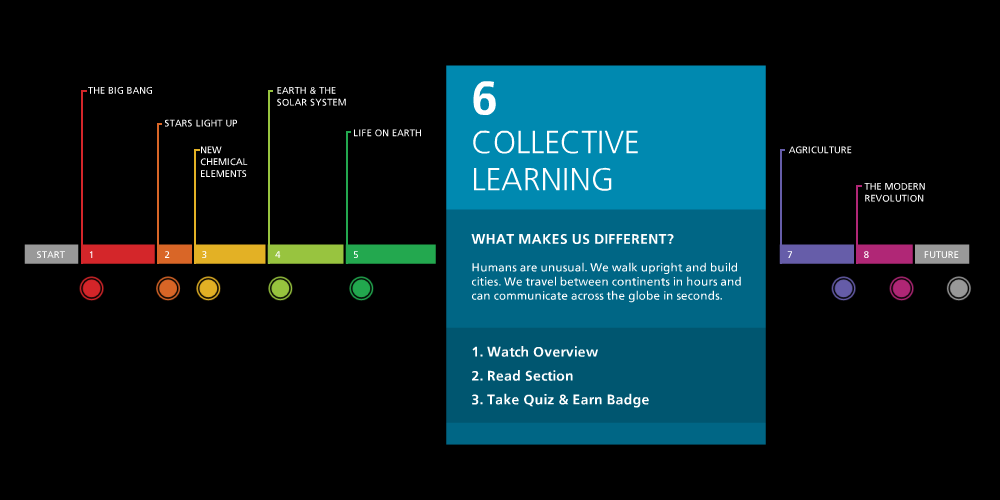
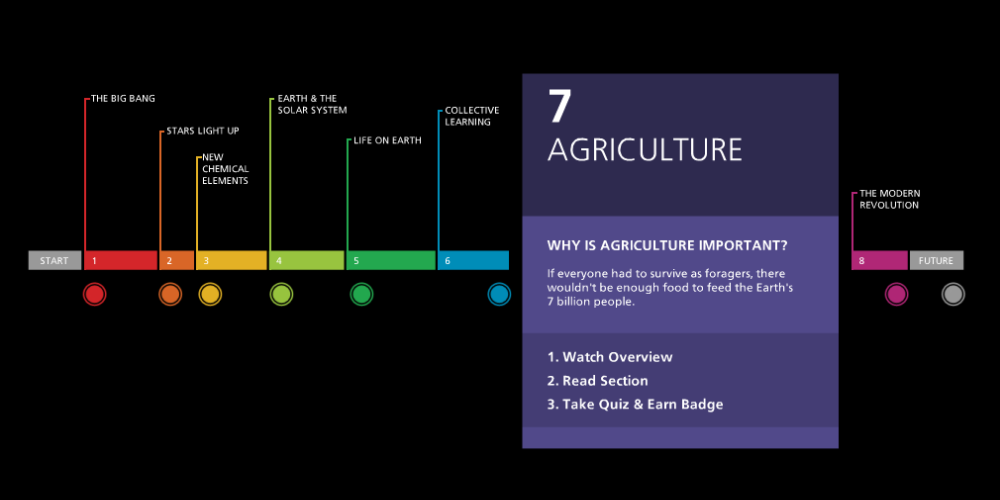
This Articulate challenge is to take The Big History Project’s interactive timeline and recreate it; interpreting it with the tools you have. It was a rather intense technical challenge, but a fantastic exercise.

slide1aThe Post-Challenge Interview

As part of the challenge, David Anderson asked us a few questions to learn more about how we created our entries.

1. How long did it take to build?

I’d guess maybe 6 hours.

2. How did you approach it?

I sketched it out on paper first to make it easier to organize and build.

3. What was the hardest part?

I created it using Storyline 1’s native animation and image-creation capabilities, so the only hard part was to remind myself that it was a good interpretation and to not get caught up in trying to recreate every detail of the original.

4. Would you do anything differently?

I don’t think so. Given the amount of time I had, I’m pretty happy with it.

slide5aWhat if…

Now that we have Storyline 2’s enhanced animation and transition options, plus its sliders and motion paths, I thought this would be a great challenge to revisit.

The problem, as I now search for the link to show you the original, is that The Big History Project has completed a Big Web Page Makeover and this version of the timeline has evaporated; lost forever to the mists of time.

What better moment to assure you that my interpretation was utterly spot-on?

Filed Under: E-Learning Tagged With: Articulate Storyline, Community, E-Learning Design, ELHChallenge, Show Your Work, Visual Design

My Multidimensional (Yet Flat) Desk

September 17, 2014 By Jackie Van Nice 16 Comments

Select Image to Launch Demo

Select Image to Launch Demo

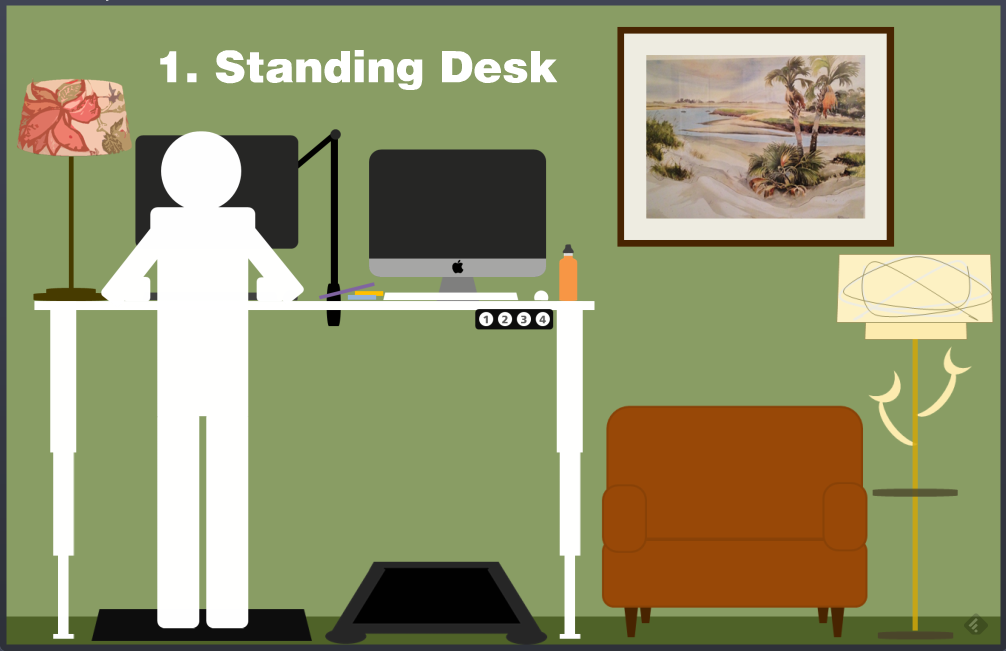
This week’s Articulate challenge is to render your work space in simple flat-style images.

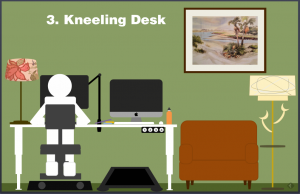
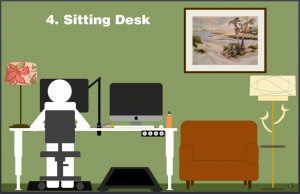
Oddly enough, it coincides with my move from a standard desk to a standing/walking/kneeling/sitting desk, so that’s what I illustrated in my entry.

The Problem and The Solution

I’d never seriously thought about doing this before, but I happened to glimpse an article on Facebook that was talking about standing desks. (Here’s the article. It has lots of good info including both high-end and very simple, inexpensive options.)

If you know me even a little bit, you’ve gathered I spend an insane amount of ’round-the-clock time at my desk. Leaving the house to move involves a 40 to 60 minute round-trip drive (more sitting) to go somewhere I can bike, take a walk, or go to a gym. When you’re in the middle of work you love, that’s a big disincentive to take a break.

The Walking Desk

The Walking Desk

When I lived in Chicago and Portland I could roll out my front door every day and walk for miles or go to a nearby gym. In Europe I’d go for walks or run errands on foot every day and it was fantastic. Where I am now makes me insane and my body is going to stop speaking to me completely if I don’t do something.

So the standing desk idea resonated with me, and once I delved into the topic I realized that making it into a walking desk (plus a kneeling desk), and a sitting desk were just what the doctor would order if I made it to the doctor before I gave out completely.

The Images and Interaction

The Kneeling Desk

The Kneeling Desk

Some of the pieces and parts of my new setup are still in transit, so I rendered the scene as I expect it to be. Much of it is already in place, so those things are pretty spot-on.

Since the whole scheme hinges on the desk raising and lowering to specific heights, that’s what I focused on in the interaction. I put in a flat person to illustrate, but also animate them out so you can just see the room. All you do to morph the desk is push a button to move it to a preset height, so that’s what I have the user do in the demo. It’s quick and simple to illustrate the concept.

Try It! (+ My Setup Details)

Select Image to Launch Demo

Select Image to Launch Demo

Here’s the quick interaction if you’d like to see it. Also, since some people have asked for the details of my setup, I’ve shared them below.

Desk: I chose the UpLiftDesk 900, 80″ wide – enough to accommodate both a treadmill and sitting/standing station below; though 72″ wide might be enough. Unlike other desks, you can decide when you put it together how far apart you want the legs. I chose the white top and white base to go with my other office furniture.

This desk had good reviews for its smooth lift motors, which are housed inside of the legs, and sturdiness. I believe there are four presets you can customize for different heights.

I didn’t choose to go with a keyboard tray for now, but if you want one on a regular full-sized slide you can get the 920 desk model instead. I thought the 900 might be a bit sturdier and knew I could use a half-track keyboard tray with it if I really wanted to.

I also chose the 12-year extended warranty. The last thing I want to figure out 10 years from now is where and how to get the motors in my desk legs repaired!

Treadmill: I chose the LifeSpan TR1200-DT3 Under Desk Treadmill. Seems to be the go-to choice. Several desk companies, including UpLiftDesk, sell this same treadmill for the same price if you want to buy from them – but all of the advice I found said to order from LifeSpan directly for ease of dealing with any warranty issues, etc. I went with the extended warranty on this, too.

Standing/Sitting Mat: I chose the UpLift Sit-Stand Desk Mat (an option you can choose when you order the desk) in the 3′ x 5′ size so it’s large enough to place a chair on it.

Monitor Arm: Since you want your monitors to swing to whichever side of the desk you’re working on you probably want them on arms like this. I went with the UpLift Single Monitor Arm (an option you can choose when you order the desk) for my regular monitor, but I’m hesitant to be swinging my iMac around on an arm! (Plus I’d have to find one that fits.) It’s just as easy for me to slide the iMac over from one side to the other, so that’s my plan for now.

Kneeling Chair: I already have the Jobri Jazzy Kneeling Chair; though I got it a few years ago and offhand don’t remember who I ordered it from. I like switching off between it and my regular office chair.

Regular Office Chair: I’ll give a shout-out to my chair since I’ve used it incessantly for an unbelievable 17 years now. It’s put up with lots of grief and it’s still a complete champ. I believe it’s Via’s Terra Low-Back chair. I bought it at a furniture store in Portland and they let me customize the fabric.

More Info & Videos: I think that’s it for my setup – but the UpLift site has some nice videos to give you a better look at how all of this works together, plus a whole lot more.

Let me know if you decide to revamp your desk in a similar way. I’d love to hear about it!

Filed Under: E-Learning, Working for Yourself Tagged With: Articulate Storyline, Community, E-Learning Design, ELHChallenge, Freelancing, Professional Development, Show Your Work, Visual Design

The Benefits of Sharing Your Work: A Reader Checks In

August 30, 2014 By Jackie Van Nice 5 Comments

I’m so lucky I get to do work I love and share it here, and I’m delighted when readers tell me it helps or inspires them. Unfortunately I never know exactly how it’s been helpful, and sometimes that curiosity drives me a little bit crazy. If I knew that, after all, I could do more of it!

Zifang Su

Zifang Su

Enter Zifang

Zifang Su is an instructional designer in Adelaide, Australia who recently sent me this message:

Hi Jackie – Just want to say thank you for your awesome site! Your blog posts about your design process really help me in looking at another instructional designer’s perspective and design thoughts and process, and as a result I’ve changed some of the ways I’ve done things as well. Thank you! Cheers, Zifang

Aha! I perked up, wondering if Zifang could give me some specifics about how she’s changed what she does. So I asked! She was very kind and sent me four specific examples (beautifully organized, of course) of how she’s changed the way she approaches instructional design. Here they are:

Code of Conduct Training

Code of Conduct Training

1. Using Stories and Scenarios

One of the things that struck me when looking at your portfolios and some others, plus the course I’m taking at the moment and some books I’m reading, is that using stories and scenarios can be really effective. Looking at the examples helps me to see how topics can be presented in a fun and engaging way.

2. Design of Courses

I love seeing the examples on your portfolio because they all look very different! Frankly, it’s incredible to me that someone can design all these different looking courses. Currently, my courses look very similar – but that has something to do with the restrictions placed on me at work (i.e. the online course must look similar to the powerpoint slides…). So I’m using the designs as inspirations for work-in-progress – essentially reducing many many dot points and chunks of texts and using graphics instead.

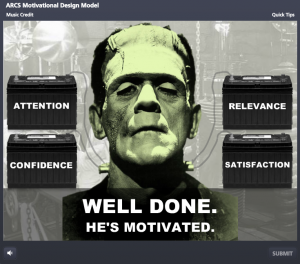
Can You Motivate This Monster?

Can You Motivate This Monster?

What do I think of Storyline?

What do I think of Storyline?

A Radiantly Delicious Template

A Radiantly Delicious Template

3. Use of Colours

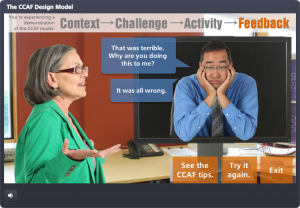
Your portfolio uses great colour schemes. I tend to be ‘traditional’ in the use of colours, e.g. black, blue, grey etc. but contrast works great (e.g. the CCAF design) so I’m reading about the use of colours, as well as experimenting on using brighter colours for my courses.

A Model Smart Enough to Teach Itself

A Model Smart Enough to Teach Itself

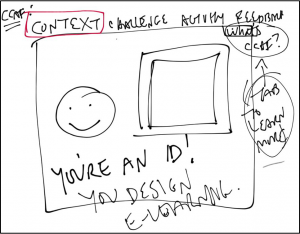
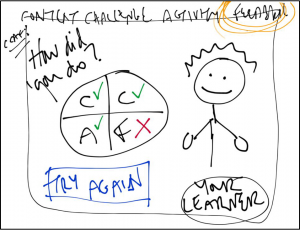
4. Sketching for Design Stage

I’ve tried using storyboard templates but found them stifling and it seems like I’m spending more time typing than actually designing. I then came across one of your examples, where you showed some sketches that you did for design and I thought yep, that’s a more flexible way to do it. So now I spend my design time sketching and showing it to my team rather than trying to fit things into a storyboard template.

Show Your Work: E-Learning Messiness By Me

Show Your Work: E-Learning Messiness By Me

Show Your Work: E-Learning Messiness By Me

Show Your Work: E-Learning Messiness By Me

What I Learned

I can’t tell you how grateful I was to get this feedback! It told me what sorts of things have been most helpful and exactly how it helped change another ID’s work. It may not sound like much, but this was huge for me and will help me going forward.

I’ve also learned that even the things I think might be too silly or messy to share can have value in helping someone grow, learn, and be successful. It encourages me to ignore the editorial voice in my head that’s always saying “you’re not going to post THAT, are you??” and motivates me to keep sharing all of the the potentially silly, messy results of my own learning process right here.

Thank you, Zifang!

You can be sure I’ll keep track of Zifang from now on, and if you’d ever like to share what’s been helpful to you here or if you’d like me to talk about a particular topic, just let me know! Zifang dropped me a line using this Contact form.

Filed Under: E-Learning Tagged With: Characters, Community, E-Learning Design, Instructional Design, Professional Development, Show Your Work, Visual Design

  • « Go to Previous Page
  • Go to page 1
  • Interim pages omitted …
  • Go to page 9
  • Go to page 10
  • Go to page 11
  • Go to page 12
  • Go to page 13
  • Go to page 14
  • Go to Next Page »

Primary Sidebar

Welcome!

I’m an award-winning instructional designer and proud Articulate Super Hero who creates e-learning for large organizations. I blog to explain my design process, share tips and tricks, and help others succeed. I hope you enjoy my refreshing gallery of e-learning goodness!

  • View jackietrains’s profile on Instagram
  • View jackievannice’s profile on LinkedIn

Tags

Articulate 360 Articulate Rise Articulate Storyline Articulate Studio Audio Avatars CCAF Characters Community Context Design Makeover Dials Drag & Drop E-Learning Design ELHChallenge Emotional Engagement Free Download Freelancing Games German Glossary Instructional Design Languages Makeover Menu Mobile Motivation Pantone Portfolio PowerPoint Professional Development Quick Reference Quizzes Sales Training Scenarios Show Your Work Software Training Storyline 360 Tables Technical Training Templates Typography Video Visual Design Voiceover

Top Posts & Pages

  • Portfolio
    Portfolio
  • Home
    Home
  • Sexual Harassment Training
    Sexual Harassment Training
  • Sales Mobility Software Training
    Sales Mobility Software Training
  • Navigating a Tasty Circular Menu
    Navigating a Tasty Circular Menu
  • Articulate's E-Learning Heroes Challenges
    Articulate's E-Learning Heroes Challenges
  • About
    About
  • Free Visual Storyboard Template
    Free Visual Storyboard Template
  • Free Storyline Templates
    Free Storyline Templates
  • How to Go Full-Screen & Lose the Player in Storyline
    How to Go Full-Screen & Lose the Player in Storyline

Copyright © 2026 Jackie Van Nice and E-Learning Goodness by Jackie Van Nice