• Skip to primary navigation
  • Skip to main content
  • Skip to primary sidebar

Jackie Van Nice

E-Learning Goodness by Jackie Van Nice

  • Home
  • About
  • Blog
  • Portfolio
    • Articulate’s ELH Challenges
    • Sales Mobility Software
    • Product Sales
    • Sexual Harassment
    • Code of Conduct
  • Freebies
    • Free Storyline Templates
    • Free PowerPoint Templates
    • Free Images
    • Freelancing Tips
    • Free Resources to Help Get Started in eLearning
  • Work With Me
  • Contact

Emotional Engagement

My Sketchy Life as an E-Learning Designer

April 14, 2014 By Jackie Van Nice 11 Comments

Click Image to Launch Demo

Click Image to Launch Demo

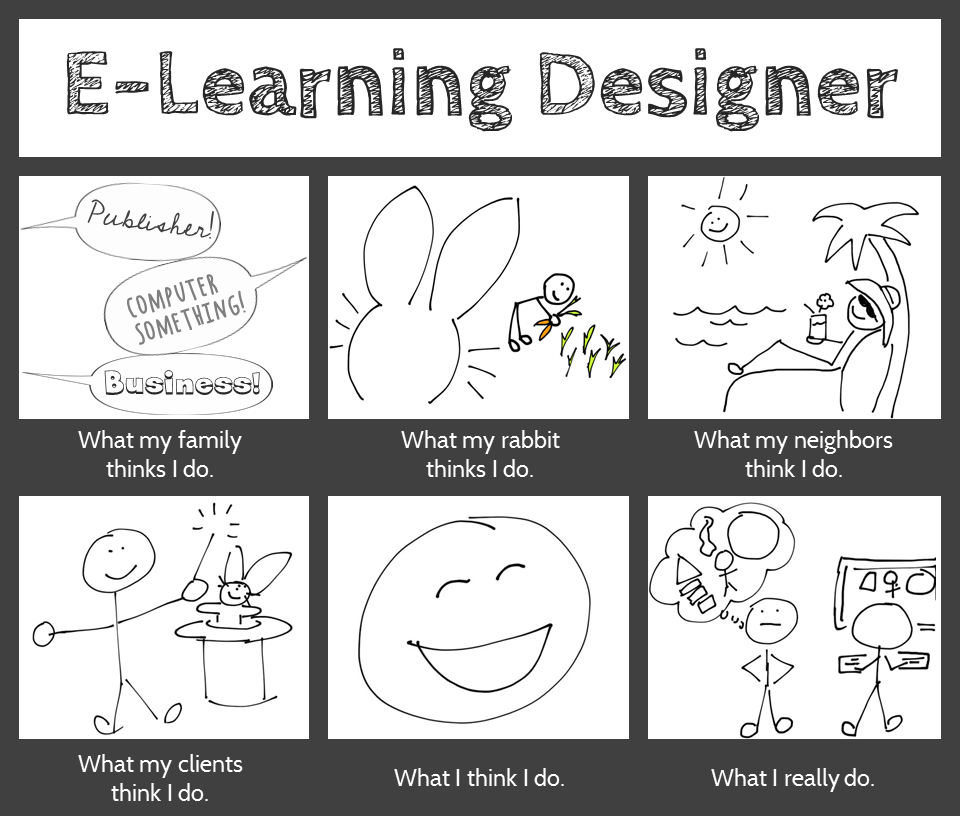
Since so many people are sketchy about what we do as e-learning designers, it seems appropriate to answer this week’s Articulate challenge in a similar vein. This week’s challenge is to answer the question “What do e-learning designers really do?” using the architecture of a visual meme supplied by David Anderson.

Design

I considered doing something interactive in Storyline, but went for a simple image instead. I’ve been playing with sketches lately and it seemed like a good sketching exercise. I created the finished image in PowerPoint.

Sketches: I made these on an iPad with an app called Pencilicious and a generic cell phone stylus. It would have been hugely easier with a stylus that wasn’t shaped like a big fat pencil eraser, but they don’t call this a “challenge” for nothing.

My process to go from scribbling to having usable PNG files: Sketch on iPad > email to self as PDF > export images as PNGs > use ’em! I was impressed with Pencilicious. It was the simple, easy-to-use app I was hoping for at only $2.99, and I’m looking forward to using it more.

Colors: I tamed the all-black frame of David’s example to more of a graphite color to work with the pencil-like theme. The only other colors are in the carrot garden, and that was because I didn’t think my carrots would look like carrots without color. I tried balancing that color with color elsewhere, but didn’t like it. So it’s an unbalanced design in favor of my bunny’s carrots.

Fonts: I’ve been in love with the header font, Cabin Sketch, since we first met. I’ve not had a chance to use it until now, so color me happy. The caption font is Cabin (brother of Cabin Sketch), and the three fonts in the first frame are Cedarville Cursive, Chocolate Windows, and Sneakerhead BTN Shadow.

Content

What my family thinks I do. This is dead accurate. My sister-in-law just sent me a job post, happily noting that it sounds “just like you!” It was for a publishing job. My brother suspects I do something with computers, and my lovely mother excitedly tells everyone she can that I’m an extraordinary businesswoman. (She’s sweet like that.)

What my family thinks I do.

What my rabbit thinks I do. All she knows is that I come up with endless feasts of carrots and kale, and she knows you get carrots by digging them up, so she probably thinks this is what I’m up to all day.

What my neighbors think I do. There’s no way they’d even have a guess. Best case, they think I spend all my time goofing off between vacations.

What my clients think I do. I adore them because they think I make magic happen.
What my clients think I do.What I think I do. I love what I do as an e-learning designer (don’t tell anyone), and between that and getting to work for myself from home, it’s hard not to be happy.

What I really do. I do what we all do: I work with clients; take in a gazillion project details; organize, analyze, and process them; dream up attractive, effective, and fun training solutions; and build them. (In a computer! So my brother was right.)

Hope you like it!
Filed Under: E-Learning Tagged With: Community, E-Learning Design, ELHChallenge, Emotional Engagement, Instructional Design, Professional Development, Show Your Work, Typography, Visual Design

Let’s Start at the End (Of Your Course)

April 8, 2014 By Jackie Van Nice 2 Comments

Select Image to Launch Demo

Select Image to Launch Demo

This week’s Articulate E-Learning Heroes challenge is to send a little love to the end of your course. It can be lonely and confusing back there – (“Is it over?” “What am I supposed to do?”) – so this week we’re sending back a life line.

Context & Theme

I wanted to indicate we’re starting at the very end of an interminably long course. My first choice was to start at the end of pi, but finding the end of pi is even more nebulous than the end of most courses, so that was out. (Maybe when I see Neil DeGrasse Tyson at DevLearn in October I’ll ask him if he’s made any progress on that Pi issue.)

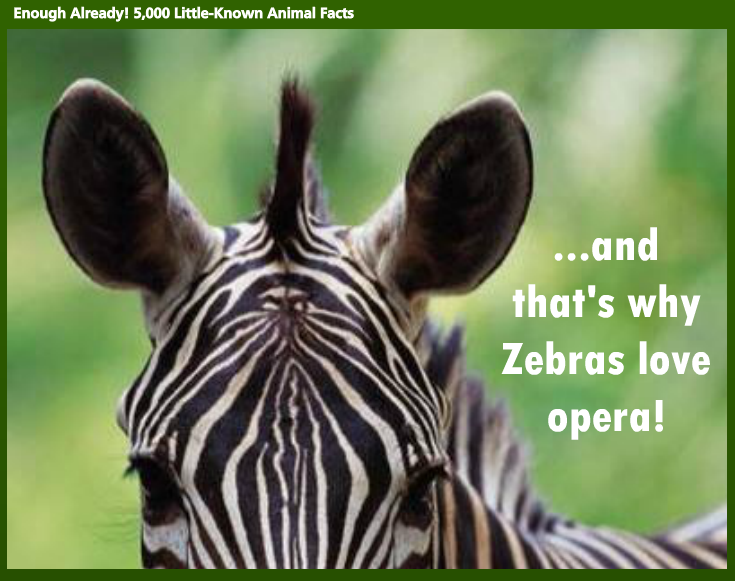
So instead I created (the end of) a course called “Enough Already! 5,000 Little-Known Animal Facts”, which starts on the last part of the last fact about the last animal.

Indicating Completion and Next Steps

Indicating Completion and Next Steps

Spelling it Out

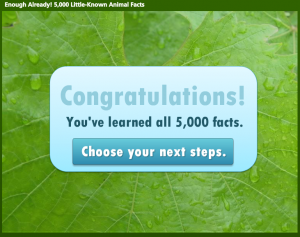
To be clear that you’ve reached the end of the course, I start with a congrats slide that also indicates you have a little more to do before you go.

Final Decisions

Final Decisions

Final Decisions

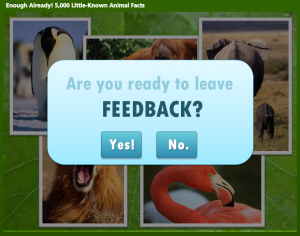
Which leads to an animal-themed screen where you get to make decisions. Hover State Visual: Hovering over each picture reveals where you’ll go if you click on it. Hover State Audio: Hovering also reveals a bit of audio. Its purpose is to add a touch of interest, amusement, and wake you up – but there have been reports of startled coworkers and kitties as of late, so consider yourself warned.

Gate Screen for Feedback

Gate Screen for Feedback

Gate Screens

After you make a selection you’ll go to a gate screen to confirm your choice. David Anderson had a gate screen challenge a few months ago where he talked about them, and you can also see the different examples created by members of the community.

Feedback Placeholder

Feedback Placeholder

Room for More

In this example, if you choose anything other than “Exit” you’re taken to placeholder slides that could harbor summarizing thoughts, more resources, ideas for review, or a means of leaving feedback.

See it in Action!

Take a look at this wild little ending right here.

Filed Under: E-Learning Tagged With: Articulate Storyline, Community, E-Learning Design, ELHChallenge, Emotional Engagement, Instructional Design, Show Your Work, Visual Design

What Do I Think of Storyline? Well, Since You Asked…

March 30, 2014 By Jackie Van Nice 8 Comments

Select Image to Launch Demo

Select Image to Launch Demo

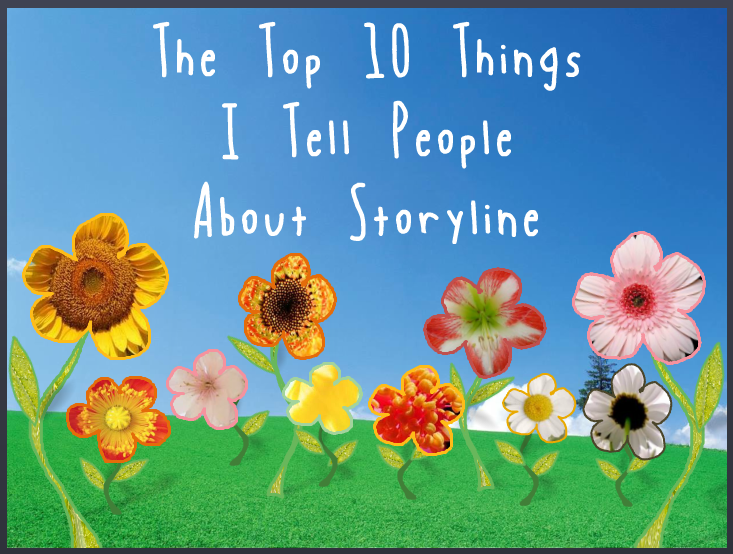
This week’s E-Learning Heroes Challenge is to come up with a “Top 10” list of things you’d tell someone about Storyline. You can collect your favorite resource links and curate them any way you’d like.

I basically took everything that I normally say to someone who asks me about Storyline, put it all together with appropriate links, and tied a bow on it. (Not unlike last week’s challenge where I did the same for what I tell future freelancers.)

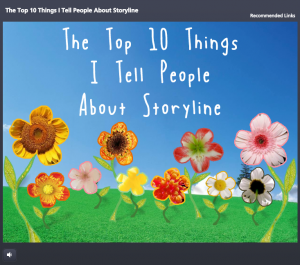
Main Menu

Main Menu

The Design

One advantage of the gallery layout on my blog is that I can instantly see what sort of design I should do to contrast with my recent work. Since my last two entries haven’t had vibrant color palettes, and since spring is officially here, I went for bright and springy with a little bit of silliness and a little bit of elegance.

I also didn’t want a main menu with squares or buttons that linked to the 10 points. I wanted the menu to be a creative, vibrant, graphic embodiment of the theme. Once I made that decision, the idea for the springing-up flowers came easily.

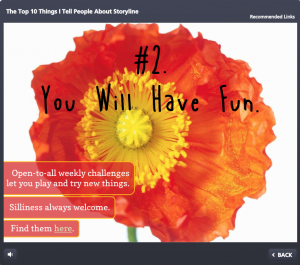
Content Page #2

Content Page #2

Main Menu Flowers: I wanted flower shapes that I could fill with photo captures from their related content pages. So I took out my trusty Wacom tablet and started drawing the basic outlines of the flowers, stems, and leaves. I did it in Storyline by going to Insert > Shape > Lines > Scribble and drew them right on the slide.

Then I adjusted the outline weight and color and did a picture background fill for each shape using a tight capture from each of the larger flower photos.

To make the flowers pop in their hover states, I increased the weight of the flower’s outline by a pixel or two, and increased the size of each flower by about 4 pixels in width and height.

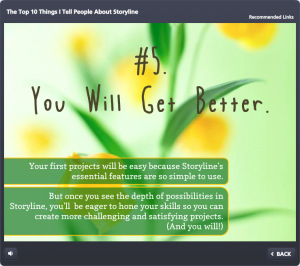
Content Page #5

Content Page #5

Audio: The sound effects for the flowers are two different sounds on top of each other. One’s a pop and one’s a spring. The singing birds are a piece of audio that I looped. I knew it was possible, but had never done it before. A quick Google search took me to this simple how-to. (Thanks, David!)

Content Page Colors: To get colors for my text, fills, and outlines that went perfectly with the flower images, I used the heck out of the eyedropper tool.

Photos: They’re all from Microsoft Clipart. I wanted big, clean, bold, colorful images.

Fonts: I’ve used the title font, Blue Chucks, a couple of times lately. Same with the paragraph font Copse. When you’re a cute font, you’re gonna get used.

Content Page #9

Content Page #9

The Content

It is what it is! This is what I tell people who ask, and these are the resources I direct them to.

The Finished Product

You can see it in all of its springy loveliness right here.

Filed Under: E-Learning Tagged With: Articulate Storyline, Community, E-Learning Design, ELHChallenge, Emotional Engagement, Professional Development, Software Training, Technical Training, Templates

We’ll Always Have the US Passport Office

March 16, 2014 By Jackie Van Nice 12 Comments

Select Image to Launch Demo

Select Image to Launch Demo

As excited as I am about packing up and heading down to this year’s Learning Solutions conference, I wanted to squeeze in some time to play along with this week’s E-Learning Heroes Challenge, which is about creating interactive screenshots.

The Boring Document: The US Passport Application

The Boring Document: The US Passport Application

Post-Traumatic Budget Analyst Syndrome

I’m pretty sure David wanted us to focus on software for this challenge. I keenly noted this about the time I was posting my completed entry.

He’d remarked in his post how much training all of us create based on documents, charts, and software (then clearly outlined his software challenge in detail) – but “documents” apparently struck a nerve and I was suddenly having a flashback to my life as a Budget Analyst in a very large, document-heavy organization where a big part of the job was getting my peers to understand and (ostensibly) care about reams of vital-yet-soul-deadening documents and forms.

So my reeling mind started working on creative ways to present a stultifying form using the interactive screenshot approach.

The Boring Document

Looking for a dull form? Who ya gonna call? Though the IRS has nothing but contenders, I chose the US Passport Application because:

1. I understand it. (Enough.)
2. I knew I could set up a quick bit of context to show when and why someone would use it.
3. I was hopeful that the context would tap into the learner’s own motivations enough to make them want to, you know – be motivated.

Midcentury Looney Tunes Design

A Midcentury Looney Tunes Design

The Style

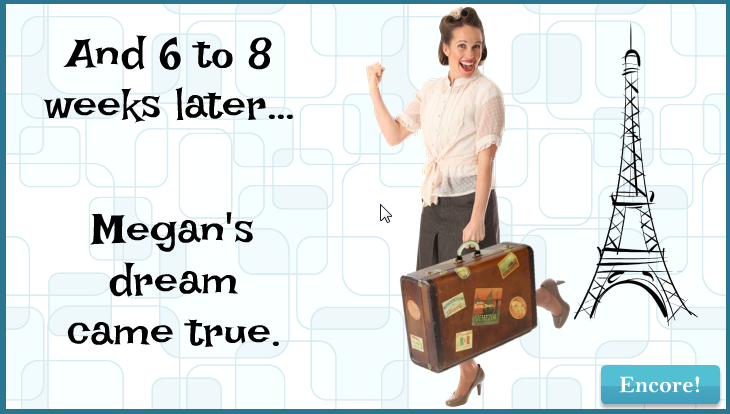
Choosing Paris as a motivational destination was pretty easy. And after I chose the character, the background, the groovy font, and the clipart, it had become sort of a midcentury Looney Tunes kind of thing. So that worked.

Oh, and I liked the blues, but I detested the passport form’s own mustardy color. But I eventually realized it would be a lot easier to integrate it into the color scheme rather than try to mitigate it with other colors.

The Views

But mostly I wanted to focus on a design that made it easy to navigate and understand the document. So I planned three views:

The Multiple Page View

The Multiple Page View

The Multiple Page View: Treating the multiple-page form like a tabbed interaction seemed like a clean approach, so I created my own tabs on the right. It’s simple, with just two pages, but you could make the tabs much smaller and use it for a far more extensive doc, too.

I also put a “Finish” tab there so you could escape at any time, and because I wanted to show the happy aftermath of having effectively used this form, and I needed a link to get there.

The Single Page Overview

The Single Page Overview
Using a Mouse Hover

The Single Page Overview: This is on the same page as the multiple page view; it just requires hovering your mouse. I chunked the form into numbered sections. When you hover over a number, that section becomes highlighted on the right, and on the left a short explanation appears. The hover effects are simply states attached to the number icons.

Section Detail View

The Section Detail View

The Section Detail: When you click on one of the numbered sections (and this is where the interactive screenshot part of the interactive screenshot challenge comes in), you go to a detailed view of that section. I put each of these on a slide layer.

To make the details a bit more involving and helpful, I added some abbreviated instructions and a little demo of what should happen on the form using sound effects and animations.

Of course, these detailed sections could include any number of things. You could have a video showing or telling why a particular item is critical, you could link out to other resources or help, or you could come up with other ways of illustrating what you need to convey for that section.

Attaching the Document: I also thought it made sense to attach the full doc in the player. If this were a real e-learning piece, I’d certainly do that.

Success = Paris!

Or at least it does in this interaction. Here’s the finished piece. I hope you enjoy it, and may you always have great ideas for presenting forbidding documents of your own.

Select Image to Launch Demo

Select Image to Launch Demo

Filed Under: E-Learning, Front Featured Tagged With: Articulate Storyline, Audio, Characters, Community, E-Learning Design, ELHChallenge, Emotional Engagement, Instructional Design, Languages, Visual Design

Please Don’t Let Me Be Martha Stewart

February 17, 2014 By Jackie Van Nice 8 Comments

Select Image to Launch Demo

Select Image to Launch Demo

With one eye on project deadlines and flights this week, I trained the other on goofing off with Articulate’s E-Learning Heroes challenge to bring the Inc.com What Kind of Leader Are You? infographic to life by interpreting it as a branching scenario.

The Original Infographic

The Original Infographic

Approach

Since this is a personality assessment that briefly flirts with a teaching moment, I chose not to set up full-blown scenarios with characters to put each decision point in context. It would be fun; but it would also seem kind of silly to spend all that time illustrating such abstract concepts when the only world that matters here is the user’s internal one.

I decided the cleanest and most expeditious way to bring some life and abbreviated context to this interaction was through good use of color, text, animation, and simple images.

Color

Since the world is flat these days, I snagged some flat design colors from one of Damon Nofar’s SlideShare presentations.

I like to relaaaaaaax by...Where are you most likely to interact with employees?Backwards DirectionForwards DirectionText & Animation

I suppose Damon decided he could inspire me with text, too, which must be why he posted this presentation. (And I now see he posted another one about using typography a few hours ago where he lays out a number of principles I used in my piece – but I hadn’t seen that one.)

In the end, Swiss921 BT made me happy, so that’s my title font. I threw in some Helvetica in honor of Damon’s devotion to it; though I’m more of a Calibri fan. (So there’s some of that, too.)

I decided that pulling key words and making them stand out would be the easiest way to let the user quickly scan the decision point.

I also messed with the keywords so they’re more expressive – whether changing the word itself (using lots of extra “a”s in “relax”), changing the type layout (so “interact’s” letters get all inter-mingly), and so on. I also used animation. My favorite is when the word “direction” comes in backwards, then quickly realizes its mistake and comes in forwards. But that’s just me.

Simple Images

I originally envisioned hand-drawn white line drawings to soften and balance the strong font I’d chosen, and gave Microsoft clipart a quick search.

I started by looking for a mountain image to illustrate the idea of a challenge. When I found one in Microsoft Clipart Style #1306, and took a quick look to see if the rest of the style could work, I had my images.

I wanted to take out, or at least adjust, the colors, but given time constraints I just made a few alterations to specific images (like the clouds that float across the sky at the beginning) and left it at that.

Devices and Navigation

One Possible Result

One Possible Result

This piece seemed to want to be a little app, so I had the iPad in mind as I designed it. Works just fine.

I kept navigation simple, since it’s really just a one-way path.

Audio

I would love to put in audio (sound effects, etc.), but no time. Maybe I’ll add some later.

See the Result!

You can see this guy (and find out what kind of leader you are) right here!

Filed Under: E-Learning Tagged With: Community, E-Learning Design, ELHChallenge, Emotional Engagement, Typography

  • « Go to Previous Page
  • Go to page 1
  • Interim pages omitted …
  • Go to page 5
  • Go to page 6
  • Go to page 7
  • Go to page 8
  • Go to Next Page »

Primary Sidebar

Welcome!

I’m an award-winning instructional designer and proud Articulate Super Hero who creates e-learning for large organizations. I blog to explain my design process, share tips and tricks, and help others succeed. I hope you enjoy my refreshing gallery of e-learning goodness!

  • View jackietrains’s profile on Instagram
  • View jackievannice’s profile on LinkedIn

Tags

Articulate 360 Articulate Rise Articulate Storyline Articulate Studio Audio Avatars CCAF Characters Community Context Design Makeover Dials Drag & Drop E-Learning Design ELHChallenge Emotional Engagement Free Download Freelancing Games German Glossary Instructional Design Languages Makeover Menu Mobile Motivation Pantone Portfolio PowerPoint Professional Development Quick Reference Quizzes Sales Training Scenarios Show Your Work Software Training Storyline 360 Tables Technical Training Templates Typography Video Visual Design Voiceover

Top Posts & Pages

  • Portfolio
    Portfolio
  • Home
    Home
  • Sexual Harassment Training
    Sexual Harassment Training
  • Sales Mobility Software Training
    Sales Mobility Software Training
  • Navigating a Tasty Circular Menu
    Navigating a Tasty Circular Menu
  • Articulate's E-Learning Heroes Challenges
    Articulate's E-Learning Heroes Challenges
  • About
    About
  • Free Visual Storyboard Template
    Free Visual Storyboard Template
  • Free Storyline Templates
    Free Storyline Templates
  • How to Go Full-Screen & Lose the Player in Storyline
    How to Go Full-Screen & Lose the Player in Storyline

Copyright © 2026 Jackie Van Nice and E-Learning Goodness by Jackie Van Nice