• Skip to primary navigation
  • Skip to main content
  • Skip to primary sidebar

Jackie Van Nice

E-Learning Goodness by Jackie Van Nice

  • Home
  • About
  • Blog
  • Portfolio
    • Articulate’s ELH Challenges
    • Sales Mobility Software
    • Product Sales
    • Sexual Harassment
    • Code of Conduct
  • Freebies
    • Free Storyline Templates
    • Free PowerPoint Templates
    • Free Images
    • Freelancing Tips
    • Free Resources to Help Get Started in eLearning
  • Work With Me
  • Contact

Instructional Design

Dating Zombies as a Survival Strategy

October 19, 2014 By Jackie Van Nice 8 Comments

Select Image to Launch Demo

Select Image to Launch Demo

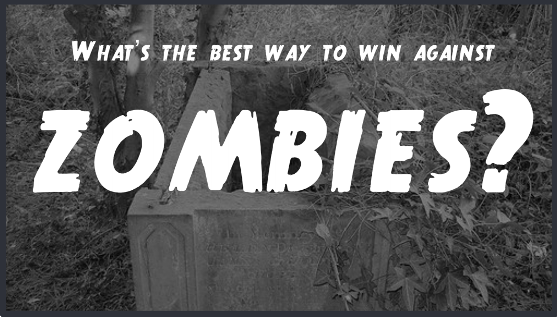
This week’s creepy-yet-practical Articulate challenge is to put together something that will help us prepare for – and survive – the upcoming Zombie Apocalypse. My idea may not have the best success rate, but it’s all I’ve got.

The Idea
Zombie
Zombie

Sticker

Sticker

Inspiration

Inspiration

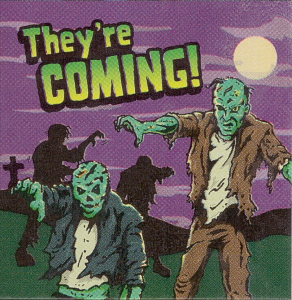
It started with some dollar store scratch-n-sniff zombie stickers. (I haven’t been curious enough to find out what zombies smell like yet.) But I started to notice categories (food, drink) and sketched out an interaction where a perky person was doing zombie market research. When outcomes for that seemed too limited, I came up with the dating idea.
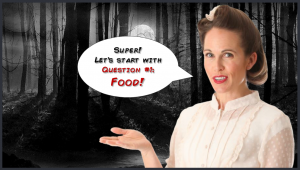
Creepy Setting --- Perky Person

Creepy Setting — Perky Person

I knew contrast would be key. Lovely, safe, familiar things needed to be set in high relief against their opposites; hence the choices for music, fonts, script, people, food, drink, and everything else.
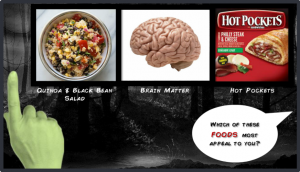
Tough Choices

Tough Choices

The Interaction

Theme

It’s all bad-horror-movie inspired, including the intro with that awesome True Crimes font. Add some of Storyline 2’s new animations and it’s a pretty good title screen.

Slider

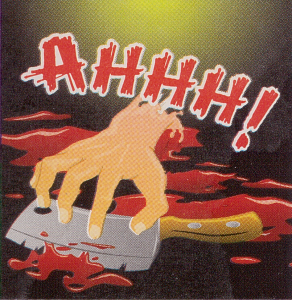
This time I filled the thumb with an image of a zombie hand and used no visible track. You slide and release the hand to choose, which seems intuitive. The only downside of using the slide-and-release option was that when I published to HTML5 it treated triggers as though they were part of a while-slider-is-dragged version – so I republished without HTML5.

Options & Outcomes

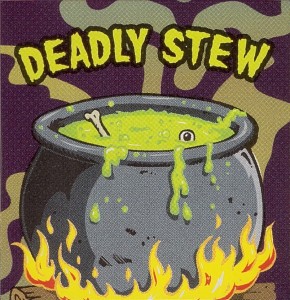
There are 3 possible outcomes. One based on zombie choices, one based on my own personal choices (largely unlike zombie ones; though lines get blurred in a couple of categories), and one somewhere in between.
Click Image to Launch Demo

Click Image to Launch Demo

Try it Out!

Who’s your perfect match? Give it a try and find out… if you DARE.

Filed Under: E-Learning Tagged With: Articulate Storyline, Characters, Community, Context, E-Learning Design, ELHChallenge, Emotional Engagement, Games, Instructional Design, Show Your Work, Typography

When Gate Screens & Yodeling Collide

September 25, 2014 By Jackie Van Nice 7 Comments

Select Image to Launch Demo

Select Image to Launch Demo

This Articulate challenge is to create a two-slide interaction that includes a content screen and a gate screen. Gate screens give learners some control and a chance to interact with the course, so they’re a nice touch.

The Idea

I wanted to use a gate screen to be sure the learner is ready for a final quiz.

Four-Quadrant Menu

Four-Quadrant Menu

The Design

I wanted one screen that was a tight title slide/main menu combo. As soon as I started playing with basic layouts I realized I had a big cross in the middle that looked like the Swiss flag, so that worked. And since travel in Switzerland is spectacular, I thought that should be the topic.

I was after a menu that made good use of hover states and the entire screen – so I split it into four quadrants and created three course sections and a final quiz.

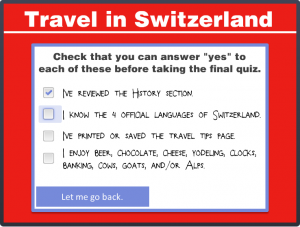
Gate Screen In Use

Gate Screen In Use

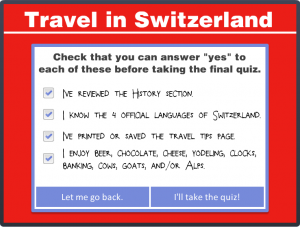
Gate Screen Completed

Gate Screen Completed

The Gate Screen

One way to see if someone’s ready for a quiz is to remind them of what it’s going to cover, so that’s what I did.

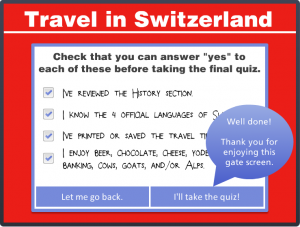
Once the learner has checked off each item to confirm they’ve adequately reviewed it, the option to take the quiz becomes available. They’re also given the option to return to the main menu at any time.

See It!

I don’t know why I’m so fond of this one. Maybe my Swiss grandparents would have been proud? Who knows, but I like the compact, responsive design. It’s kind of like those little German (and Italian and French) cars that zip up and down the Alps.

Success!

Success!

Regardless, if you’d like to see it, it’s right here!

Filed Under: E-Learning Tagged With: Articulate Storyline, Community, E-Learning Design, ELHChallenge, Instructional Design, Show Your Work

Fontcracker Suite: Teaching Typography

September 22, 2014 By Jackie Van Nice 16 Comments

Select Image to Launch Demo

Select Image to Launch Demo

This week’s Articulate challenge is to teach some typography by creating a game or interaction. I dove in – excited that I could finally use Storyline’s new features out in the real world!

The Idea: Motion Paths & Dance

Motion paths are a huge plus in Storyline, so I wanted to feature them. Looking at proper typographic form got me thinking of proper human form, which got me to ballet, which led me to letters dancing to ballet music. Dancing letters using Storyline’s motion paths it would be!

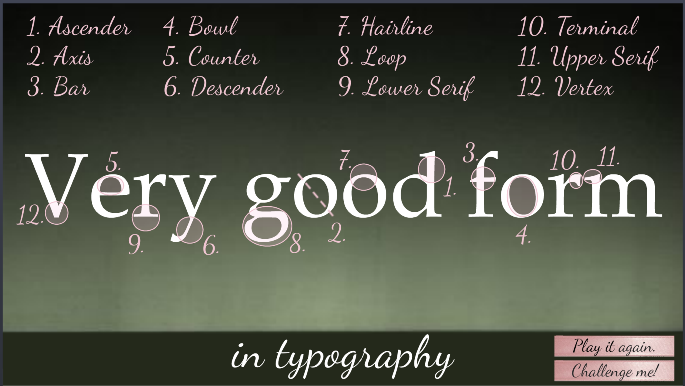
Typography as the Star

Typography as the Star

The Typography

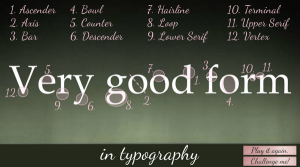
Many explanations of typographic anatomy use the word “Typography” as their example. I chose “very good form” so I could demo the concepts and stick with my theme.

Visual focus is on the typography throughout and it’s used on every screen. It engages the learner, introduces the concepts, acts as a progress meter, provides feedback, and wraps things up. I used one serif font (Book Antiqua) and one script font (Dancing Script). After settling on 12 typography terms to teach, I forged ahead.

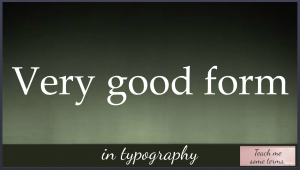
Minimal Design

Minimal Design

Minimal Visual Design

Rather than running wild with the theme by adding dancers, Christmas trees, snow, costumes, and scenes from the ballet I kept it simple – guided by the simplicity of the typography.

The main images are a ballet stage as the background and some ballet shoe ribbons. Rather than showing snow, I implied it on the opening screen by having each half of the word “good” fall gently into place.

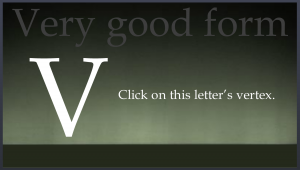
Learner Control

Learner Control

The Interaction

Rather than announcing itself as an interaction where you’ll learn typographic terms, it starts with a fun bit of music and animation that sets the mood, theme, and topic before a small button appears that says “Teach me some terms”. Nothing is forced; you’re enticed to explore.

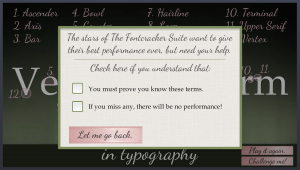
Feedback & Options

Feedback and Options

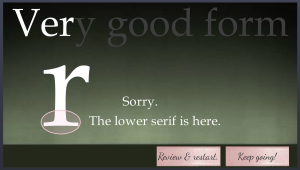
The learner also has enough options and information to feel they’re in control. If you choose “Challenge me!” for example, a message lays out clear expectations by letting you know what’s needed to succeed and gives you your options. Feedback is clear. If you make an incorrect choice you receive correction and can choose to review or continue.

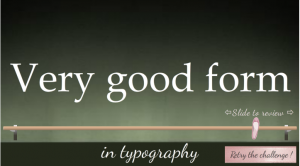
Slider as Ballet Barre for Review

Slider as Ballet Barre for Review

Best Slider Barre None

I used another of my favorite Storyline features – the slider – to create a ballet barre to review terms. (It features a lovely relative motion path, too!) It gives the learner full control and lets them focus on one item at a time.

Enjoy the Show!

If you have your audio ready, here’s the interaction in all of its very good form.

Select Image to Launch Demo

Select Image to Launch Demo

Filed Under: E-Learning, Front Slider Tagged With: Articulate Storyline, Community, E-Learning Design, ELHChallenge, Emotional Engagement, Games, Instructional Design, Show Your Work, Typography

The Benefits of Sharing Your Work: A Reader Checks In

August 30, 2014 By Jackie Van Nice 5 Comments

I’m so lucky I get to do work I love and share it here, and I’m delighted when readers tell me it helps or inspires them. Unfortunately I never know exactly how it’s been helpful, and sometimes that curiosity drives me a little bit crazy. If I knew that, after all, I could do more of it!

Zifang Su

Zifang Su

Enter Zifang

Zifang Su is an instructional designer in Adelaide, Australia who recently sent me this message:

Hi Jackie – Just want to say thank you for your awesome site! Your blog posts about your design process really help me in looking at another instructional designer’s perspective and design thoughts and process, and as a result I’ve changed some of the ways I’ve done things as well. Thank you! Cheers, Zifang

Aha! I perked up, wondering if Zifang could give me some specifics about how she’s changed what she does. So I asked! She was very kind and sent me four specific examples (beautifully organized, of course) of how she’s changed the way she approaches instructional design. Here they are:

Code of Conduct Training

Code of Conduct Training

1. Using Stories and Scenarios

One of the things that struck me when looking at your portfolios and some others, plus the course I’m taking at the moment and some books I’m reading, is that using stories and scenarios can be really effective. Looking at the examples helps me to see how topics can be presented in a fun and engaging way.

2. Design of Courses

I love seeing the examples on your portfolio because they all look very different! Frankly, it’s incredible to me that someone can design all these different looking courses. Currently, my courses look very similar – but that has something to do with the restrictions placed on me at work (i.e. the online course must look similar to the powerpoint slides…). So I’m using the designs as inspirations for work-in-progress – essentially reducing many many dot points and chunks of texts and using graphics instead.

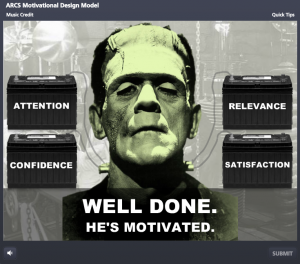
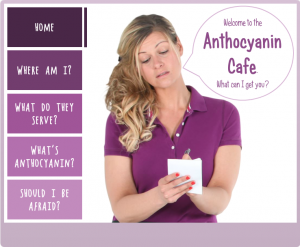
Can You Motivate This Monster?

Can You Motivate This Monster?

What do I think of Storyline?

What do I think of Storyline?

A Radiantly Delicious Template

A Radiantly Delicious Template

3. Use of Colours

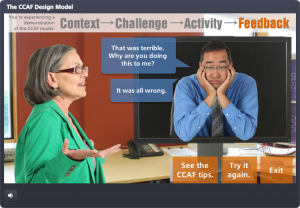
Your portfolio uses great colour schemes. I tend to be ‘traditional’ in the use of colours, e.g. black, blue, grey etc. but contrast works great (e.g. the CCAF design) so I’m reading about the use of colours, as well as experimenting on using brighter colours for my courses.

A Model Smart Enough to Teach Itself

A Model Smart Enough to Teach Itself

4. Sketching for Design Stage

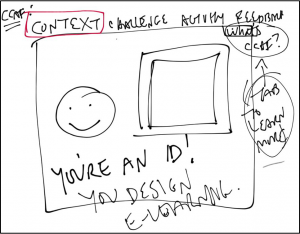
I’ve tried using storyboard templates but found them stifling and it seems like I’m spending more time typing than actually designing. I then came across one of your examples, where you showed some sketches that you did for design and I thought yep, that’s a more flexible way to do it. So now I spend my design time sketching and showing it to my team rather than trying to fit things into a storyboard template.

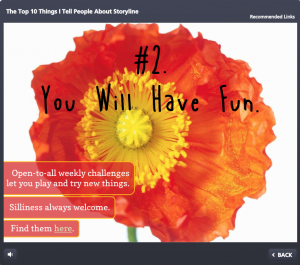
Show Your Work: E-Learning Messiness By Me

Show Your Work: E-Learning Messiness By Me

Show Your Work: E-Learning Messiness By Me

Show Your Work: E-Learning Messiness By Me

What I Learned

I can’t tell you how grateful I was to get this feedback! It told me what sorts of things have been most helpful and exactly how it helped change another ID’s work. It may not sound like much, but this was huge for me and will help me going forward.

I’ve also learned that even the things I think might be too silly or messy to share can have value in helping someone grow, learn, and be successful. It encourages me to ignore the editorial voice in my head that’s always saying “you’re not going to post THAT, are you??” and motivates me to keep sharing all of the the potentially silly, messy results of my own learning process right here.

Thank you, Zifang!

You can be sure I’ll keep track of Zifang from now on, and if you’d ever like to share what’s been helpful to you here or if you’d like me to talk about a particular topic, just let me know! Zifang dropped me a line using this Contact form.

Filed Under: E-Learning Tagged With: Characters, Community, E-Learning Design, Instructional Design, Professional Development, Show Your Work, Visual Design

Shooting Your Own E-Learning Background Images

August 16, 2014 By Jackie Van Nice 8 Comments

Select Image to Launch Demo

Select Image to Launch Demo

This Articulate challenge is to create your own background images. The idea is to plan your shots, shoot photos, then manipulate them to work in your project.

The Project

I wanted to share a software training piece I’d created at the eLearning Guild’s SolutionFest, but had to change both the branding and the industry before I could. That involved a lot of new development, including new background images and some video. Time for a photo shoot!

My Shot List

I scouted out a nearby business park and showed up with my shot list in hand. I’ll only share a couple of them in this post, but the shots I wanted and got were:

  1. From the parking lot looking back at the office building with my vehicle in plain view in the center.
  2. From the office building looking out to the parking lot with a field in the background.
  3. Looking down the alley of office park building back doors, plus some closer shots of the doors.
  4. A stop sign at the end of the alleyway.
  5. A video focused on the stop sign, then quickly panning down the alley and back.

Image Manipulation

For the still images I cropped and manipulated them to match the style of the rest of the course, which I’d designed to de-emphasize the background to make it easier to focus on the content. Since I developed this in Articulate Studio ’09 it was quick and easy to use the PowerPoint image formatting options. I used a tan color and the “pastels smooth” artistic effect.

Shot #1: From Parking Lot to Building

For this shot I cropped the image so that the vehicle was easily visible between the characters so I could add the company logo to the door.

Shot #1: Original

Shot #1: Original

Shot #1: Used in the Course

Shot #1: Used in the Course

 Shot #2: From Office to Parking Lot and Field

I wanted this shot to be very simple, with just a hint of parking lot stripes and nothing else to act as a distraction.

Shot #2: Original

Shot #2: Original

Shot #2: Used in the Course

Shot #2: Used in the Course

 See The Whole Thing!

If you’d like to see the entire demo as I showed it at SolutionFest, which used all of the other shots on my list, you can view it right here. If you’d like to learn more about how I designed this project, all of the details are right here!

Filed Under: E-Learning Tagged With: Articulate Studio, Characters, Community, Context, E-Learning Design, ELHChallenge, Emotional Engagement, Instructional Design, Mobile, PowerPoint, Software Training, Technical Training, Video

  • « Go to Previous Page
  • Go to page 1
  • Interim pages omitted …
  • Go to page 7
  • Go to page 8
  • Go to page 9
  • Go to page 10
  • Go to page 11
  • Interim pages omitted …
  • Go to page 14
  • Go to Next Page »

Primary Sidebar

Welcome!

I’m an award-winning instructional designer and proud Articulate Super Hero who creates e-learning for large organizations. I blog to explain my design process, share tips and tricks, and help others succeed. I hope you enjoy my refreshing gallery of e-learning goodness!

  • View jackietrains’s profile on Instagram
  • View jackievannice’s profile on LinkedIn

Tags

Articulate 360 Articulate Rise Articulate Storyline Articulate Studio Audio Avatars CCAF Characters Community Context Design Makeover Dials Drag & Drop E-Learning Design ELHChallenge Emotional Engagement Free Download Freelancing Games German Glossary Instructional Design Languages Makeover Menu Mobile Motivation Pantone Portfolio PowerPoint Professional Development Quick Reference Quizzes Sales Training Scenarios Show Your Work Software Training Storyline 360 Tables Technical Training Templates Typography Video Visual Design Voiceover

Top Posts & Pages

  • Portfolio
    Portfolio
  • Home
    Home
  • Sexual Harassment Training
    Sexual Harassment Training
  • Sales Mobility Software Training
    Sales Mobility Software Training
  • Navigating a Tasty Circular Menu
    Navigating a Tasty Circular Menu
  • Articulate's E-Learning Heroes Challenges
    Articulate's E-Learning Heroes Challenges
  • About
    About
  • Free Visual Storyboard Template
    Free Visual Storyboard Template
  • Free Storyline Templates
    Free Storyline Templates
  • How to Go Full-Screen & Lose the Player in Storyline
    How to Go Full-Screen & Lose the Player in Storyline

Copyright © 2026 Jackie Van Nice and E-Learning Goodness by Jackie Van Nice