• Skip to primary navigation
  • Skip to main content
  • Skip to primary sidebar

Jackie Van Nice

E-Learning Goodness by Jackie Van Nice

  • Home
  • About
  • Blog
  • Portfolio
    • Articulate’s ELH Challenges
    • Sales Mobility Software
    • Product Sales
    • Sexual Harassment
    • Code of Conduct
  • Freebies
    • Free Storyline Templates
    • Free PowerPoint Templates
    • Free Images
    • Freelancing Tips
    • Free Resources to Help Get Started in eLearning
  • Work With Me
  • Contact

Front Featured

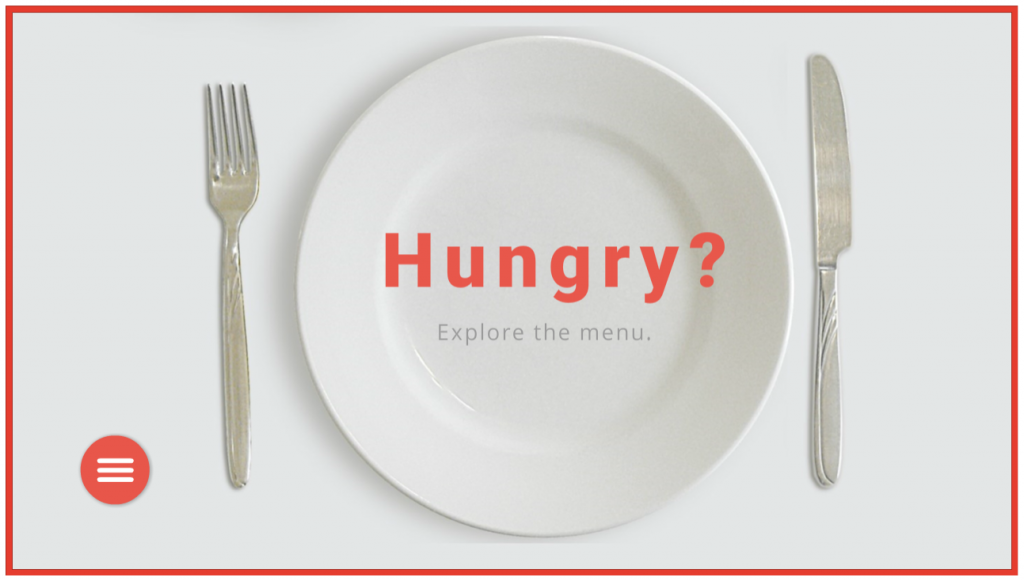
Navigating a Tasty Circular Menu

April 22, 2018 By Jackie Van Nice 8 Comments

Select Image to Launch Demo

Select Image to Launch Demo

This week’s Articulate ELH challenge is to create a circular navigation menu to mimic the sorts of menus used in mobile apps, save screen real estate, and give the design a sleeker look.

The Idea

I thought I’d use the navigation menu to explore a food menu. Leaning into the circular theme led me to selecting a big round plate and all of the round dishes that ended up on it.

The Design

Building the Menu

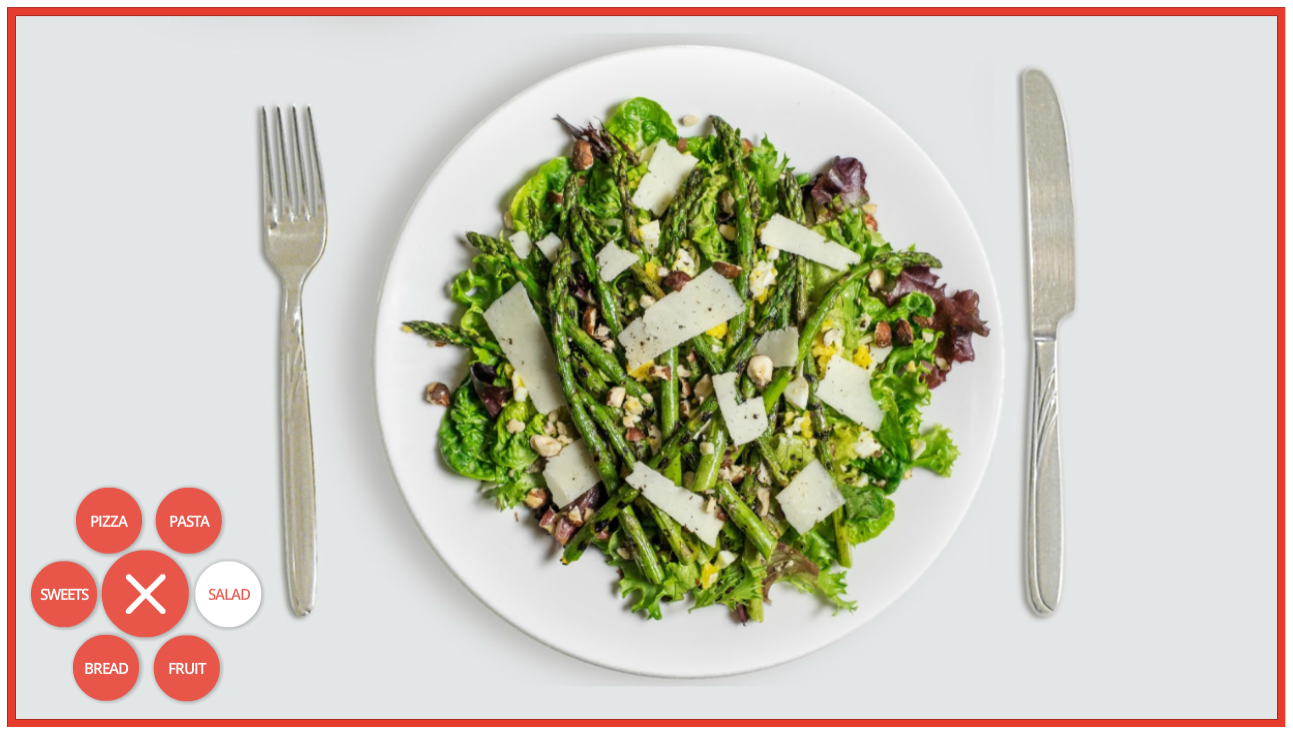
My circular menu: Note that Pasta stays selected even after the menu has been closed and reopened.

My circular menu: Note that Pasta stays selected even after the menu has been closed and reopened.

A sample Storyline file was offered as a challenge resource, but I find it easier to dig in and build things from scratch. It takes longer but it’s soooooo much easier to wrap my head around what I build on my own, plus I love the challenge of figuring it all out.

The menu items are inserted shapes nested under the main menu, which is also an inserted shape. I added two motion paths to each one – the first to move outward when the menu is selected, and second to return to the original position.

By the way, working with motion paths in Storyline is so much easier now. Being able to name the paths is helpful, but being able to align and snap motion path items is a thing of beauty. I’d have loved to have had those features when I created my Fontcracker Suite and Faces of the Ebola Response challenge entries!

The other thing I wanted to add was a “selected” menu item state AND have it retain that state even after the menu has been closed and re-opened. I think it’s helpful when a menu tells you where you are. That upped my trigger count, but I really like the result.

The food items are activated to appear when the user clicks a menu item and the state of a transparent shape on top of the plate changes to display the selected dish.

The behind-the-scenes food states for the transparent rectangle that covers the plate.

The behind-the-scenes food states for the transparent rectangle that covers the plate.

The Images

All images are from the 360 Content Library, including the main menu’s “hamburger” and X icons. The food options were dictated by how possible it was to remove the background from each one so I could put it on the plate and have it look plausible.

I used the Format > Remove Background tool in PowerPoint, which worked like a charm.
Pasta Before Removing Background

Pasta Before Removing Background

Pasta After Removing Background

Pasta After Removing Background

Pie Before Removing Background

Pie Before Removing Background

Pie After Removing Background

Pie After Removing Background

Oranges Before Removing Background

Oranges Before Removing Background

Oranges After Removing Background

Oranges After Removing Background

The Result

After that there’s nothing left to do but choose what you’d like on the menu! You can try it out here or by selecting the image below. Buon appetito!
Select Image to Launch Demo
Select Image to Launch Demo
Filed Under: E-Learning, Front Featured Tagged With: Articulate 360, E-Learning Design, ELHChallenge, Instructional Design, Menu, Navigation, Show Your Work, Storyline 360, Visual Design

Making Text Work with Images

December 16, 2016 By Jackie Van Nice 6 Comments

Select Image to Launch Demo
Select Image to Launch Demo
This week’s ELH challenge is to create an example of using text with images. Woo-hoo!

The Idea

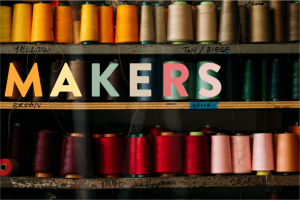
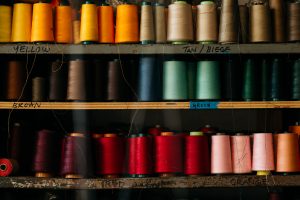
My plan was to finally go through some of my Death to Stock photos, select one I like, and add some text so it looks appealingly cool. I felt good about this.

The Original Image

The Original Image

The Colorful Title

The Colorful Title

The Design

I put it together in Storyline.

The Image

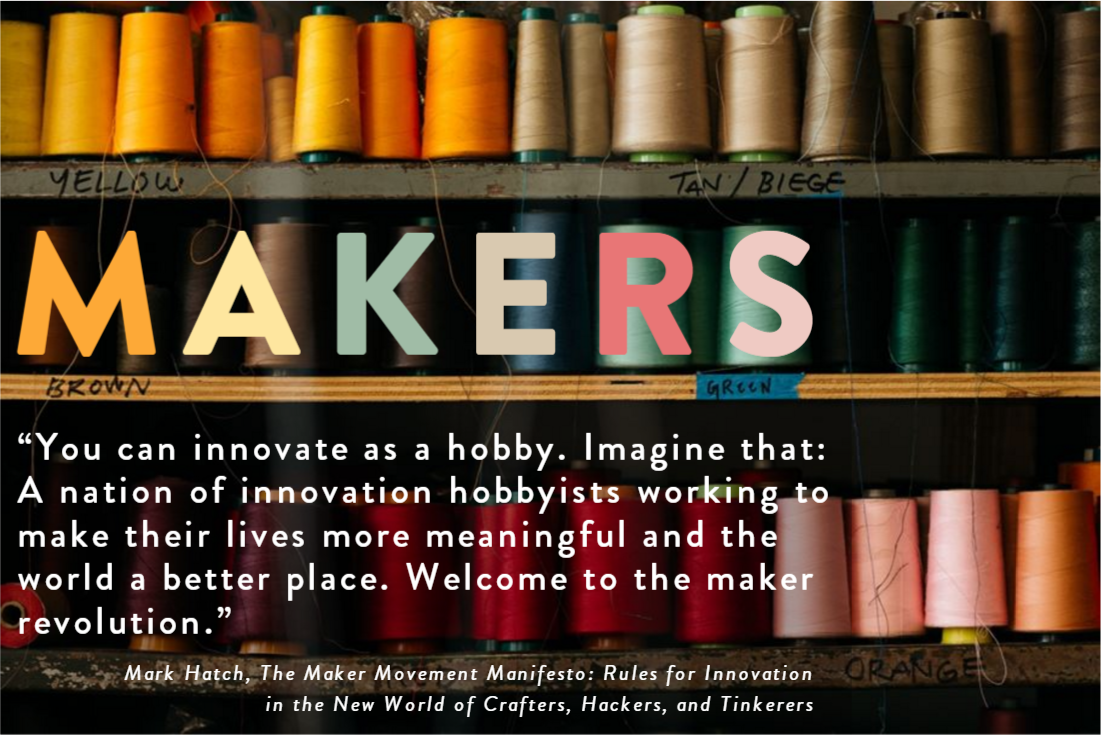
It didn’t take long to choose one. This photo of colorful spools of thread on carefully hand-labeled shelves was too good to pass up.

Title Text

The image made me think of artisans, craftspeople, and the maker movement. So “Makers” became my title.

Using the eyedropper tool I started pulling those vibrant colors out of the threads and applying them to the title letters so that each one sort of echoed the look and feel of the individual spools. I looooooved the result, and that the title could sit right on the middle shelf in the picture.

Body Text

I found a quote from Mark Hatch, a maker movement guy, and placed it on the shelf just below the title. To make it a bit easier to read I added a semi-transparent dark shadow just behind the text. Because the edges of the shadow follow visual breaks in the image, it’s nearly invisible.

I expanded both title and body text to make it more visually pleasing and a bit easier to read. After that I added some entrance animations and called it good!

Make it Work!

Ready to see how it turned out? You can view it right here.

Select Image to Launch Demo
Select Image to Launch Demo
Filed Under: E-Learning, Front Featured Tagged With: Articulate 360, Articulate Storyline, E-Learning Design, ELHChallenge, Typography, Visual Design

Dialing Up a Delicious Color of the Year

December 16, 2016 By Jackie Van Nice 13 Comments

Click Image to Launch Demo

Click Image to Launch Demo

This week’s Articulate ELH Challenge is to create an interaction using Pantone’s color of the year, and since I already wanted to do a catch-up challenge about working with dials I made it a two-fer.

The Idea

Green Anole

Green Anole

Chameleon

Chameleon

Greenery makes me think of the green anoles here in South Carolina. They change color to match their surroundings, but it turns out the chameleon has a larger color spectrum than the anole.

So I decided to make an interaction where your challenge is to match a chameleon’s color to his background (in this case Greenery) using dials to adjust the RGB levels.

The Design

Creating a 3-dial RGB interaction took some work, but figuring out how to build it in Storyline 360 was a piece of cake.

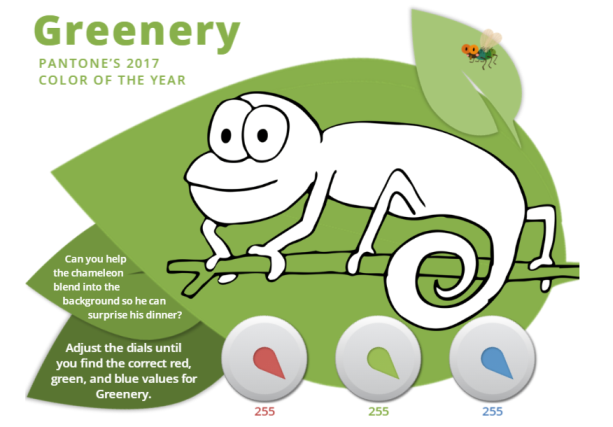
Visual Layout

Visual Layout

Visual Design

Simplicity was the goal, with the word “Greenery” and the color itself always prominent. I didn’t want there to be anything you’d have to click on or find. The instructions are simple and on-screen, and the only action you have to take is to adjust the dials, which are the functional focus.

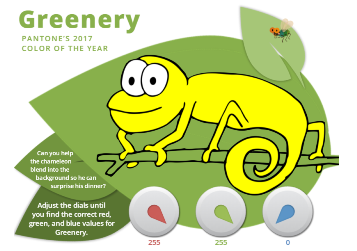
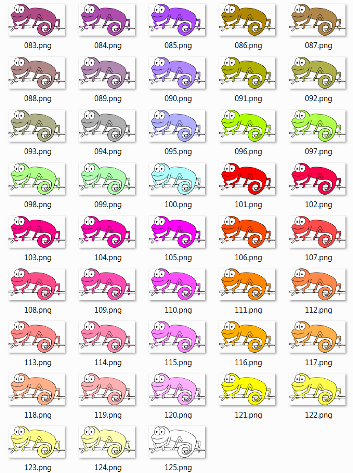
I also wanted the chameleon to have a little personality. It’s more fun changing a guy’s color if he’s cute and staring right at you. I purchased a vector line drawing of a chameleon and used Fireworks to change his colors.

Just Some of My 125 Chameleons

Just Some of My 125 Chameleons

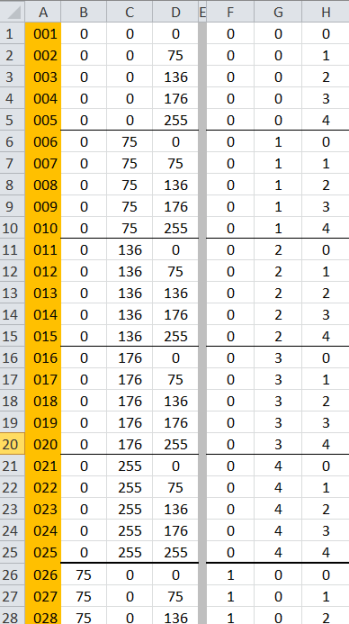
My Life-Saving Chameleon Spreadsheet

My Life-Saving Chameleon Spreadsheet

Functional Design

If I’d realized there were over 16 million possible RGB combinations I’d have started working on this awhile back. Fortunately I didn’t need that many combinations to convey the sense of exploration I was after. I settled on five dial stops for each color, all starting at 0 and ending at 255 with three uniform stops in between. That meant I only had to create 125 chameleons for all possible dial combinations. (Gulp.)

The only way to keep the color combinations straight as I created chameleons and dial triggers was to organize them in a spreadsheet. Nothing but love for a good spreadsheet.

Audio Design

I added some background birds to set the scene, but what brings the interaction to life is the actual goal: Having fly for dinner. To emphasize that, you see and hear him buzz in as the chameleon’s motivation is revealed at the beginning, and again when it’s dinnertime. Dan Sweigert graciously volunteered to impersonate the dining chameleon delivering the coup de gras. (Sorry, little fly.)

Ready for Some Greenery?

See if you can find Greenery’s RGB values (and feed the chameleon) right here.

See More Pantone Challenges!

This is actually the fourth Pantone color of the year interaction I’ve done for the challenges. Here are the others:

  • 2016’s Rose Quartz and Serenity Challenge
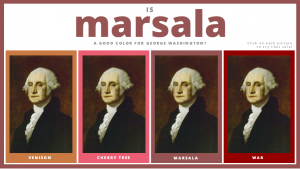
  • 2015’s Marsala Challenge (Still one of my favorite entries.)
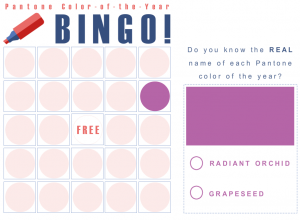
  • 2014’s Radiant Orchid Challenge
2016: Rose Quartz and Serenity

2016: Rose Quartz and Serenity

2015: Marsala

2015: Marsala

2014: Radiant Orchid

2014: Radiant Orchid

Filed Under: E-Learning, Front Featured Tagged With: Articulate 360, Articulate Storyline, Dials, E-Learning Design, ELHChallenge, Pantone, Storyline 360, Visual Design

From Articulate Storyline to Rise: It’s A Makeover!

December 11, 2016 By Jackie Van Nice Leave a Comment

Click Image to Launch Rise Demo

Select Image to Launch Rise Demo

This week’s Articulate ELH Challenge is to create a responsive course in Rise, Articulate 360’s browser-based tool that lets you quickly create learning that looks great on any device.

The Idea

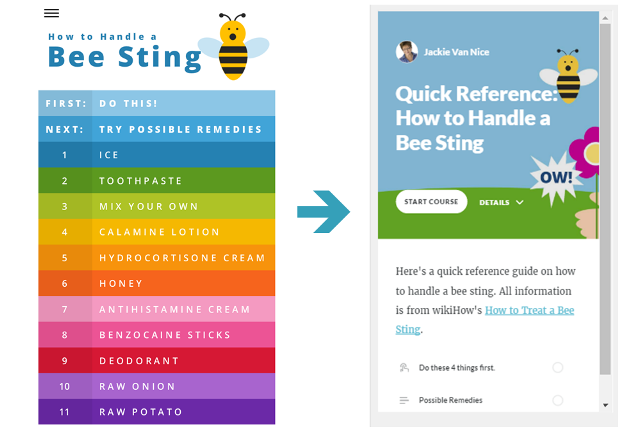
Since quick reference (QR) guides are usually better when they’re mobile-ready – and since I wanted to compare creating a course in Storyline versus creating one in Rise – I decided to make over an earlier ELH challenge where I used Storyline to make a guide for treating bee stings.

Here’s what I learned about the differences in designing, developing, managing output, and the user experience after comparing Storyline 2* and Rise.

(*Storyline 360 is a more current version of Storyline – and it has phenomenal mobile output – but since I created the original in SL2, I’m using that as my point of comparison.)

Designing

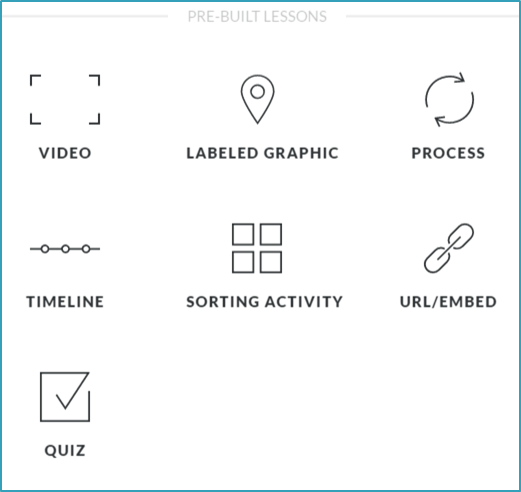
Rise's Pre-Built Lessons

Rise’s Pre-Built Lessons

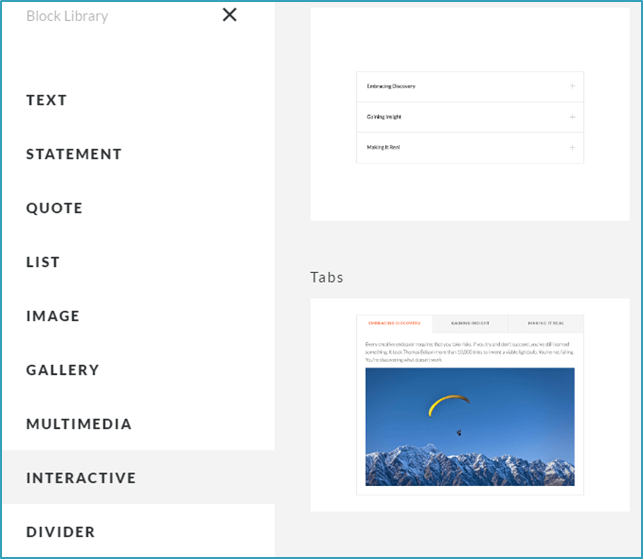
Rise's Block Lesson Options

Rise’s Block Lesson Options

Old Versus New Menus

Old Versus New Menus

Unlike Storyline, where you’re working with a do-whatever-you-want blank stage, designing a presentation in Rise relies on understanding exactly what your built-in options are.

There are currently 7 “pre-built” lessons (video, labeled graphic, process, timeline, sorting activity, URL/embed, and quiz) – and customizable lessons you can build with 9 types of “blocks” (text, statement, quote, list, image, gallery, multimedia, interactive, and divider).

For me, working with the available options meant making changes from screen one. In Storyline I had a context-setting intro animation followed by a colorful animated menu, but those would need to be adapted.

For the cover images, I reworked mine to adapt to Rise’s cover image field. My result is OK – but if I were starting from scratch I’d simply use one of Rise’s built-in cover images. There are scads to choose from, they’re beautiful, and they look great on every device.

My menu was automatically replaced with Rise’s economical built-in lesson menu, which is hard to beat for efficiency and responsiveness.

If I wanted a more immersive intro I could have added an introductory lesson with additional images and blah-blah, but restricted myself to making over the  same content and keeping it to just 2 lessons to make it the most concise I-just-got-stung-by-a-bee QR guide possible.

That decision – to only have 2 lessons – drove the rest of the design.

Developing

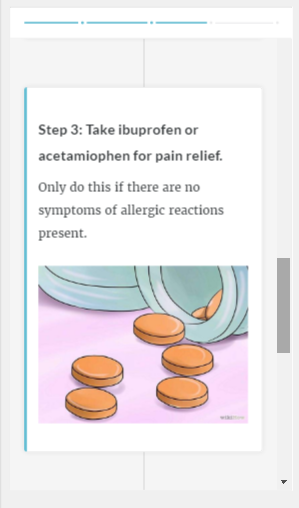
Rise lesson 1 timeline in phone view: Progress bar at top, swipe or scroll, tap to zoom images.

Rise lesson 1 timeline in phone view: Progress bar at top, swipe or scroll, tap to zoom images.

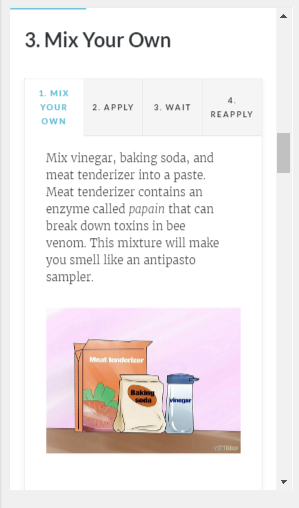
Rise lesson 2 tabs interaction in phone view: Progress bar at top, swipe or scroll, tap to zoom images.

Rise lesson 2 tabs interaction in phone view: Progress bar at top, swipe or scroll, tap to zoom images.

Lesson 1: I used the pre-built timeline lesson because it allows the user to scroll through the 4 immediate steps for a bee sting. I think it works well and it was suuuuuuuuuuuper quick to build once I got through my design dilemmas above and played with a few lesson options.

By the way, you can easily preview your course on any device as you make development decisions, which is a huge help.

Lesson 2: I used customizable blocks to build one lesson with 11 bee sting remedies along with their steps.

The blocks I used for each remedy were a text headline and a tab interaction. Being able to copy and reuse those blocks made development seriously speedy.

Output

Currently your output options are to share a (password protect-able) Web link to your course in Rise or download LMS or Web-ready files to host on your own server.  All options are easy as pie.

User Experience

Of course the Rise experience is exactly what you’d want a mobile experience to be: Responsive, simple, and beautiful. My original Storyline 2 version works well in mobile – but you have to tap on the hot spots (no swiping), there’s no progress bar, and it’s not going to be ingeniously responsive when changing screen orientation.

Ready to Rise?

I actually loved working in Rise and I’m reeeeeeally looking forward to creating a Rise course that lets me take full advantage of its high-res image handling and some of its more creative options than this self-imposed makeover challenge allowed.

You can see my super-simple QR guide in Rise right here – and if you need to quickly and easily create straightforward, responsive learning for desktop or mobile – Rise could be a great option!

Filed Under: E-Learning, Front Featured Tagged With: Articulate 360, Articulate Rise, Articulate Storyline, E-Learning Design, ELHChallenge, Makeover, Quick Reference, Show Your Work

It’s Punctuation Tic-Tac-Toe!

July 5, 2015 By Jackie Van Nice 13 Comments

Select Image to Launch Demo
Select Image to Launch Demo
This week’s Articulate #ELHChallenge is to come up with an interaction that helps teach punctuation.

Update: Download the Free Template!

The Idea

I wanted to make some type of game I hadn’t tried before, and tic-tac-toe seemed relatively straightforward.

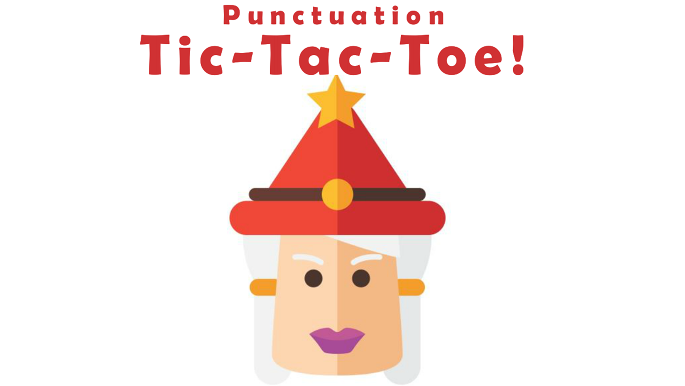
Personalized Punctuation Advisors

Personalized Punctuation Advisors

I also wanted to use the rest of the characters I used for this emoji challenge. The idea was to have each of them embody an element of punctuation and give their own example of correct and incorrect usage. Personalized punctuation advice couched in a bit of silliness seemed engaging to me – so I went with it.

The Design

The goal was to keep it simple and easy to play with. The board is laid out in front of you so you can pick any punctuation challenge you’d like and see your progress as you go.

Your aim may be to get tic-tac-toe (three correct answers in a row) and win; but it’s equally fun to play freely. That’s why I added a “Start Over” button on the main screen – so you can quickly clear the slate and start over.

The Game Board

The Game Board

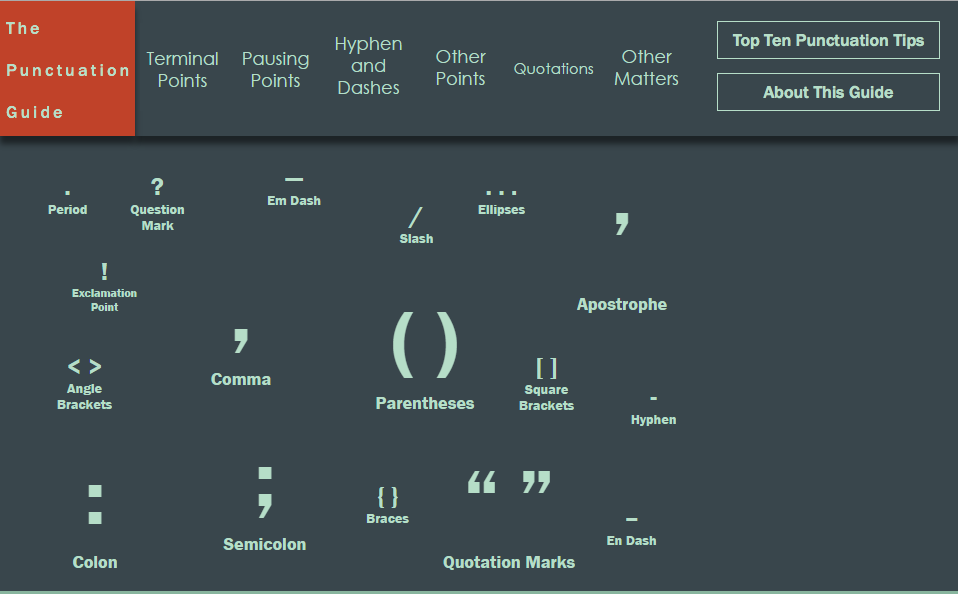
The Punctuation Guide

The Punctuation Guide

I have to say that Storyline 2 made building the whole thing a relative snap, too. It was great. It’s one slide with 35 layers and a few states (plus many pieces and parts I added) – but engineering it to give the proper result once tic-tac-toe has been achieved was really simple.

Oh – and in the feedback for each question I linked to the appropriate page on The Punctuation Guide that David Anderson used as inspiration for the challenge. Thanks for finding it and for such a great challenge, David!

Try It Out!

Ready to test your punctuation prowess? Feel free to try it out right here.

Filed Under: E-Learning, Front Featured Tagged With: Articulate Storyline, Characters, E-Learning Design, ELHChallenge, Emotional Engagement, Games, Show Your Work, Visual Design

  • « Go to Previous Page
  • Go to page 1
  • Go to page 2
  • Go to page 3
  • Go to Next Page »

Primary Sidebar

Welcome!

I’m an award-winning instructional designer and proud Articulate Super Hero who creates e-learning for large organizations. I blog to explain my design process, share tips and tricks, and help others succeed. I hope you enjoy my refreshing gallery of e-learning goodness!

  • View jackietrains’s profile on Instagram
  • View jackievannice’s profile on LinkedIn

Tags

Articulate 360 Articulate Rise Articulate Storyline Articulate Studio Audio Avatars CCAF Characters Community Context Design Makeover Dials Drag & Drop E-Learning Design ELHChallenge Emotional Engagement Free Download Freelancing Games German Glossary Instructional Design Languages Makeover Menu Mobile Motivation Pantone Portfolio PowerPoint Professional Development Quick Reference Quizzes Sales Training Scenarios Show Your Work Software Training Storyline 360 Tables Technical Training Templates Typography Video Visual Design Voiceover

Top Posts & Pages

  • Portfolio
    Portfolio
  • Home
    Home
  • Sexual Harassment Training
    Sexual Harassment Training
  • Sales Mobility Software Training
    Sales Mobility Software Training
  • Navigating a Tasty Circular Menu
    Navigating a Tasty Circular Menu
  • Articulate's E-Learning Heroes Challenges
    Articulate's E-Learning Heroes Challenges
  • About
    About
  • Free Visual Storyboard Template
    Free Visual Storyboard Template
  • Free Storyline Templates
    Free Storyline Templates
  • How to Go Full-Screen & Lose the Player in Storyline
    How to Go Full-Screen & Lose the Player in Storyline

Copyright © 2026 Jackie Van Nice and E-Learning Goodness by Jackie Van Nice