• Skip to primary navigation
  • Skip to main content
  • Skip to primary sidebar

Jackie Van Nice

E-Learning Goodness by Jackie Van Nice

  • Home
  • About
  • Blog
  • Portfolio
    • Articulate’s ELH Challenges
    • Sales Mobility Software
    • Product Sales
    • Sexual Harassment
    • Code of Conduct
  • Freebies
    • Free Storyline Templates
    • Free PowerPoint Templates
    • Free Images
    • Freelancing Tips
    • Free Resources to Help Get Started in eLearning
  • Work With Me
  • Contact

Articulate 360

Navigating a Tasty Circular Menu

April 22, 2018 By Jackie Van Nice 8 Comments

Select Image to Launch Demo

Select Image to Launch Demo

This week’s Articulate ELH challenge is to create a circular navigation menu to mimic the sorts of menus used in mobile apps, save screen real estate, and give the design a sleeker look.

The Idea

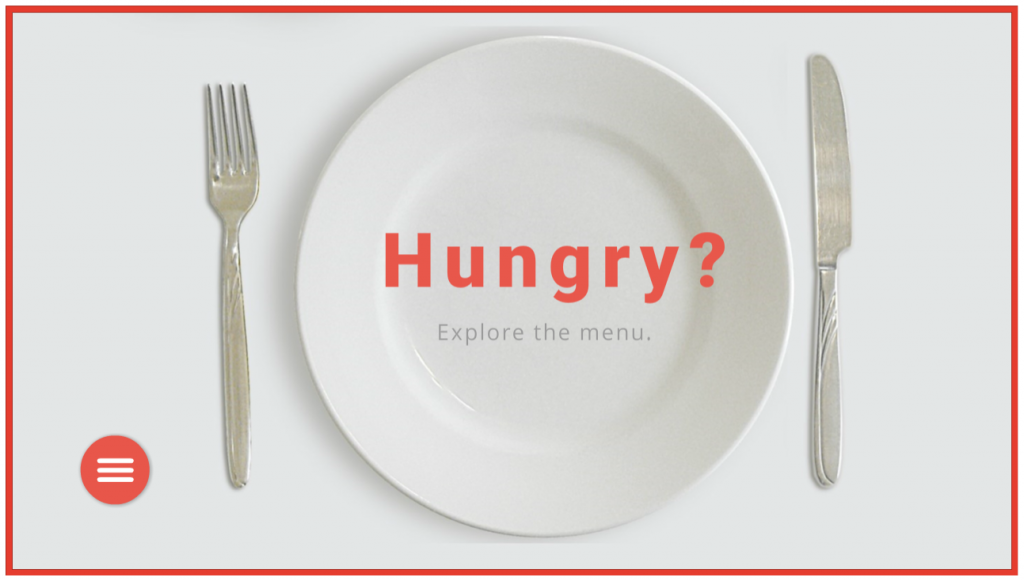
I thought I’d use the navigation menu to explore a food menu. Leaning into the circular theme led me to selecting a big round plate and all of the round dishes that ended up on it.

The Design

Building the Menu

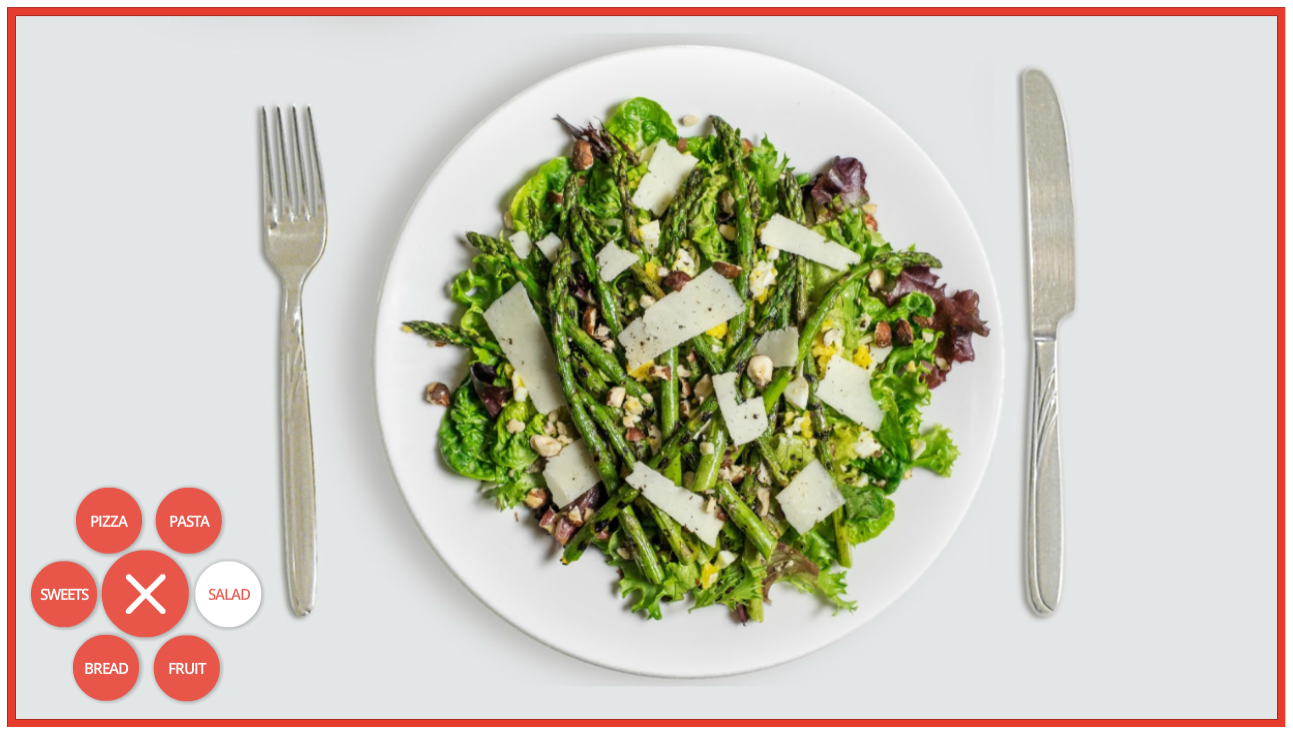
My circular menu: Note that Pasta stays selected even after the menu has been closed and reopened.

My circular menu: Note that Pasta stays selected even after the menu has been closed and reopened.

A sample Storyline file was offered as a challenge resource, but I find it easier to dig in and build things from scratch. It takes longer but it’s soooooo much easier to wrap my head around what I build on my own, plus I love the challenge of figuring it all out.

The menu items are inserted shapes nested under the main menu, which is also an inserted shape. I added two motion paths to each one – the first to move outward when the menu is selected, and second to return to the original position.

By the way, working with motion paths in Storyline is so much easier now. Being able to name the paths is helpful, but being able to align and snap motion path items is a thing of beauty. I’d have loved to have had those features when I created my Fontcracker Suite and Faces of the Ebola Response challenge entries!

The other thing I wanted to add was a “selected” menu item state AND have it retain that state even after the menu has been closed and re-opened. I think it’s helpful when a menu tells you where you are. That upped my trigger count, but I really like the result.

The food items are activated to appear when the user clicks a menu item and the state of a transparent shape on top of the plate changes to display the selected dish.

The behind-the-scenes food states for the transparent rectangle that covers the plate.

The behind-the-scenes food states for the transparent rectangle that covers the plate.

The Images

All images are from the 360 Content Library, including the main menu’s “hamburger” and X icons. The food options were dictated by how possible it was to remove the background from each one so I could put it on the plate and have it look plausible.

I used the Format > Remove Background tool in PowerPoint, which worked like a charm.
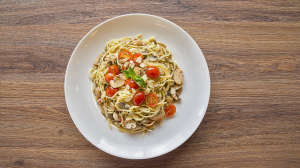
Pasta Before Removing Background

Pasta Before Removing Background

Pasta After Removing Background

Pasta After Removing Background

Pie Before Removing Background

Pie Before Removing Background

Pie After Removing Background

Pie After Removing Background

Oranges Before Removing Background

Oranges Before Removing Background

Oranges After Removing Background

Oranges After Removing Background

The Result

After that there’s nothing left to do but choose what you’d like on the menu! You can try it out here or by selecting the image below. Buon appetito!
Select Image to Launch Demo
Select Image to Launch Demo
Filed Under: E-Learning, Front Featured Tagged With: Articulate 360, E-Learning Design, ELHChallenge, Instructional Design, Menu, Navigation, Show Your Work, Storyline 360, Visual Design

Pantone’s Ultra Violet: Best Worn With Sunscreen

April 15, 2018 By Jackie Van Nice 6 Comments

Select Image to See Demo

Select Image to See Demo

This week’s Articulate ELH Challenge is to design a template or interaction featuring Pantone’s color of the year: Ultra Violet.

The Idea

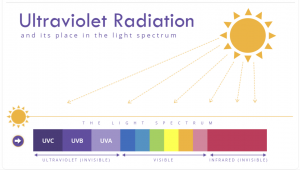
The name, of course, made me think of ultraviolet (UV) light, and since it’s part of the light spectrum, a slider interaction to explore it seemed like a good way to go.

The Design

Attitude: One of Pantone's suggested color palettes to use with Ultra Violet, and the one I used

Attitude: One of Pantone’s suggested color palettes to use with Ultra Violet, and the one I used

The Colors

I used Ultra Violet for the titles, labels,  other text, and everything in the UV section – but after that I was going to need a range of colors to create a whole light spectrum.

To the rescue came Pantone’s Attitude palette, which had a color I liked for the sun (Citrus), one I could use for the infrared spectrum (Raspberry), and other brights I could use in the visible spectrum.

For the UV spectrum I put Ultra Violet in the middle and used one Ultra Violet shade darker and one Ultra Violet tint lighter on either end.

The Slider

After inserting a sun icon from Storyline 360’s Content Library (love that so much), I colored it using a Pantone Citrus fill, then also used it as the thumb image on the slider.

Ultraviolet details revealed in Ultra Violet

Ultraviolet details revealed in Ultra Violet

Other than that, it’s a simple slider with light spectrum details I built on layers that are revealed as you slide the sun icon to each section. I also decided to make the larger sun’s arrow “rays” disappear when you’re viewing the layers to give it a cleaner look.

I added an Ultra Violet slider prompt using an arrow marker that shows up after a few seconds. Once you move the slider it’s programmed to remain hidden.

The Result

In the end it seems the ultraviolet spectrum is all about sunscreen for us, but you can view this Ultra Violet result just as well in the shade.

Filed Under: E-Learning Tagged With: Articulate 360, Articulate Storyline, E-Learning Design, ELHChallenge, Pantone, Show Your Work, Storyline 360, Visual Design

E-Learning Avatars and Super Powers

March 18, 2018 By Jackie Van Nice 4 Comments

Select Image to Launch Demo
Select Image to Launch Demo
This week’s Articulate ELH Challenge is to show ways learners can select avatars to personalize a course, plus show how an avatar is carried over from a selection screen to a content screen.

Storyline 360 Eggplant

Storyline 360 Eggplant

The Idea

I wanted to do something quick and easy by only using readily-available assets in Storyline 360. That led to playing with Storyline’s built-in characters (and an eggplant with character), then adding some customer service super powers for a bit more interest.

The Design

Visual Design

After playing with different characters and background images, I eventually arrived at a combo that gave me a color scheme I liked (purple, green, and orange), which I then used to create the rest of the screen elements. Oh – and the idea of mixing up character styles and species seemed way more interesting than pulling from one style.

Creating an Avatar Button Set

Creating an Avatar Button Set

Avatar Selection Design

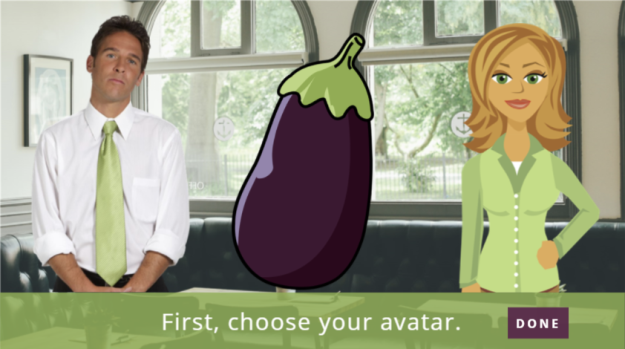
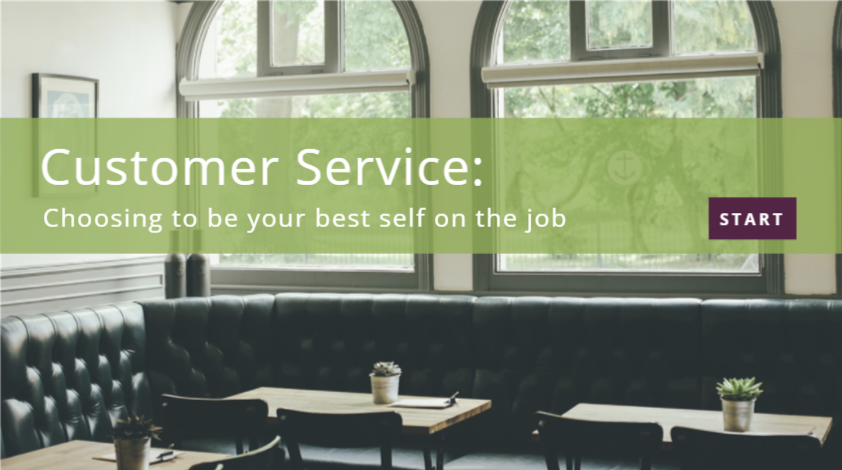
First, I placed the avatars in the visual context they’ll be seen in for the rest of the course. Being able to see their environment (a restaurant), and knowing the topic (customer service) helps inform the learner’s selection.

Then I used Storyline’s button set feature to make my avatars act like buttons. To create a button set, highlight the images you want to make into buttons, then right click and choose Button Set. When the learner clicks on an avatar after it’s been buttonized, it’ll automatically display a selected state, and only one can be selected at a time.

A Gentle Reminder

A Gentle Reminder

To give the learner a chance to play with their selections I added a Done button that lets them move forward when they’re ready. If they select Done before making a selection, a prompt pops up (built on a layer) as a reminder.

Carried-Over Avatar States

Carried-Over Avatar States

Avatar Carry-Over Design

To carry the avatar selection to the next screen I:

  1. Created a true/false variable for each avatar. The initial value is false.
  2. Added a trigger to the selection screen’s Done button to adjust the avatar’s variable to true if the state of the avatar is selected.
  3. Created one image with a state for each avatar on the following screen. A trigger on this image changes its state to display the image of whichever avatar’s variable is true.

I designed the super power selection and carry-over in the same way.

Ready to Personalize Your Avatar and Super Power?

You can check it out right here.

Select Image to Launch Demo

Select Image to Launch Demo

Filed Under: E-Learning Tagged With: Articulate 360, Articulate Storyline, Avatars, Characters, E-Learning Design, ELHChallenge, Show Your Work, Visual Design

Making Text Work with Images

December 16, 2016 By Jackie Van Nice 6 Comments

Select Image to Launch Demo
Select Image to Launch Demo
This week’s ELH challenge is to create an example of using text with images. Woo-hoo!

The Idea

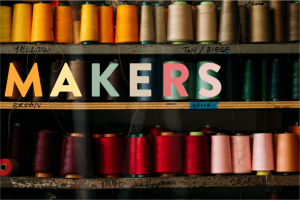
My plan was to finally go through some of my Death to Stock photos, select one I like, and add some text so it looks appealingly cool. I felt good about this.

The Original Image

The Original Image

The Colorful Title

The Colorful Title

The Design

I put it together in Storyline.

The Image

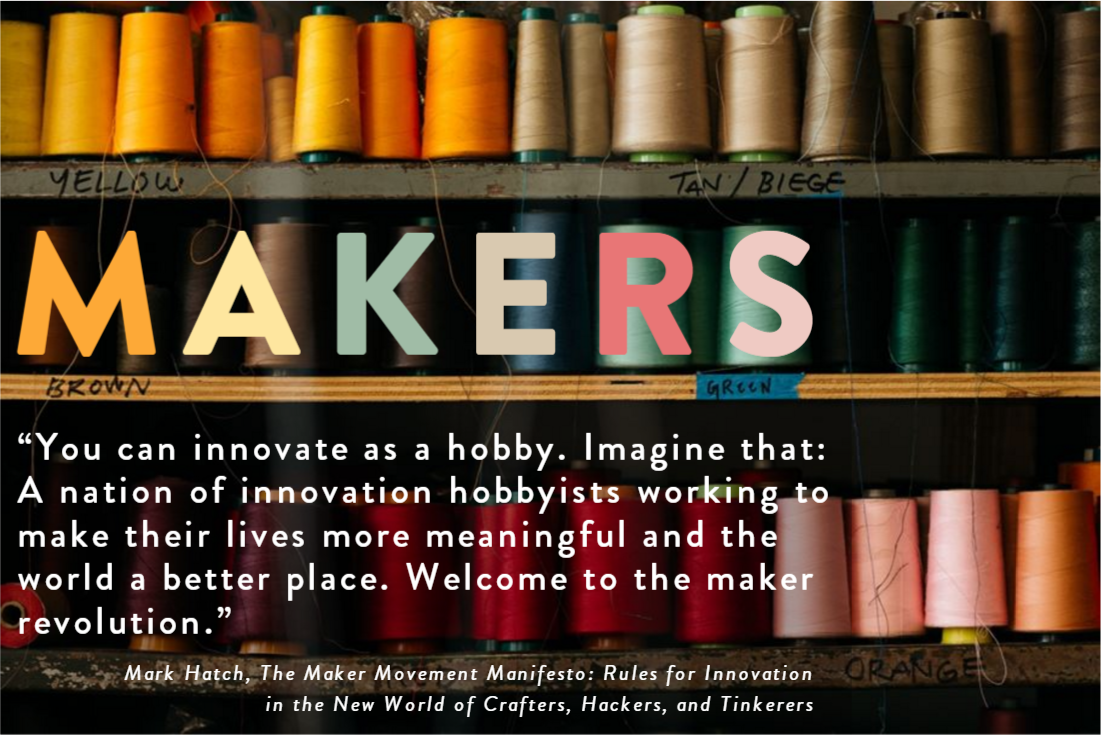
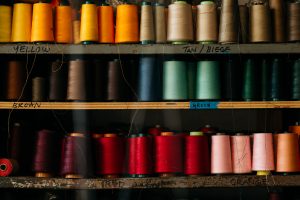
It didn’t take long to choose one. This photo of colorful spools of thread on carefully hand-labeled shelves was too good to pass up.

Title Text

The image made me think of artisans, craftspeople, and the maker movement. So “Makers” became my title.

Using the eyedropper tool I started pulling those vibrant colors out of the threads and applying them to the title letters so that each one sort of echoed the look and feel of the individual spools. I looooooved the result, and that the title could sit right on the middle shelf in the picture.

Body Text

I found a quote from Mark Hatch, a maker movement guy, and placed it on the shelf just below the title. To make it a bit easier to read I added a semi-transparent dark shadow just behind the text. Because the edges of the shadow follow visual breaks in the image, it’s nearly invisible.

I expanded both title and body text to make it more visually pleasing and a bit easier to read. After that I added some entrance animations and called it good!

Make it Work!

Ready to see how it turned out? You can view it right here.

Select Image to Launch Demo
Select Image to Launch Demo
Filed Under: E-Learning, Front Featured Tagged With: Articulate 360, Articulate Storyline, E-Learning Design, ELHChallenge, Typography, Visual Design

Dialing Up a Delicious Color of the Year

December 16, 2016 By Jackie Van Nice 13 Comments

Click Image to Launch Demo
Click Image to Launch Demo
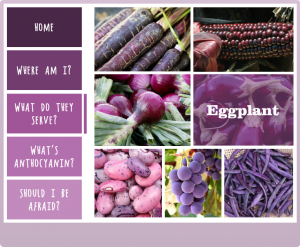
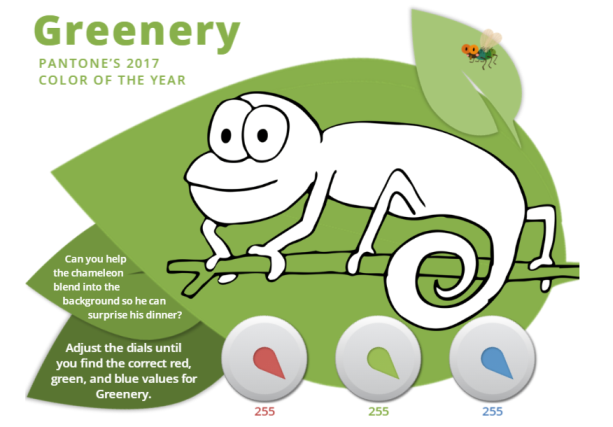
This week’s Articulate ELH Challenge is to create an interaction using Pantone’s color of the year, and since I already wanted to do a catch-up challenge about working with dials I made it a two-fer.

The Idea

Green Anole

Green Anole

Chameleon

Chameleon

Greenery makes me think of the green anoles here in South Carolina. They change color to match their surroundings, but it turns out the chameleon has a larger color spectrum than the anole.

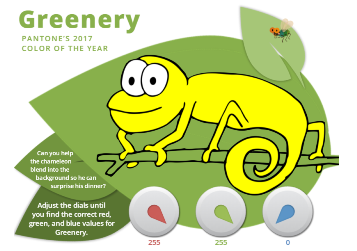
So I decided to make an interaction where your challenge is to match a chameleon’s color to his background (in this case Greenery) using dials to adjust the RGB levels.

The Design

Creating a 3-dial RGB interaction took some work, but figuring out how to build it in Storyline 360 was a piece of cake.

Visual Layout

Visual Layout

Visual Design

Simplicity was the goal, with the word “Greenery” and the color itself always prominent. I didn’t want there to be anything you’d have to click on or find. The instructions are simple and on-screen, and the only action you have to take is to adjust the dials, which are the functional focus.

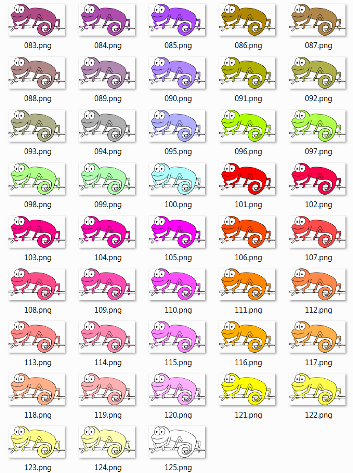
I also wanted the chameleon to have a little personality. It’s more fun changing a guy’s color if he’s cute and staring right at you. I purchased a vector line drawing of a chameleon and used Fireworks to change his colors.

Just Some of My 125 Chameleons

Just Some of My 125 Chameleons

My Life-Saving Chameleon Spreadsheet

My Life-Saving Chameleon Spreadsheet

Functional Design

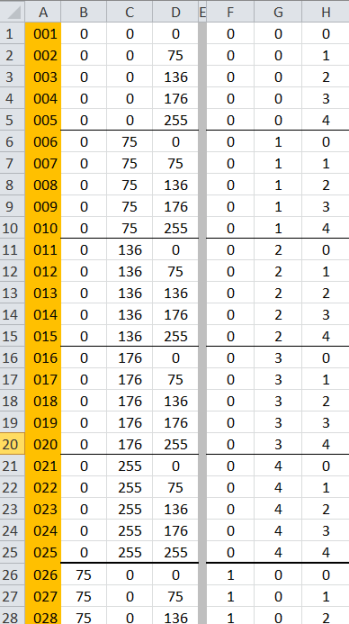
If I’d realized there were over 16 million possible RGB combinations I’d have started working on this awhile back. Fortunately I didn’t need that many combinations to convey the sense of exploration I was after. I settled on five dial stops for each color, all starting at 0 and ending at 255 with three uniform stops in between. That meant I only had to create 125 chameleons for all possible dial combinations. (Gulp.)

The only way to keep the color combinations straight as I created chameleons and dial triggers was to organize them in a spreadsheet. Nothing but love for a good spreadsheet.

Audio Design

I added some background birds to set the scene, but what brings the interaction to life is the actual goal: Having fly for dinner. To emphasize that, you see and hear him buzz in as the chameleon’s motivation is revealed at the beginning, and again when it’s dinnertime. Dan Sweigert graciously volunteered to impersonate the dining chameleon delivering the coup de gras. (Sorry, little fly.)

Ready for Some Greenery?

See if you can find Greenery’s RGB values (and feed the chameleon) right here.

See More Pantone Challenges!

This is actually the fourth Pantone color of the year interaction I’ve done for the challenges. Here are the others:

  • 2016’s Rose Quartz and Serenity Challenge
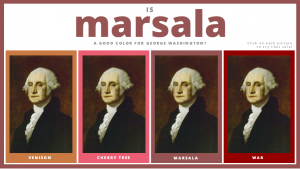
  • 2015’s Marsala Challenge (Still one of my favorite entries.)
  • 2014’s Radiant Orchid Challenge
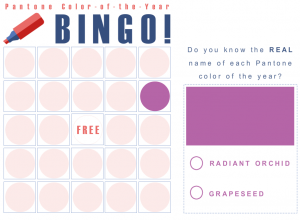
2016: Rose Quartz and Serenity

2016: Rose Quartz and Serenity

2015: Marsala

2015: Marsala

2014: Radiant Orchid

2014: Radiant Orchid

Filed Under: E-Learning, Front Featured Tagged With: Articulate 360, Articulate Storyline, Dials, E-Learning Design, ELHChallenge, Pantone, Storyline 360, Visual Design

  • « Go to Previous Page
  • Go to page 1
  • Go to page 2
  • Go to page 3
  • Go to Next Page »

Primary Sidebar

Welcome!

I’m an award-winning instructional designer and proud Articulate Super Hero who creates e-learning for large organizations. I blog to explain my design process, share tips and tricks, and help others succeed. I hope you enjoy my refreshing gallery of e-learning goodness!

  • View jackietrains’s profile on Instagram
  • View jackievannice’s profile on LinkedIn

Tags

Articulate 360 Articulate Rise Articulate Storyline Articulate Studio Audio Avatars CCAF Characters Community Context Design Makeover Dials Drag & Drop E-Learning Design ELHChallenge Emotional Engagement Free Download Freelancing Games German Glossary Instructional Design Languages Makeover Menu Mobile Motivation Pantone Portfolio PowerPoint Professional Development Quick Reference Quizzes Sales Training Scenarios Show Your Work Software Training Storyline 360 Tables Technical Training Templates Typography Video Visual Design Voiceover

Top Posts & Pages

  • Portfolio
    Portfolio
  • Home
    Home
  • Sexual Harassment Training
    Sexual Harassment Training
  • Sales Mobility Software Training
    Sales Mobility Software Training
  • Navigating a Tasty Circular Menu
    Navigating a Tasty Circular Menu
  • Articulate's E-Learning Heroes Challenges
    Articulate's E-Learning Heroes Challenges
  • About
    About
  • Free Visual Storyboard Template
    Free Visual Storyboard Template
  • Free Storyline Templates
    Free Storyline Templates
  • How to Go Full-Screen & Lose the Player in Storyline
    How to Go Full-Screen & Lose the Player in Storyline

Copyright © 2026 Jackie Van Nice and E-Learning Goodness by Jackie Van Nice