• Skip to primary navigation
  • Skip to main content
  • Skip to primary sidebar

Jackie Van Nice

E-Learning Goodness by Jackie Van Nice

  • Home
  • About
  • Blog
  • Portfolio
    • Articulate’s ELH Challenges
    • Sales Mobility Software
    • Product Sales
    • Sexual Harassment
    • Code of Conduct
  • Freebies
    • Free Storyline Templates
    • Free PowerPoint Templates
    • Free Images
    • Freelancing Tips
    • Free Resources to Help Get Started in eLearning
  • Work With Me
  • Contact

Visual Design

How to Go Full-Screen & Lose the Player in Storyline

June 7, 2015 By Jackie Van Nice 10 Comments

How to Make Your E-Learning Big and Player-Free in Articulate Storyline

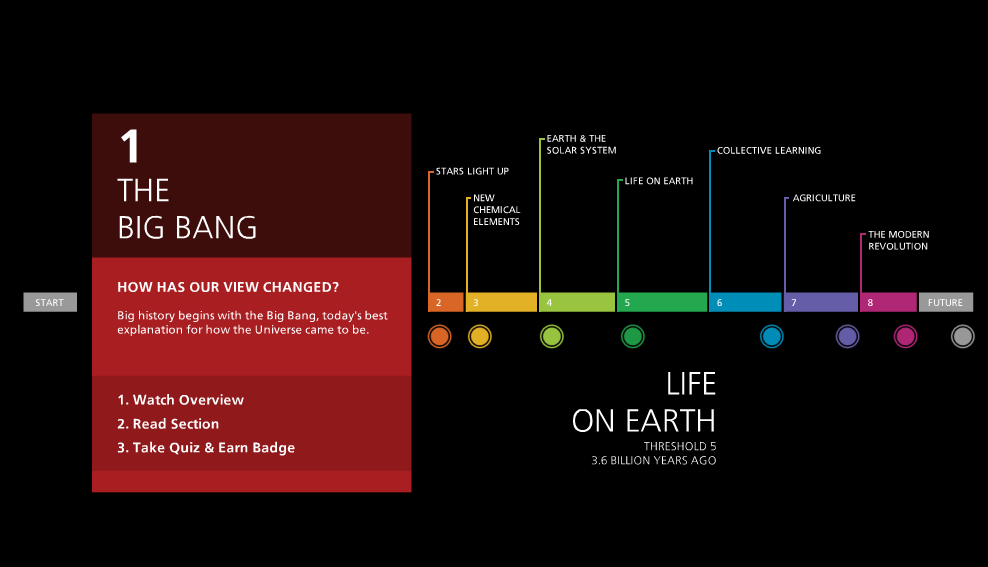
This timeline looks like it's floating; just on a black background.

This timeline looks like it’s floating in space.
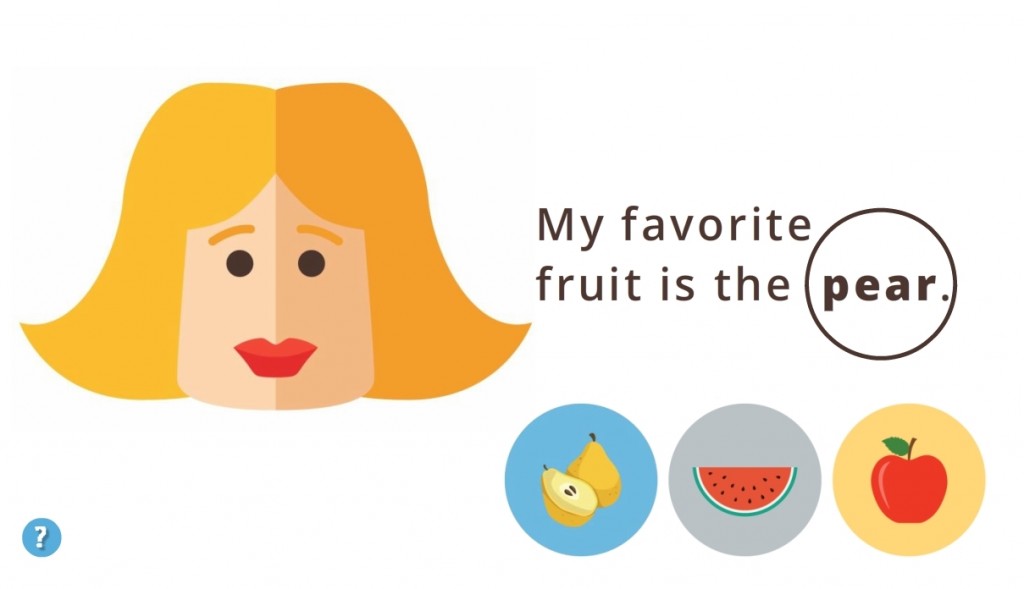
She doesn't need a frame or player. Do you?

She doesn’t need a frame or a player. Do you?

I love making e-learning look like it’s floating in space without the traditional box-like appearance or standard player, and I guess I’m not alone since I get a lot of questions about how to do it.
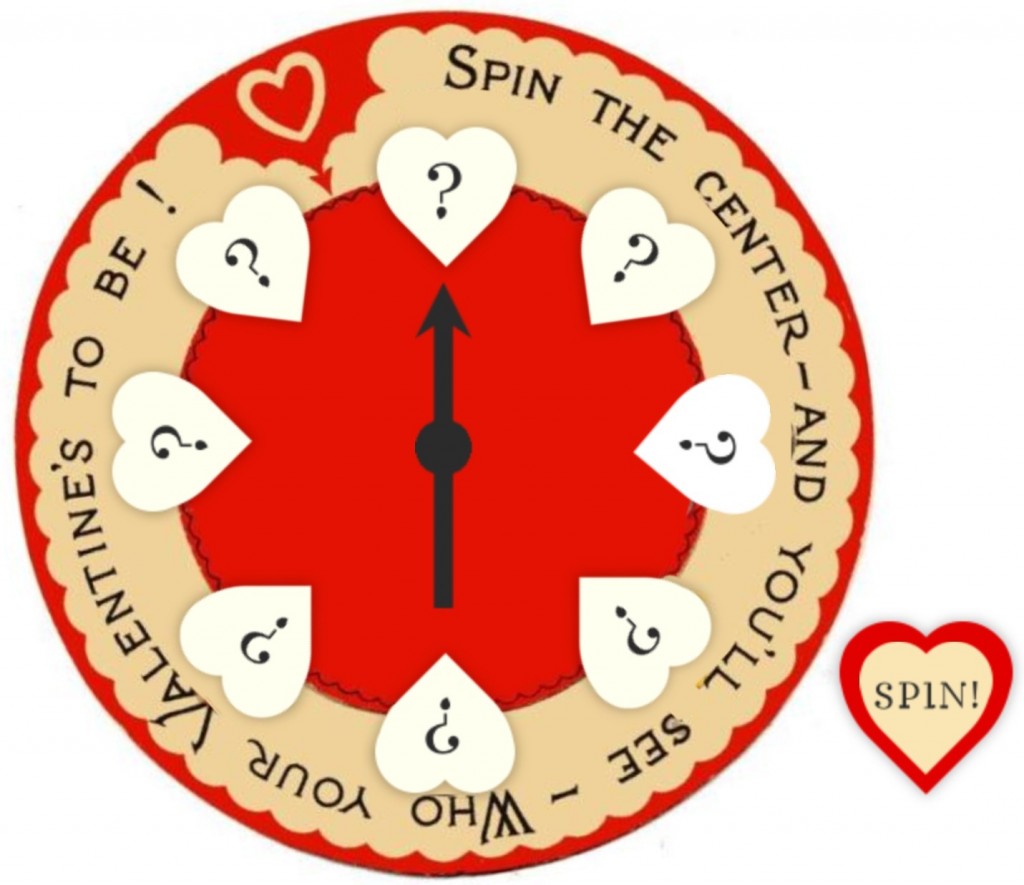
This entire interaction is a wheel that  seems to spin in space: No player, no frame.

This entire interaction is a wheel that  seems to spin in space: No player, no frame.

Going Full-Screen

Going full-screen is simple. In Storyline go to Player > Other > Player Size > select “Scale player to fill browser window”. For the Browser Size option select “Display at user’s current browser size”. To get that wide-screen effect I choose Design > Story Size: 16:9.

Important tip about going full-screen: Be sure your content still looks great at full screen. No one wants to see pixelated, stretched, or otherwise tormented images. If you’re going to do it, plan your images accordingly.
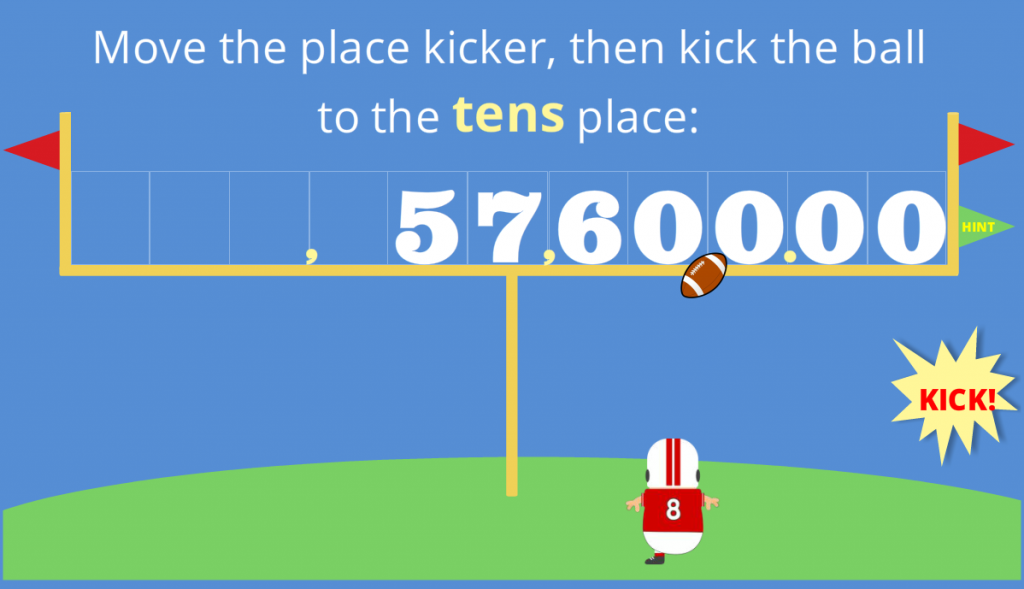
This game seems to float because the blue page background matches the slide background.

This game seems to float because the blue page background matches the slide background.

Losing the Player

To lose the player, the bottom line is you’re going to turn off the player features and either make all of your player elements the same color as your page background or make them transparent. This is what I do:

Player > Features > deselect everything. Player > Colors & Effects > Page Background: I choose the same color as my slide background. Player > Colors & Effects > Color Scheme > Show Advanced Color Editing > Edit Item > Base: I make each of these elements 100% transparent. If you have other player elements (menus, buttons, etc.) that you want to blend in, change their colors or make them transparent using this same menu.

Need More Details?

If you’d like to know more about making your player disappear check out Articulate’s instructions for using a chromeless player. Then set your e-learning free!
Filed Under: E-Learning Tagged With: Articulate Storyline, E-Learning Design, ELHChallenge, Instructional Design, Professional Development, Show Your Work, Visual Design

Turkey Needs Photo Sliders!*

May 22, 2015 By Jackie Van Nice Leave a Comment

Select Image to Launch Demo

Select Image to Launch Demo

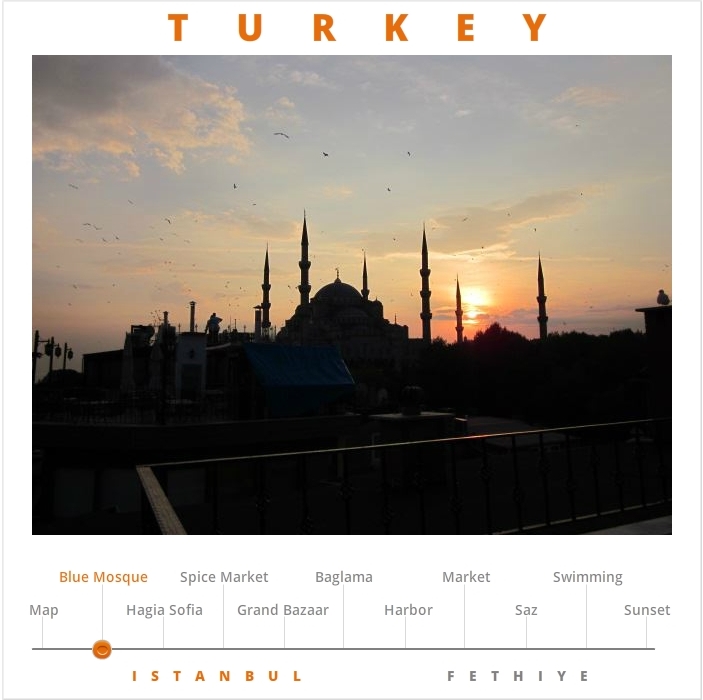
Blue Mosque, Istanbul

Blue Mosque, Istanbul

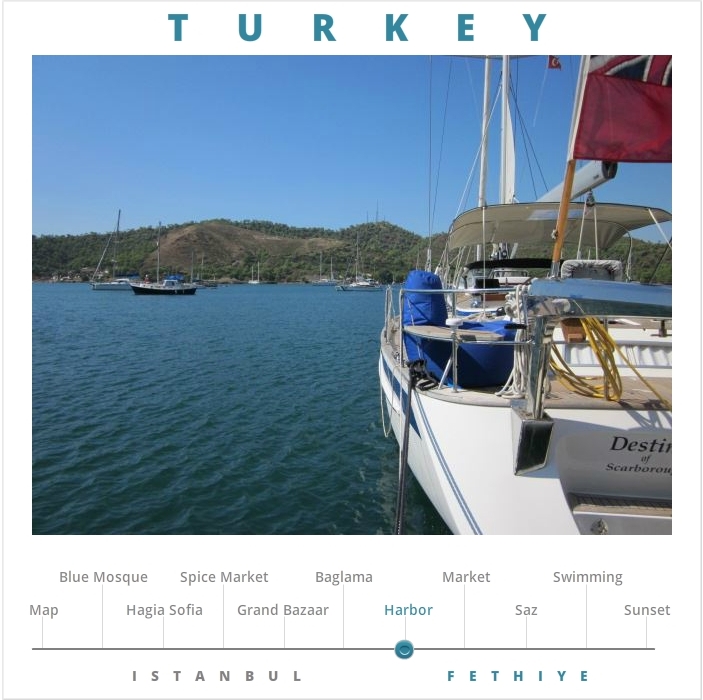
Fethiye, Turkey

Harbor, Fethiye

This week’s challenge is to create a photo slider. I’d never made one before, but with Storyline 2 and a few photos in hand, I was ready!

The Idea

To make the slider I trotted out some pics I took in Turkey. I wanted the demo to be simple, invite exploration, and be self-explanatory.

The Design

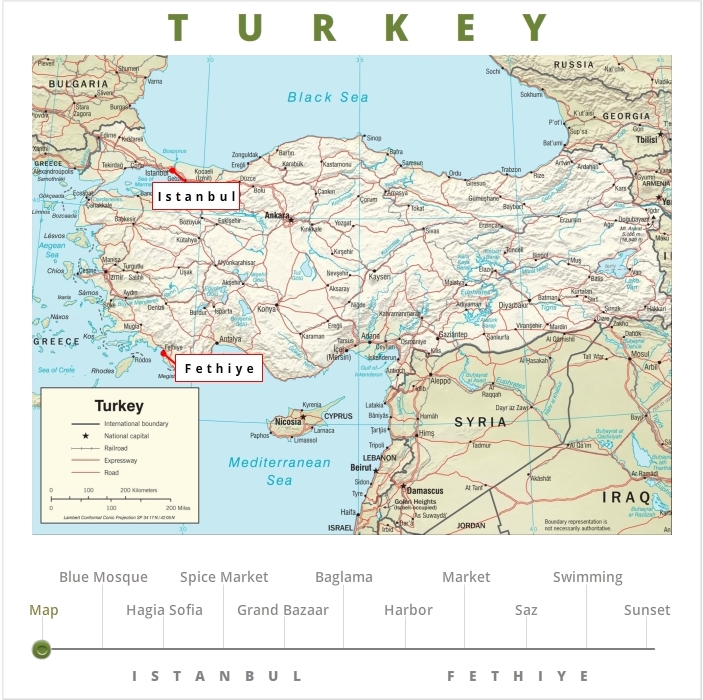
To establish the scene I started with an overview map of Turkey with my two photo locations highlighted.

I wanted the user to be able to see the topics of the photos up front so it’s easy to get a quick overview of the content and go directly to whatever they’d like.

Color provides the visual cue to tell you where you are. The title (Turkey), location (Map, Istanbul, or Fethiye) and the slider thumb all change color in unison depending on what you’re viewing.

I’m actually quite happy with the idea and the effect. It’s subtle in this demo, but I’d love to use it again.

Ready for Some Turkey?

You can see the demo right here!

*See: Mars Needs Women. These things happen after a long day.

Filed Under: E-Learning Tagged With: Articulate Storyline, E-Learning Design, ELHChallenge, Instructional Design, Show Your Work, Visual Design

Why Flies Should Pay Attention to Science

April 26, 2015 By Jackie Van Nice 8 Comments

Select Image to Launch Demo

Select Image to Launch Demo

This week’s Articulate challenge is to create a science-related interaction, so I legged it to my desk and started spinning a plan.

Web Inspiration

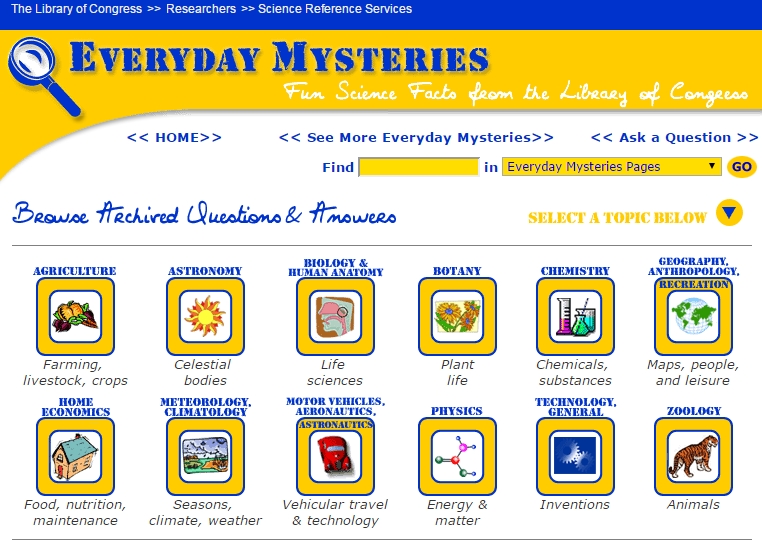
I wanted a simple topic and found inspiration on the Everyday Mysteries/Fun Science Facts page of the Library of Congress. “How do spiders avoid getting tangled in their own webs?”  seemed like a fair question, so I brainstormed from there.

The Library of Congress Has Questions

The Library of Congress Has Questions

Creating The Spider Slider

Visual Design

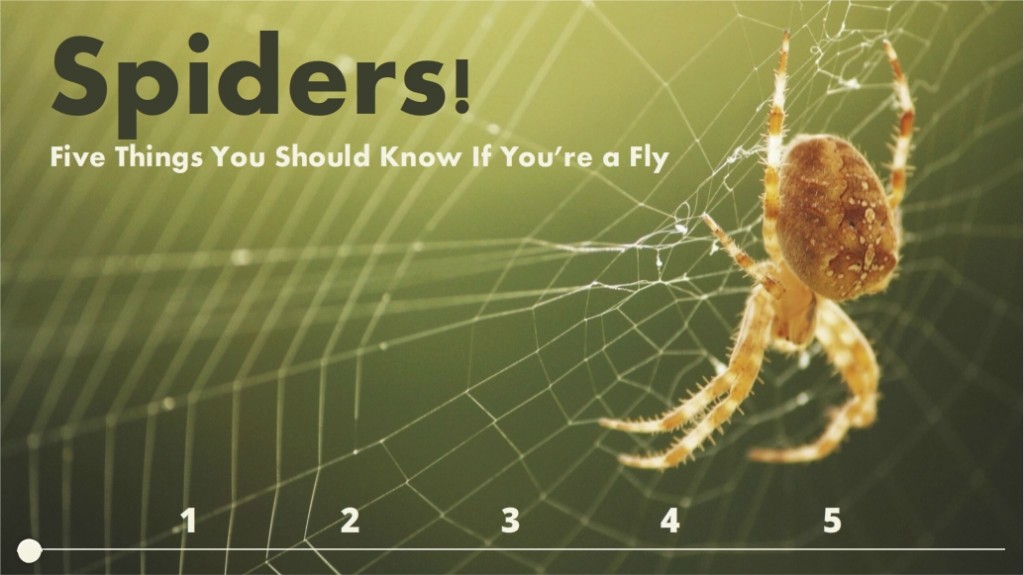
It had to be inviting enough to get you into the topic, so I went with a good-quality image with a color scheme I liked. All colors came from the photo using Storyline’s eyedropper tool.

Instructional Design

How can I pique your interest enough to get you to check out the content? By making you the fly. Not unlike my golfer safety course, you’re going to pay more attention if you think you might get eaten. It’s Motivation 101.

With more time I would have shown you your fly self (you’re already familiar with your fly self – but I mean detailed visuals of you as an actual fly), used motion paths to zip you around, and embedded more content – but this is a quick version to give you a sense of the approach.

Storyline Design

It’s a slider done in Storyline 2. It’s one slide and each slider position reveals a slide layer. Add in some animations and transitions and it’s a quick, clean way to present information. One of many reasons to love Storyline 2’s sliders.

Will You Click Into My Demo?*

Watch your step and enjoy it right here.

*Homage to Mary Howitt’s poem The Spider and the Fly. (Here’s a nice reading of it!)

Filed Under: E-Learning Tagged With: Articulate Storyline, E-Learning Design, ELHChallenge, Instructional Design, Show Your Work, Visual Design

DIY E-Learning Icons (+ Free Download!)

April 12, 2015 By Jackie Van Nice 8 Comments

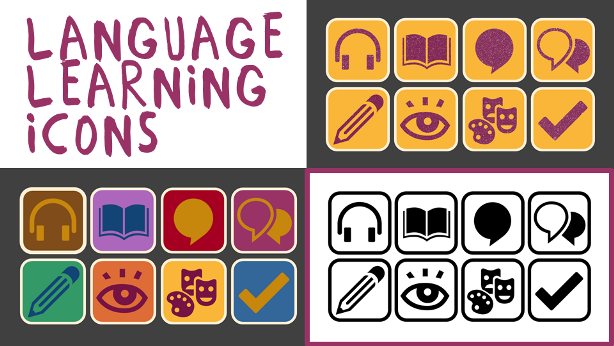
This week’s ELH challenge is to create and share a set of icons for the e-learning community. (I’m in!)

Theme: Language Learning

Arts & Culture

Arts & Culture

List or Knowledge Check

List or Knowledge Check

Listening

Listening

Reading

Reading

Role Play or Discussion

Role Play or Discussion

Speaking

Speaking

Viewing

Viewing

Writing

Writing

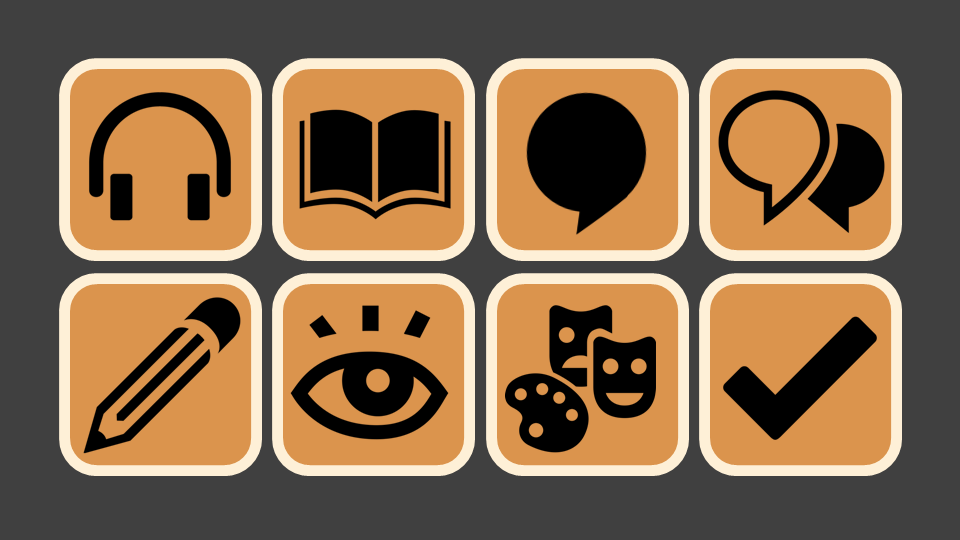
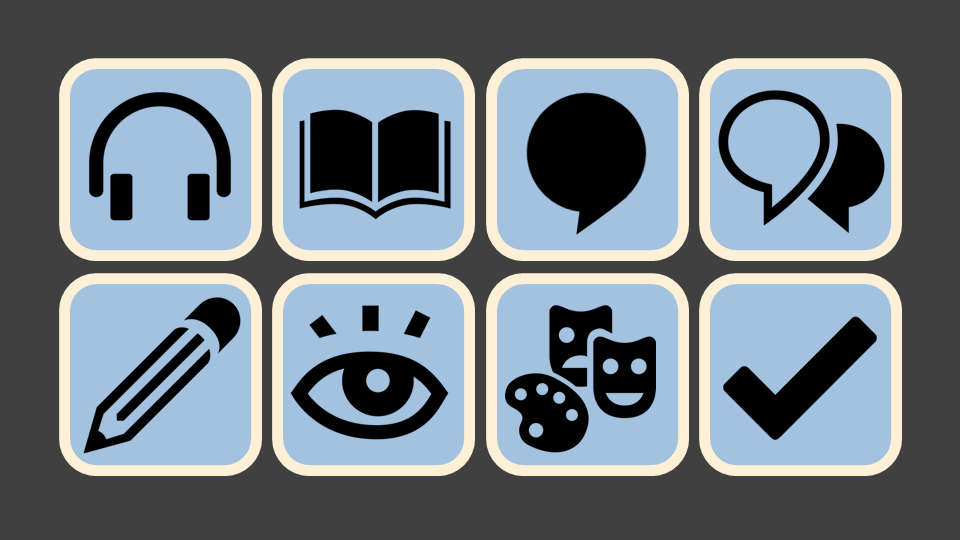
For last week’s emoji challenge I created a language learning demo. It’s a topic near and dear to my heart, so I kept the theme going this week. These are the icons, and they align with most of the basic activities you engage in when learning a language.

Design

I created them in PowerPoint and made them simple and flat. To save time I took one of David Anderson’s challenge suggestions and pulled the basic images from The Noun Project. Credit and links back to the original images are in the file.

Colorize Your World

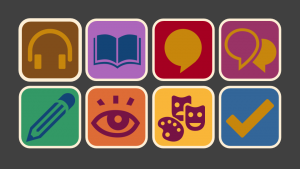
Snack Pack Colors

Snack Pack Colors

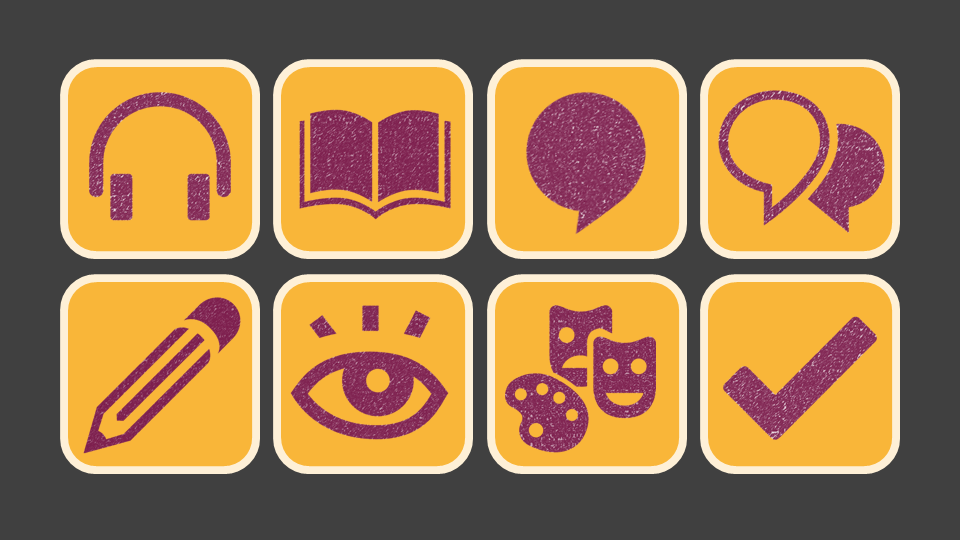
To show how you can customize them I mocked up a few color combos. They’re in the PowerPoint file, too. To color the PNG images I used Format > Color, and to add texture I used Format > Artistic Effects.

Download Them Now!

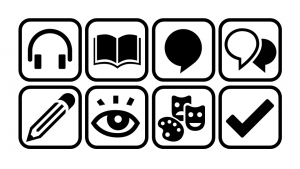
Black & White

Black & White

If you’d like to download the PowerPoint file with these fully-customizable icons, you can grab it on the download page.

Feeling Neutral

Feeling Neutral

Icon Feel the Blues Coming On

Icon Feel the Blues Coming On

Texture Becomes Electra

Texture Becomes Electra

Filed Under: E-Learning Tagged With: Community, ELHChallenge, Free Download, PowerPoint, Professional Development, Show Your Work, Templates, Visual Design

Getting Emoji-nal: Teaching Vocabulary

April 3, 2015 By Jackie Van Nice 6 Comments

Select Image to Launch Demo

Select Image to Launch Demo

This week’s Articulate ELH Challenge is to create an interaction using emojis – or basically to use simple graphics in place of text.

Pear The Idea: Vocabulary Practice

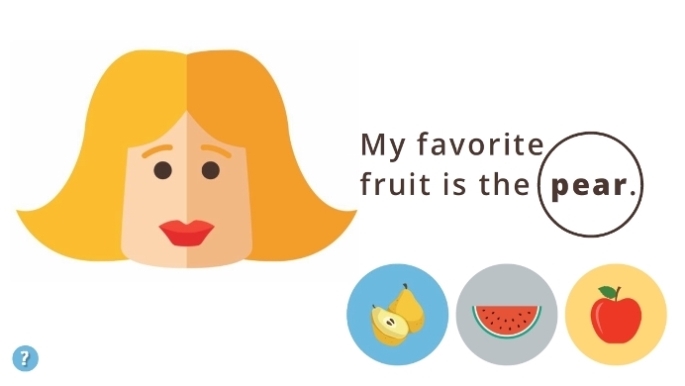
Anyone who has learned or taught languages knows pictures are indispensable for vocabulary practice, so I thought I’d create one with emojis.

WatermelonI wanted it to be in Turkish, partly because it would be way cool and partly because I need the practice, but to save time I stuck with English.

The Design: Simple

AppleI kept it emoji-simple. From layout to images to instructions it’s easy to figure out, easy to navigate, and easy to understand the teaching points.
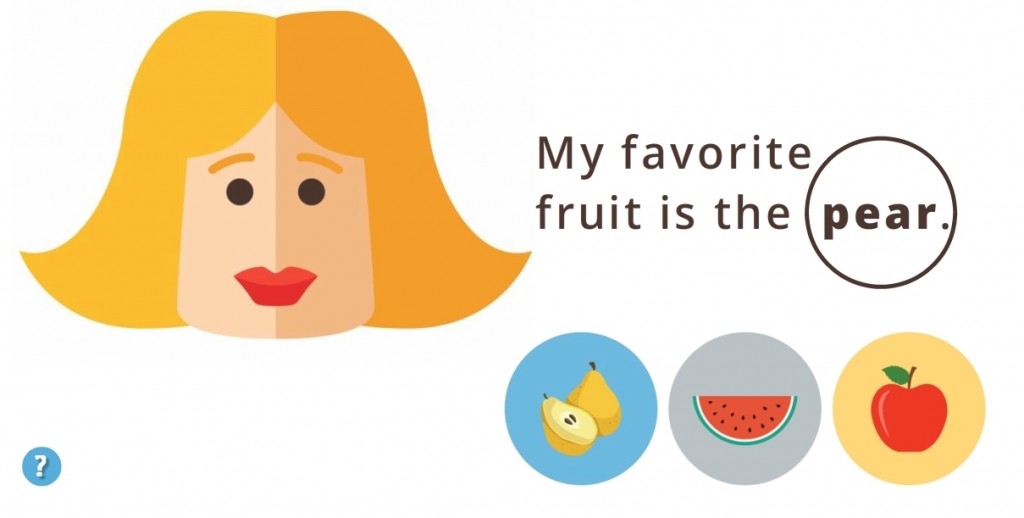
It’s technically a drag-and-drop I made into a free practice activity. The feedback – even for incorrect answers – is designed to help you learn vocabulary, so I didn’t see the point of keeping score. Sometimes it’s just nice to play.

So Much More

There’s a ton more you could do with the concept, including adapting it to work on listening skills or writing skills rather than reading skills. Maybe I’ll get the chance to adapt it in other challenges down the road!

Give It A Try!

Ready to test your vocabulary skills? You can check out this emoji-nal little demo right here.

Select Image to Launch Demo

Select Image to Launch Demo

Filed Under: E-Learning, Front Slider Tagged With: Articulate Storyline, Drag & Drop, E-Learning Design, ELHChallenge, Instructional Design, Languages, Show Your Work, Visual Design

  • « Go to Previous Page
  • Go to page 1
  • Interim pages omitted …
  • Go to page 6
  • Go to page 7
  • Go to page 8
  • Go to page 9
  • Go to page 10
  • Interim pages omitted …
  • Go to page 14
  • Go to Next Page »

Primary Sidebar

Welcome!

I’m an award-winning instructional designer and proud Articulate Super Hero who creates e-learning for large organizations. I blog to explain my design process, share tips and tricks, and help others succeed. I hope you enjoy my refreshing gallery of e-learning goodness!

  • View jackietrains’s profile on Instagram
  • View jackievannice’s profile on LinkedIn

Tags

Articulate 360 Articulate Rise Articulate Storyline Articulate Studio Audio Avatars CCAF Characters Community Context Design Makeover Dials Drag & Drop E-Learning Design ELHChallenge Emotional Engagement Free Download Freelancing Games German Glossary Instructional Design Languages Makeover Menu Mobile Motivation Pantone Portfolio PowerPoint Professional Development Quick Reference Quizzes Sales Training Scenarios Show Your Work Software Training Storyline 360 Tables Technical Training Templates Typography Video Visual Design Voiceover

Top Posts & Pages

  • Portfolio
    Portfolio
  • Home
    Home
  • Sexual Harassment Training
    Sexual Harassment Training
  • Sales Mobility Software Training
    Sales Mobility Software Training
  • Navigating a Tasty Circular Menu
    Navigating a Tasty Circular Menu
  • Articulate's E-Learning Heroes Challenges
    Articulate's E-Learning Heroes Challenges
  • About
    About
  • Free Visual Storyboard Template
    Free Visual Storyboard Template
  • Free Storyline Templates
    Free Storyline Templates
  • How to Go Full-Screen & Lose the Player in Storyline
    How to Go Full-Screen & Lose the Player in Storyline

Copyright © 2026 Jackie Van Nice and E-Learning Goodness by Jackie Van Nice