• Skip to primary navigation
  • Skip to main content
  • Skip to primary sidebar

Jackie Van Nice

E-Learning Goodness by Jackie Van Nice

  • Home
  • About
  • Blog
  • Portfolio
    • Articulate’s ELH Challenges
    • Sales Mobility Software
    • Product Sales
    • Sexual Harassment
    • Code of Conduct
  • Freebies
    • Free Storyline Templates
    • Free PowerPoint Templates
    • Free Images
    • Freelancing Tips
    • Free Resources to Help Get Started in eLearning
  • Work With Me
  • Contact

Articulate Storyline

Storyline 1 to 2: Passport Makeover Edition

June 24, 2015 By Jackie Van Nice 13 Comments

Select Image to Launch (New) Demo

Select Image to Launch (New) Demo

I was always fond of this little passport how-to I did in Storyline 1, but when Articulate was kind enough to feature it on their E-Learning Examples page recently and people seemed to like it – it got me thinking about how I could update it using Storyline 2’s great features.

Navigation: Before & After

Before: A Tab-Based Layout

Before: A Tab-Based Layout

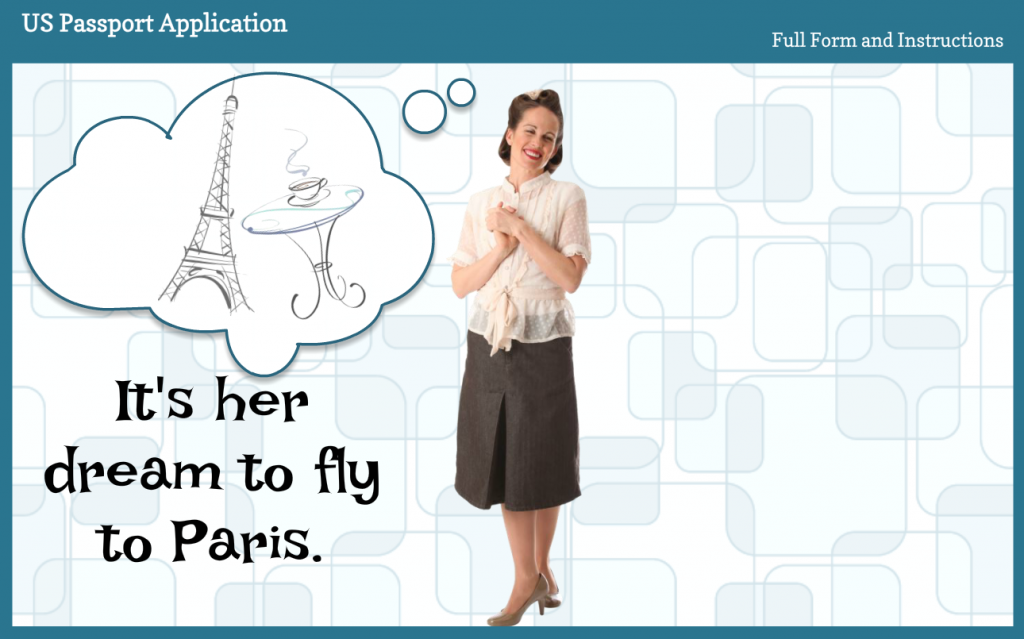
After: A Paris-Bound Jet Guides You

After: A Paris-Bound Jet Guides You

One of my favorite features in Storyline 2 is the slider for its ease of use and power to deliver a lot of information in a compact way.

I knew it would be perfect to get the entire application on one screen where the user could see everything from a high-level overview to a mid-level peek to detailed animations showing how to fill it out – simply by sliding the Paris-bound jet down the runway.

The thing is, you could still create this basic design in Storyline 1 (using this layout for a more compact presentation and navigating via clicking or tapping) – but there’s something about the slider that makes things like this easier to ideate, create, and (on the learner end) use.

Updated Animations

John Hancock Would Be Proud of the Signature Animation

John Hancock Would Be Proud of the Signature Animation

The other feature-based update I made was to the animations. In the original I relied on a fade animation to bring in handwriting and typing, but being able to use the new built-in wipe animation improved the look and feel quite a bit, so I was happy about that.

See the Jet-On-the-Runway Slider!

Here’s the updated jet-fueled slider demo, and here’s the original demo for comparison. Enjoy – and bon voyage!

Filed Under: E-Learning Tagged With: Articulate Storyline, Characters, Context, Design Makeover, E-Learning Design, ELHChallenge, Instructional Design, Motivation, Show Your Work, Visual Design

How to Go Full-Screen & Lose the Player in Storyline

June 7, 2015 By Jackie Van Nice 10 Comments

How to Make Your E-Learning Big and Player-Free in Articulate Storyline

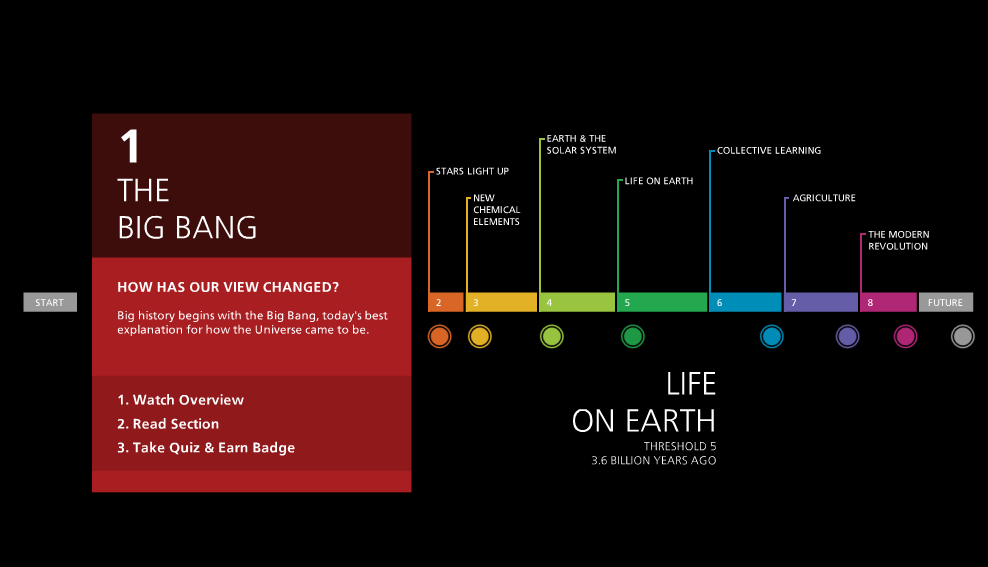
This timeline looks like it's floating; just on a black background.

This timeline looks like it’s floating in space.

She doesn't need a frame or player. Do you?

She doesn’t need a frame or a player. Do you?

I love making e-learning look like it’s floating in space without the traditional box-like appearance or standard player, and I guess I’m not alone since I get a lot of questions about how to do it.

This entire interaction is a wheel that  seems to spin in space: No player, no frame.

This entire interaction is a wheel that  seems to spin in space: No player, no frame.

Going Full-Screen

Going full-screen is simple. In Storyline go to Player > Other > Player Size > select “Scale player to fill browser window”. For the Browser Size option select “Display at user’s current browser size”. To get that wide-screen effect I choose Design > Story Size: 16:9.

Important tip about going full-screen: Be sure your content still looks great at full screen. No one wants to see pixelated, stretched, or otherwise tormented images. If you’re going to do it, plan your images accordingly.

This game seems to float because the blue page background matches the slide background.

This game seems to float because the blue page background matches the slide background.

Losing the Player

To lose the player, the bottom line is you’re going to turn off the player features and either make all of your player elements the same color as your page background or make them transparent. This is what I do:

Player > Features > deselect everything. Player > Colors & Effects > Page Background: I choose the same color as my slide background. Player > Colors & Effects > Color Scheme > Show Advanced Color Editing > Edit Item > Base: I make each of these elements 100% transparent. If you have other player elements (menus, buttons, etc.) that you want to blend in, change their colors or make them transparent using this same menu.

Need More Details?

If you’d like to know more about making your player disappear check out Articulate’s instructions for using a chromeless player. Then set your e-learning free!

Filed Under: E-Learning Tagged With: Articulate Storyline, E-Learning Design, ELHChallenge, Instructional Design, Professional Development, Show Your Work, Visual Design

Turkey Needs Photo Sliders!*

May 22, 2015 By Jackie Van Nice Leave a Comment

Select Image to Launch Demo

Select Image to Launch Demo

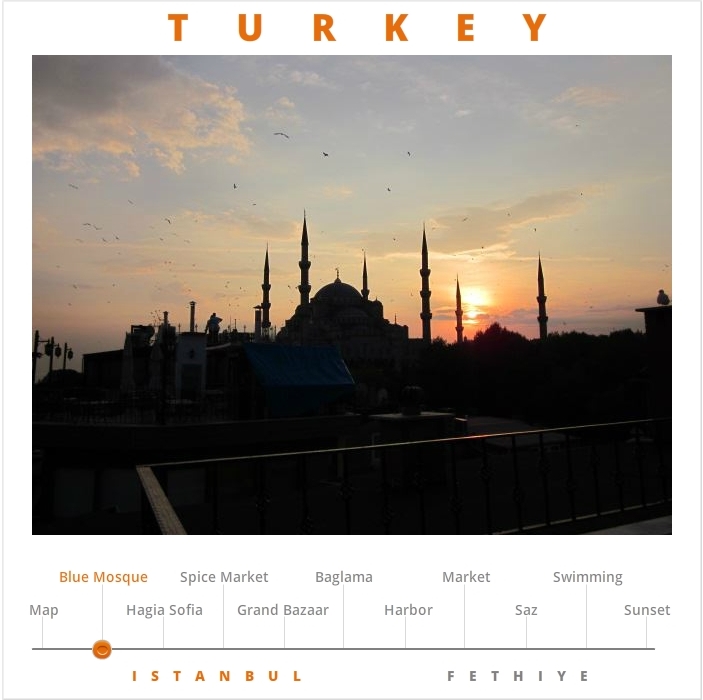
Blue Mosque, Istanbul

Blue Mosque, Istanbul

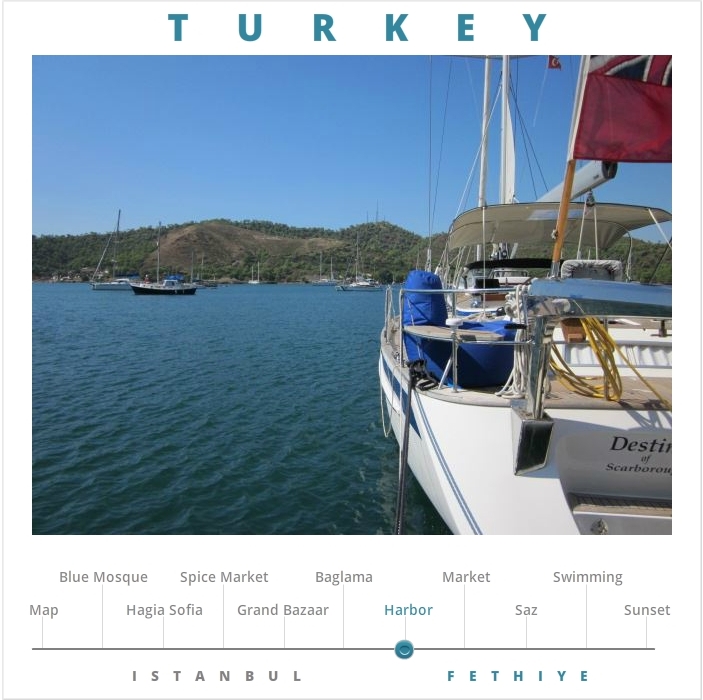
Fethiye, Turkey

Harbor, Fethiye

This week’s challenge is to create a photo slider. I’d never made one before, but with Storyline 2 and a few photos in hand, I was ready!

The Idea

To make the slider I trotted out some pics I took in Turkey. I wanted the demo to be simple, invite exploration, and be self-explanatory.

The Design

To establish the scene I started with an overview map of Turkey with my two photo locations highlighted.

I wanted the user to be able to see the topics of the photos up front so it’s easy to get a quick overview of the content and go directly to whatever they’d like.

Color provides the visual cue to tell you where you are. The title (Turkey), location (Map, Istanbul, or Fethiye) and the slider thumb all change color in unison depending on what you’re viewing.

I’m actually quite happy with the idea and the effect. It’s subtle in this demo, but I’d love to use it again.

Ready for Some Turkey?

You can see the demo right here!

*See: Mars Needs Women. These things happen after a long day.

Filed Under: E-Learning Tagged With: Articulate Storyline, E-Learning Design, ELHChallenge, Instructional Design, Show Your Work, Visual Design

Working Together to Create E-Learning

May 16, 2015 By Jackie Van Nice 6 Comments

Select Image to Launch Demo

Select Image to Launch Demo

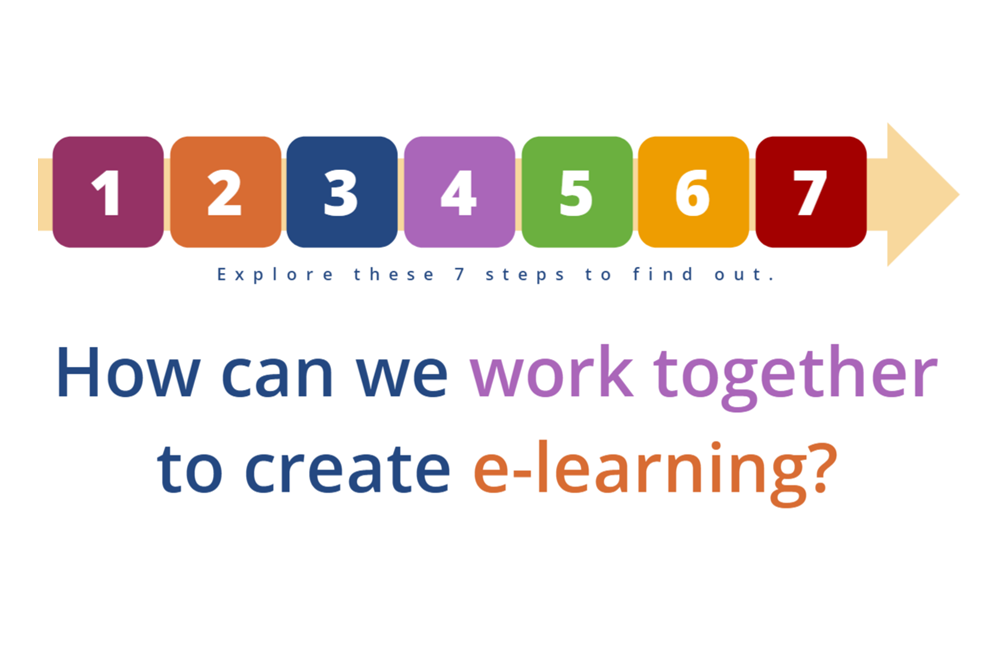
This week’s challenge is to show how you create online training. The process of how I work with clients is something I’m always having to explain, so it’s about time I added a quick explanation to my site.

Who Does What?

David Anderson suggested we could use the helpful post How to Create an Online Course in 7 Simple Steps as a launching point if we’d like. That process is quite similar to mine, but mine reflects exactly how I work and shows which steps I perform and which ones my clients perform.

My Steps

These are the steps. You’ll find more details in the demo – and you can see them written out on this page. It’s an abbreviated list since it’s only meant to be a quick (yet useful) overview. Each step can be an entire world unto itself:

  1. Set Goals

  2. Set Content

  3. Design It

  4. Storyboard It

  5. Build It

  6. Deliver It

  7. Evaluate It

See it in Action!

Here’s my e-learning process succinctly explained.

Select Image to Launch Demo

Select Image to Launch Demo

Filed Under: E-Learning, Working for Yourself Tagged With: Articulate Storyline, E-Learning Design, ELHChallenge, Freelancing, Instructional Design, Professional Development, Show Your Work

Checking Out Some Ergonomics

May 2, 2015 By Jackie Van Nice 2 Comments

Select Image to Launch Demo

Select Image to Launch Demo

This week’s Articulate challenge is to create an ergonomics training demo, so I sat up a little straighter and started brainstorming.

The Idea

I usually see ergonomic guidelines for sitting at a computer or lifting boxes, and wanted to find something different. I had some entertaining ideas, but then I realized the challenge comes down to images. With more time I could make my own, but it’s not that kind of week.

OSHA to the Rescue!

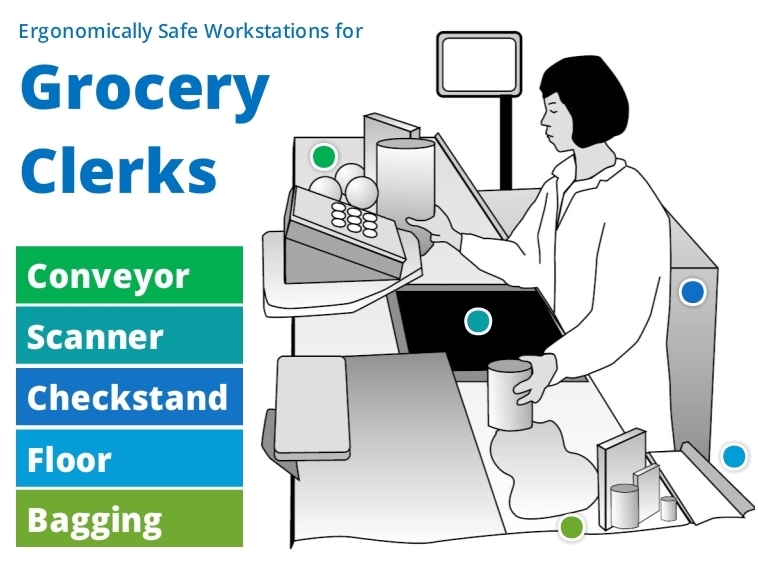
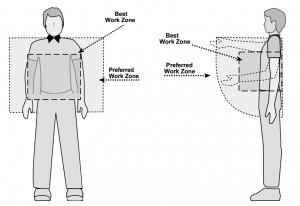
Luckily for me, after endless searching, I found a less-traveled topic and good images at OSHA. I included the full document as an attachment in the demo.

OSHA Ergonomic Guidelines

OSHA Ergonomic Guidelines for Retail Grocery Stores

OSHA Grocery Store Ergonomics

OSHA Grocery Store Ergonomics

. . . .

. . . .

. . . .

. . . .

. . . .

. . . .

. . . .

The Design

I kept it simple and let the images be the stars. It actually took me quite awhile to make all of the design decisions – (layout, what to present, how much to present, how to present it, colors, navigation, hover states, player choices, and on and on) – so though it’s simple, it took time.

See The Result!

What do grocery clerks’ toes really need? Check out the demo to find out!

Select Image to Launch Demo

Select Image to Launch Demo

Filed Under: E-Learning Tagged With: Articulate Storyline, E-Learning Design, ELHChallenge, Show Your Work

  • « Go to Previous Page
  • Go to page 1
  • Interim pages omitted …
  • Go to page 6
  • Go to page 7
  • Go to page 8
  • Go to page 9
  • Go to page 10
  • Interim pages omitted …
  • Go to page 19
  • Go to Next Page »

Primary Sidebar

Welcome!

I’m an award-winning instructional designer and proud Articulate Super Hero who creates e-learning for large organizations. I blog to explain my design process, share tips and tricks, and help others succeed. I hope you enjoy my refreshing gallery of e-learning goodness!

  • View jackietrains’s profile on Instagram
  • View jackievannice’s profile on LinkedIn

Tags

Articulate 360 Articulate Rise Articulate Storyline Articulate Studio Audio Avatars CCAF Characters Community Context Design Makeover Dials Drag & Drop E-Learning Design ELHChallenge Emotional Engagement Free Download Freelancing Games German Glossary Instructional Design Languages Makeover Menu Mobile Motivation Pantone Portfolio PowerPoint Professional Development Quick Reference Quizzes Sales Training Scenarios Show Your Work Software Training Storyline 360 Tables Technical Training Templates Typography Video Visual Design Voiceover

Top Posts & Pages

  • Portfolio
    Portfolio
  • Home
    Home
  • Sexual Harassment Training
    Sexual Harassment Training
  • Sales Mobility Software Training
    Sales Mobility Software Training
  • Navigating a Tasty Circular Menu
    Navigating a Tasty Circular Menu
  • Articulate's E-Learning Heroes Challenges
    Articulate's E-Learning Heroes Challenges
  • About
    About
  • Free Visual Storyboard Template
    Free Visual Storyboard Template
  • Free Storyline Templates
    Free Storyline Templates
  • How to Go Full-Screen & Lose the Player in Storyline
    How to Go Full-Screen & Lose the Player in Storyline

Copyright © 2026 Jackie Van Nice and E-Learning Goodness by Jackie Van Nice