• Skip to primary navigation
  • Skip to main content
  • Skip to primary sidebar

Jackie Van Nice

E-Learning Goodness by Jackie Van Nice

  • Home
  • About
  • Blog
  • Portfolio
    • Articulate’s ELH Challenges
    • Sales Mobility Software
    • Product Sales
    • Sexual Harassment
    • Code of Conduct
  • Freebies
    • Free Storyline Templates
    • Free PowerPoint Templates
    • Free Images
    • Freelancing Tips
    • Free Resources to Help Get Started in eLearning
  • Work With Me
  • Contact

E-Learning Design

I’m on Fakecation!

July 3, 2015 By Jackie Van Nice 12 Comments

Select Image to See Larger. Or Not.

Select Image to See Larger. Or Not.

It goes without saying this is David Anderson’s fault. First he leaves us bereft without a challenge this week, and a couple of weeks ago he challenged us to go on fakecation when I was too busy to play along. I’ve simply combined the two (lack of a challenge + a missed challenge) to create this beauty.

The Idea

The idea was to stick my face on top of someone else’s exciting photo.

The Process

In Fireworks I carved a hole in the photo where the real skydiver’s face used to be, then I put mine in its place. It’s franken-photo 101.

Enjoy! Or Not!

You can see the giant version here, but I think you’re way better off getting out there to enjoy your own real vacation. Have a safe and happy holiday!
Filed Under: E-Learning Tagged With: Articulate Storyline, E-Learning Design, ELHChallenge, Show Your Work, Visual Design

Buttoned-Down Design (+Free Storyline File!)

June 26, 2015 By Jackie Van Nice 11 Comments

Select Image to Launch Demo

Select Image to Launch Demo

This week’s challenge is to create some cool button styles. My goal was to keep it quick and do something I haven’t done before. Not hard since I usually give my buttons short shrift.

The Idea

I simply wanted to see if I could figure out how to make something like David Anderson’s cool button example.

So I Did a Version Starting In PowerPoint…

Since it looked to me like cutout shapes were involved, I started in PowerPoint to create them, then essentially animated them in Storyline.

They were fine, but I wasn’t thrilled because they weren’t buttons you could easily copy, paste, and edit.

Then Kortenbosch Shared a Little Something…

Once Jeff Kortenbosch posted his button challenge entry, along with a fabulous how-to video, I decided to see if I could make better buttony buttons like he did – natively in Storyline.

Turns out I could. Thank you, Jeff!

Select Image to Launch Demo

Select Image to Launch Demo

Check ‘Em Out!

So that’s what happened. If you’d like to see my result – version 2! – you can see them right here!

Download The Free File!

If you’d like to use my updated Storyline buttons, feel free to grab the customizable file. The download page is right here.

Filed Under: E-Learning Tagged With: Articulate Storyline, Context, E-Learning Design, ELHChallenge, Show Your Work, Visual Design

Storyline 1 to 2: Passport Makeover Edition

June 24, 2015 By Jackie Van Nice 13 Comments

Select Image to Launch (New) Demo

Select Image to Launch (New) Demo

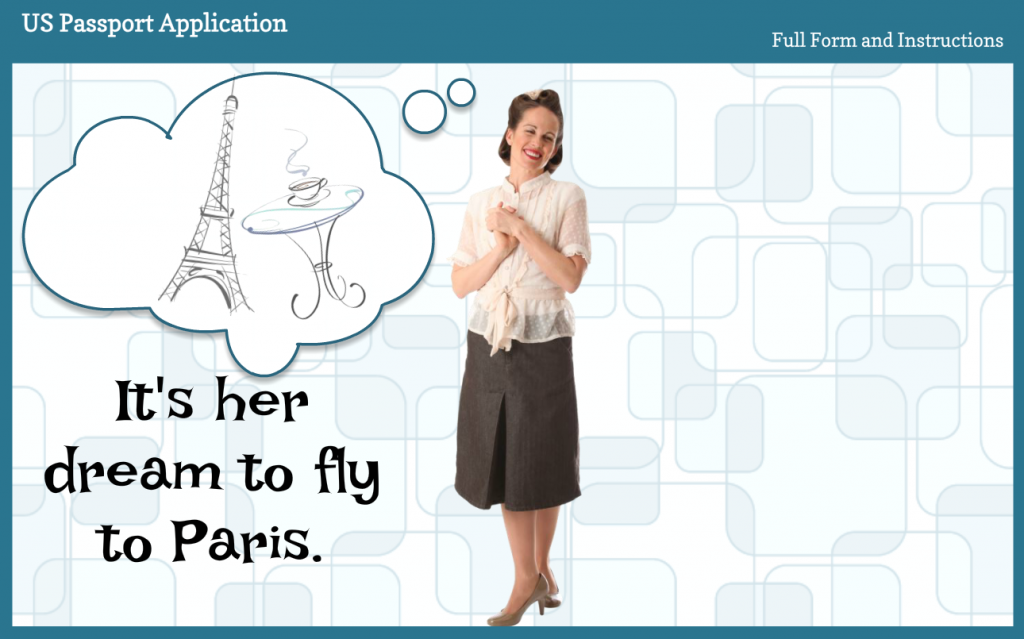
I was always fond of this little passport how-to I did in Storyline 1, but when Articulate was kind enough to feature it on their E-Learning Examples page recently and people seemed to like it – it got me thinking about how I could update it using Storyline 2’s great features.

Navigation: Before & After

Before: A Tab-Based Layout

Before: A Tab-Based Layout

After: A Paris-Bound Jet Guides You

After: A Paris-Bound Jet Guides You

One of my favorite features in Storyline 2 is the slider for its ease of use and power to deliver a lot of information in a compact way.

I knew it would be perfect to get the entire application on one screen where the user could see everything from a high-level overview to a mid-level peek to detailed animations showing how to fill it out – simply by sliding the Paris-bound jet down the runway.

The thing is, you could still create this basic design in Storyline 1 (using this layout for a more compact presentation and navigating via clicking or tapping) – but there’s something about the slider that makes things like this easier to ideate, create, and (on the learner end) use.

Updated Animations

John Hancock Would Be Proud of the Signature Animation

John Hancock Would Be Proud of the Signature Animation

The other feature-based update I made was to the animations. In the original I relied on a fade animation to bring in handwriting and typing, but being able to use the new built-in wipe animation improved the look and feel quite a bit, so I was happy about that.

See the Jet-On-the-Runway Slider!

Here’s the updated jet-fueled slider demo, and here’s the original demo for comparison. Enjoy – and bon voyage!

Filed Under: E-Learning Tagged With: Articulate Storyline, Characters, Context, Design Makeover, E-Learning Design, ELHChallenge, Instructional Design, Motivation, Show Your Work, Visual Design

How to Go Full-Screen & Lose the Player in Storyline

June 7, 2015 By Jackie Van Nice 10 Comments

How to Make Your E-Learning Big and Player-Free in Articulate Storyline

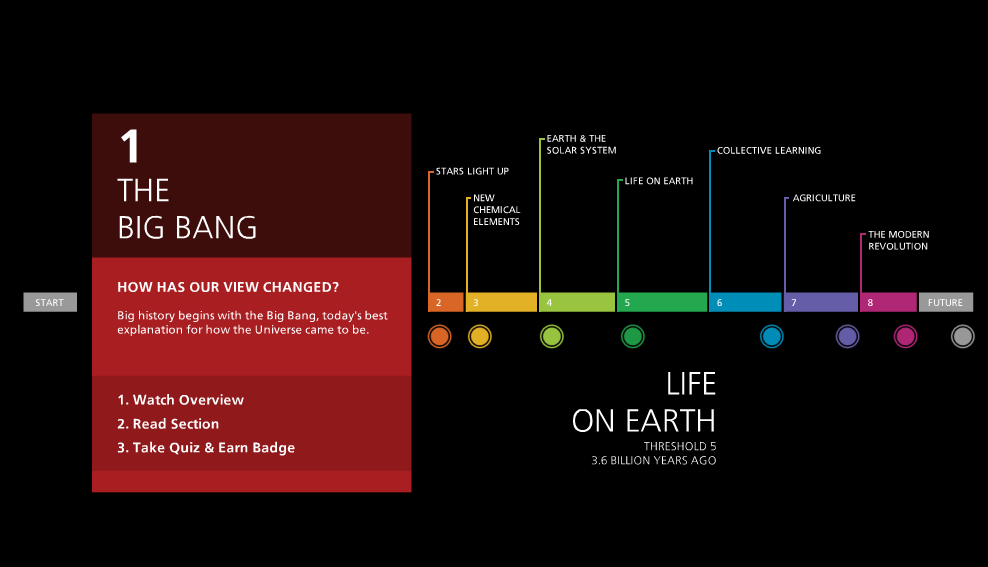
This timeline looks like it's floating; just on a black background.

This timeline looks like it’s floating in space.

She doesn't need a frame or player. Do you?

She doesn’t need a frame or a player. Do you?

I love making e-learning look like it’s floating in space without the traditional box-like appearance or standard player, and I guess I’m not alone since I get a lot of questions about how to do it.

This entire interaction is a wheel that  seems to spin in space: No player, no frame.

This entire interaction is a wheel that  seems to spin in space: No player, no frame.

Going Full-Screen

Going full-screen is simple. In Storyline go to Player > Other > Player Size > select “Scale player to fill browser window”. For the Browser Size option select “Display at user’s current browser size”. To get that wide-screen effect I choose Design > Story Size: 16:9.

Important tip about going full-screen: Be sure your content still looks great at full screen. No one wants to see pixelated, stretched, or otherwise tormented images. If you’re going to do it, plan your images accordingly.

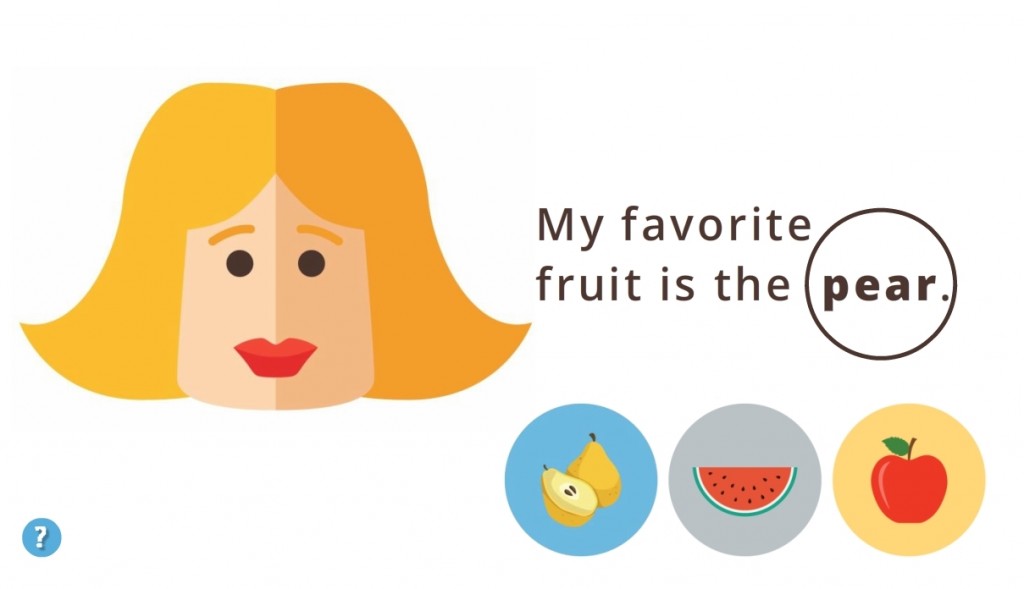
This game seems to float because the blue page background matches the slide background.

This game seems to float because the blue page background matches the slide background.

Losing the Player

To lose the player, the bottom line is you’re going to turn off the player features and either make all of your player elements the same color as your page background or make them transparent. This is what I do:

Player > Features > deselect everything. Player > Colors & Effects > Page Background: I choose the same color as my slide background. Player > Colors & Effects > Color Scheme > Show Advanced Color Editing > Edit Item > Base: I make each of these elements 100% transparent. If you have other player elements (menus, buttons, etc.) that you want to blend in, change their colors or make them transparent using this same menu.

Need More Details?

If you’d like to know more about making your player disappear check out Articulate’s instructions for using a chromeless player. Then set your e-learning free!

Filed Under: E-Learning Tagged With: Articulate Storyline, E-Learning Design, ELHChallenge, Instructional Design, Professional Development, Show Your Work, Visual Design

4 (More) Free E-Learning Tools I Use

May 31, 2015 By Jackie Van Nice 12 Comments

I shared 4  Free E-Learning* Tools I Use exactly one year ago as part of an Articulate challenge, but the world has moved on and so have I. What happened? Redbooth got rid of their free option, Microsoft Clipart took a powder, Pinterest I rarely have time for, and I don’t use free fonts anymore, so here are my current (free!) fab four:


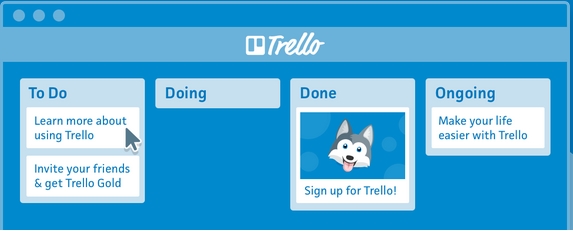
1. Trello: Task & Project Management

Trello

I resisted Trello for the longest time, but the sheer simplicity of it won me over. At the moment it’s my primary project management tool. There’s nothing better than seeing every project at a glance and being able to quickly and easily share with others. I’m quite happy with the free version for both personal and work projects. I use it daily in my desktop browser, iPad, iPhone, and AppleWatch and it syncs beautifully. Love.


2. Toggl: Time Tracking

Toggl

Speaking of love and seamless syncing, Toggl for time tracking may have won even more real estate in my heart than Trello has. When I want to start or stop the clock I grab my iPhone and tap the app or do the same in a desktop browser. I control the same running task on either. The reports are perfect for my needs, it’s free for teams up to 5, and includes unlimited clients and projects. Wish I’d been using this for yeeeeeeeears.


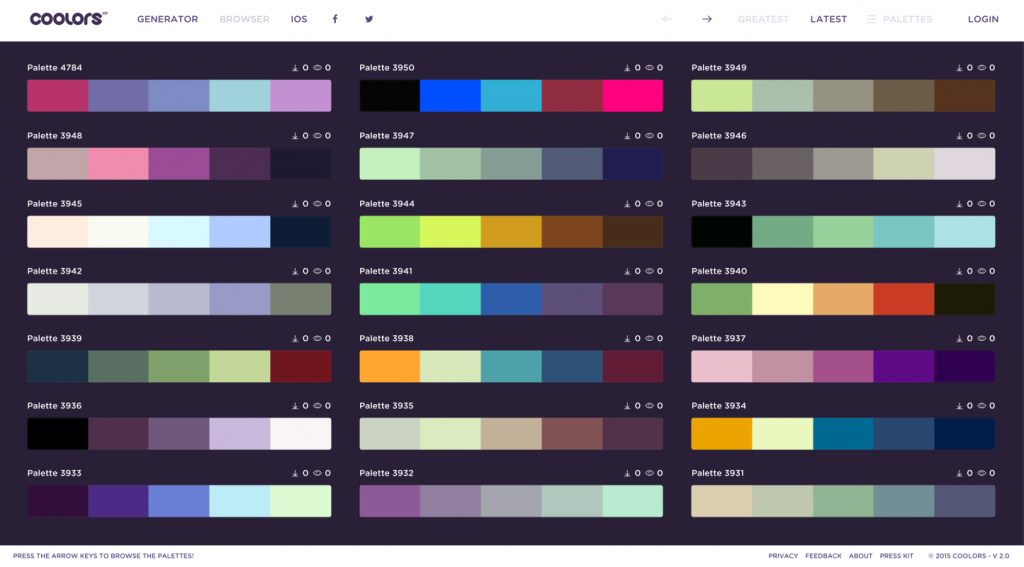
3. Coolors: Color Scheme Generator

Coolors

This one is brand new to me, but the moment I saw David Anderson’s tweet about it I checked it out and was sold. (In a free kind of way.) With Coolors I love that you can quickly pull down existing palettes or generate your own in a way that even non-adept color scheme generators like me can handle. I’m also crazy about the fact that I can instantly export my found or generated palettes to PNG, PDF, or URL. It’s my new go-to for colors. (There’s a cool-looking iPhone/iPad app for 99 cents but I haven’t played with it yet.)

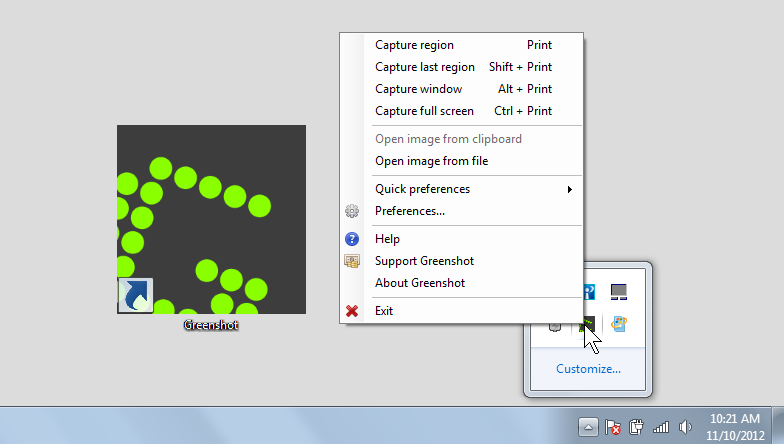
4. Greenshot: Screen Captures

Greenshot

For many years I used Snag-It for screen captures. A year or so ago it decided it didn’t want to play nicely with others and was continually crashing and not responding to fixes. I had to quickly find a substitute, which led me to free, open-source Greenshot. I’ve never had it crash, it’s not a resource hog, and it works reliably, quietly, and beautifully every time.


So those are my latest go-to tools that cost nothing at all. If any of them sound good to you, they might be worth a try!

*I use them for e-learning but they’re clearly great for project management, design, or general organization.

Filed Under: Working for Yourself Tagged With: E-Learning Design, Professional Development, Show Your Work

  • « Go to Previous Page
  • Go to page 1
  • Interim pages omitted …
  • Go to page 6
  • Go to page 7
  • Go to page 8
  • Go to page 9
  • Go to page 10
  • Interim pages omitted …
  • Go to page 22
  • Go to Next Page »

Primary Sidebar

Welcome!

I’m an award-winning instructional designer and proud Articulate Super Hero who creates e-learning for large organizations. I blog to explain my design process, share tips and tricks, and help others succeed. I hope you enjoy my refreshing gallery of e-learning goodness!

  • View jackietrains’s profile on Instagram
  • View jackievannice’s profile on LinkedIn

Tags

Articulate 360 Articulate Rise Articulate Storyline Articulate Studio Audio Avatars CCAF Characters Community Context Design Makeover Dials Drag & Drop E-Learning Design ELHChallenge Emotional Engagement Free Download Freelancing Games German Glossary Instructional Design Languages Makeover Menu Mobile Motivation Pantone Portfolio PowerPoint Professional Development Quick Reference Quizzes Sales Training Scenarios Show Your Work Software Training Storyline 360 Tables Technical Training Templates Typography Video Visual Design Voiceover

Top Posts & Pages

  • Portfolio
    Portfolio
  • Home
    Home
  • Sexual Harassment Training
    Sexual Harassment Training
  • Sales Mobility Software Training
    Sales Mobility Software Training
  • Navigating a Tasty Circular Menu
    Navigating a Tasty Circular Menu
  • Articulate's E-Learning Heroes Challenges
    Articulate's E-Learning Heroes Challenges
  • About
    About
  • Free Visual Storyboard Template
    Free Visual Storyboard Template
  • Free Storyline Templates
    Free Storyline Templates
  • How to Go Full-Screen & Lose the Player in Storyline
    How to Go Full-Screen & Lose the Player in Storyline

Copyright © 2026 Jackie Van Nice and E-Learning Goodness by Jackie Van Nice